> ## Documentation Index
> Fetch the complete documentation index at: https://docs.apiyi.com/llms.txt
> Use this file to discover all available pages before exploring further.
# How to Get Satisfying Images
> A real image-editing case study explaining the fundamental difference between the web app and the API, where single-call variance comes from, and four practical strategies: better prompts, retries, switching models, and isolating issues with a test tool.
Getting an unsatisfying image on the first try is normal — **unsatisfying ≠ bad model, and definitely ≠ bad gateway**. This page walks through a real customer case to explain why the same model behaves differently in the web app versus the API, where the variance actually comes from, and four strategies that measurably improve your success rate.
## Case Study: an Edit That Got the Color Wrong
The task: a product sheet of a toy tea set, with the two "Cups" in the lower left (one gray, one green) marked by a red box. The prompt:
> Change the items in the red box to black, remove the red box, keep everything else unchanged
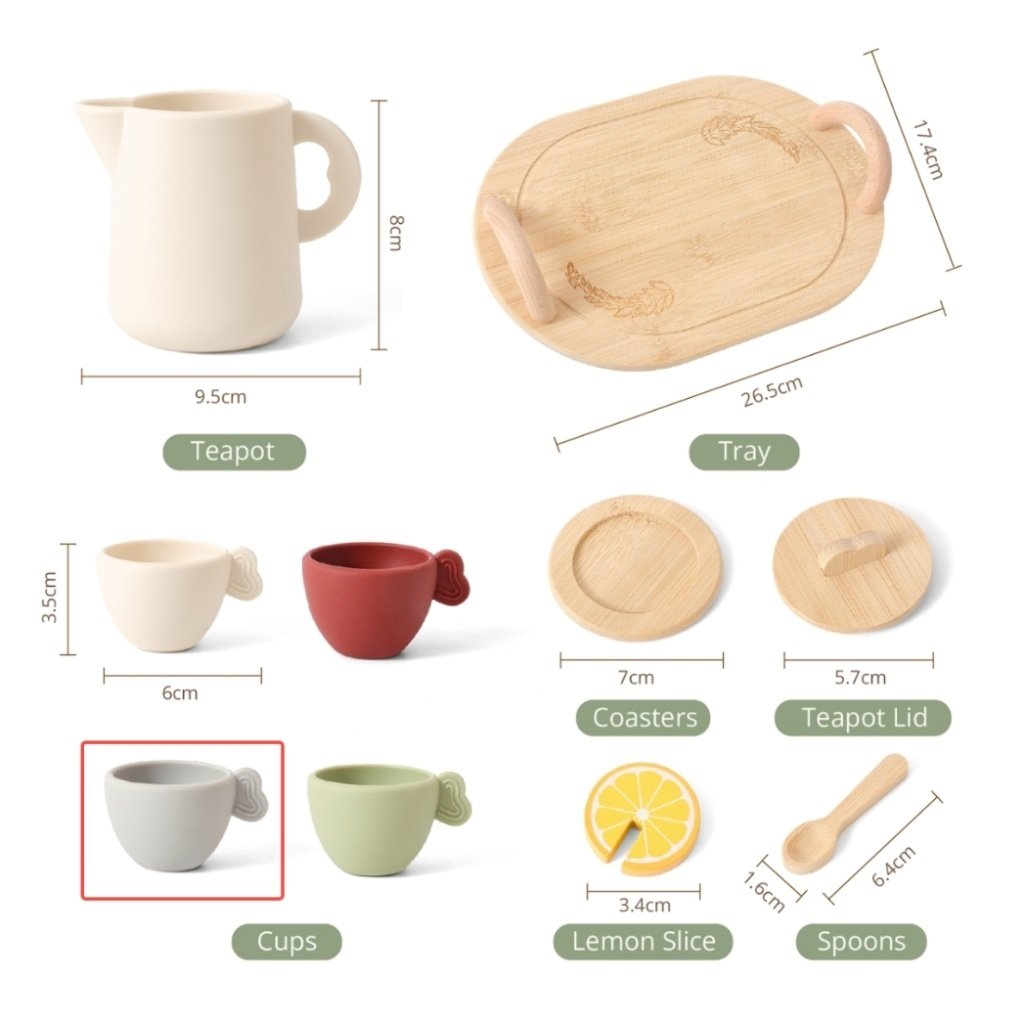 The customer called `gemini-3.1-flash-image` (Nano Banana 2) via the API and got this:
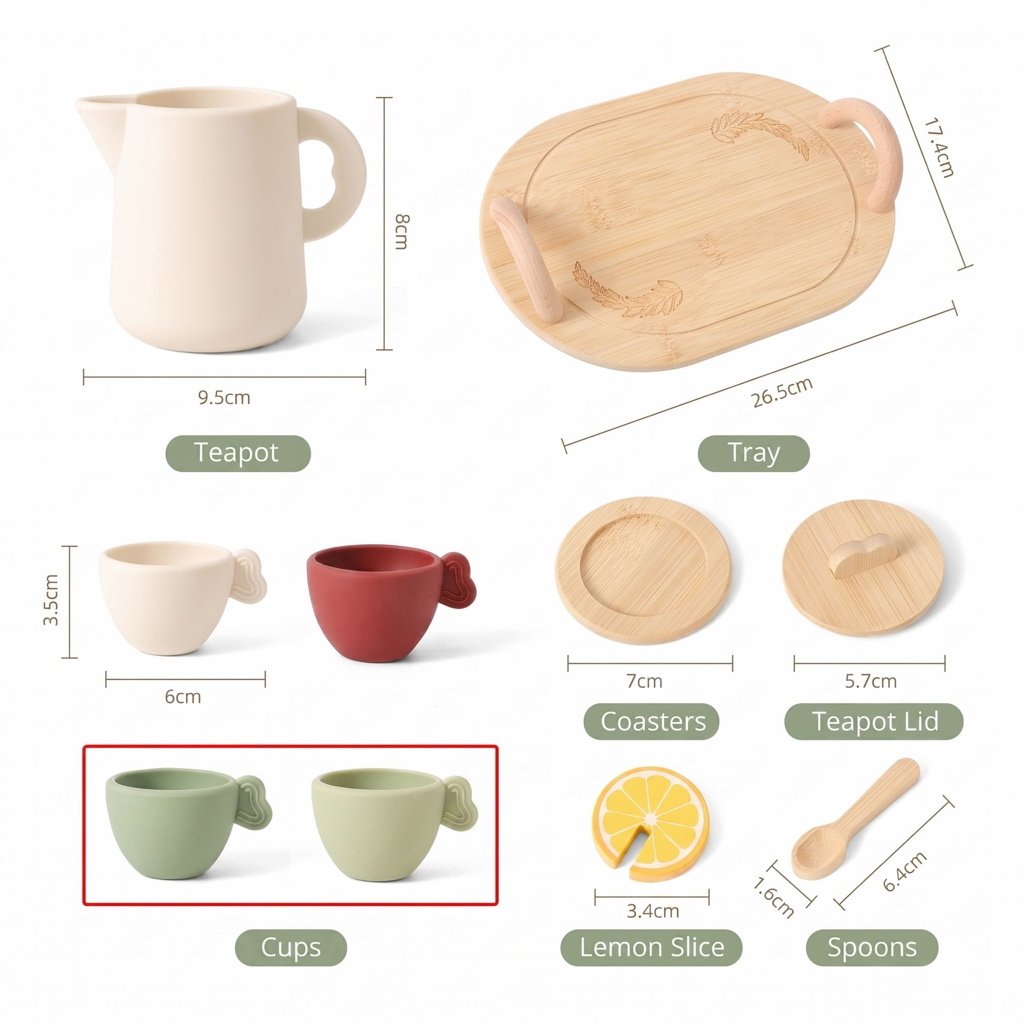 **The color came out wrong** — black was requested, but the result shows two green cups with the red box still in place. Meanwhile, the customer ran the same edit with the same model on the Gemini web app (`gemini.google.com`) and it worked well. Their feedback:
> The API output is completely different from the official (web) output — it feels like the API just doesn't understand as well.
The frustration is real, but the attribution needs correcting. Let's break it down.
## First, Understand: the Web App Is an Agent; the API Is a Single Atomic Call
Comparing `gemini.google.com` results directly against a raw API call is not an apples-to-apples comparison:
| | Gemini web app | Direct API call |
| ---------------- | -------------------------------------------------------------------------------- | ------------------------------------ |
| Product form | **Full agent** | **Single atomic call** |
| Your prompt | May be **rewritten, expanded, enhanced** by the system before reaching the model | Reaches the model **verbatim** |
| Execution | Possibly multi-step orchestration, internal retries/selection | One sampling pass, returned directly |
| Underlying model | gemini-3.1-flash-image | gemini-3.1-flash-image (identical) |
Same model, two product forms. The web app polishes your casual instruction into a form the model executes more reliably — with the API, **that polishing is your job** (and that's precisely the API's value: everything is controllable, reproducible, and integrable).
So "the web app works better" mostly comes from **pipeline differences** — it does not support the conclusion that "the API understands less". The API receives your raw, unprocessed prompt, so results naturally depend more on the prompt's own quality.
## Single-Call Variance Is Inherent to Generative Models
We retried the task with the **exact same prompt + image** on the [imagen.apiyi.com](https://imagen.apiyi.com) test tool: **it succeeded on the first try** — cups turned black, red box removed, everything else untouched.
To be clear: the only difference between imagen.apiyi.com and a raw API call is a built-in "generate an image" intent prompt. It helps the model commit to producing an image, but has nothing to do with whether this case's precise edit succeeds — **the tool did not succeed because it "added secret sauce"**.
Same input, same model, same gateway — one failure, one success. What does that tell us?
**A generative model's individual outputs are inherently stochastic.** Every call is an independent sampling pass, and compound instructions (locate by box + recolor + remove box + preserve everything else) are exactly the kind that occasionally slip in an individual sample. This is not a gateway problem, nor an API that got "dumbed down" — it's the model's inherent variance.
Once you understand where the variance comes from, the strategies are clear — here are four, ordered by cost-effectiveness.
## Strategy 1: Improve the Prompt
The less ambiguous and more executable the prompt, the higher the single-call success rate. Using this case as the example:
**Original prompt** (casual, relies on the model to infer):
> Change the items in the red box to black, remove the red box, keep everything else unchanged
**Improvements**:
| Technique | Original | Improved |
| ------------------------------ | -------------------------------- | ------------------------------------------------------------------------------------------- |
| Concrete nouns over references | "the items in the red box" | "the **two cups** inside the red box" |
| Be specific about color | "change to black" | "change to **matte pure black**, preserving the original material texture" |
| Enumerate what to preserve | "keep everything else unchanged" | "keep the colors, positions, and text labels of **all other items** in the image unchanged" |
| Number the actions explicitly | Mixed into one sentence | "Do two things: ① recolor the two cups to black; ② delete the red box outline" |
**Improved full prompt example**:
> Edit this image and do two things: ① change the two cups inside the red box to matte pure black, preserving their original material texture and shape; ② delete the red box outline itself. Keep the colors, positions, dimension labels, and text of all other items in the image completely unchanged.
General principle: **change one category of thing at a time**. If the edit involves many actions (recolor + replace background + add text), split it into multiple editing rounds — each round's success rate will be significantly higher than one compound instruction.
### Not Sure How to Improve It? Let an AI Rewrite It for You
Improving the prompt is itself a job you can hand to AI — simply send three things together to a well-known, reliable AI chat product (such as `chatgpt.com` or `gemini.google.com`):
1. **The original prompt** (pasted verbatim);
2. **A description of the problem** (e.g. "asked for black, got green, and the red box wasn't removed");
3. **The before/after comparison** (upload the original image and the actual output together).
Then ask it to "rewrite this into a more precise, less ambiguous image-editing prompt based on this failed result" — one round usually yields a noticeably better version.
If you can't reach those sites, APIYI covers the AI-chat need just as well: connect our API to a chat client like **Cherry Studio** or **Chatbox** — see the tutorials under "Scenarios - Chat" in the docs:
* [Cherry Studio Setup Tutorial](/en/scenarios/chat/cherry-studio)
* [Chatbox Setup Tutorial](/en/scenarios/chat/chatbox)
## Strategy 2: Retry on Failure
Since failures come from single-sample variance, **retrying is itself an effective remedy** — sending the identical request again often just works (exactly what happened in this case).
* Budget 1–2 automatic retries in your business code for "result doesn't match expectations";
* Distinguish two failure types: "an image came back but the edit is wrong" versus "no image at all". The latter (HTTP 200 but no image) is usually a content-moderation block — see the [Gemini Image API Error Handling Guide](/en/api-capabilities/gemini-image-error-handling).
## Strategy 3: Switch Models
For this case we tested other models with the identical prompt + image — **all succeeded on the first try**:
| Model | Result |
| -------------------------------------- | ------------------- |
| `gemini-3-pro-image` (Nano Banana Pro) | ✅ First-try success |
| `gemini-3.1-flash-image-lite` | ✅ First-try success |
| `gpt-image-2` series | ✅ First-try success |
Different models are good at different instruction types. A task that keeps failing on one model may pass immediately on another. On the APIYI unified gateway, switching models means changing only the `model` parameter (same key, same endpoint) — nearly zero cost. **Make "switch models" a first-class step in your image workflow — it's a legitimate strategy for reaching the goal, not a compromise.**
In practice, organize a "fast first, strong later" ladder:
1. Default to a fast, inexpensive model (e.g. `gemini-3.1-flash-image`) for routine tasks;
2. When a precise-editing task fails 1–2 times, automatically escalate to `gemini-3-pro-image` or the `gpt-image-2` series and retry;
3. If nothing works, go back and rework the prompt.
## Strategy 4: Isolate the Problem with a Test Tool First
When debugging "why is the output wrong", isolate the variables first. [imagen.apiyi.com](https://imagen.apiyi.com) lets you validate the "prompt + image" combination quickly, without writing code:
* **Fails on the tool too** → most likely a prompt/task issue; go back to Strategy 1, or switch models per Strategy 3;
* **Succeeds on the tool, fails in your code** → check your code: is the image fully uploaded, are the parameters correct, is the prompt truncated or mangled by escaping;
* **Works sometimes, fails sometimes** → that's sampling variance; add retries per Strategy 2.
This keeps you from misdiagnosing a prompt issue as a gateway issue and saves a lot of detours.
## Quick Reference
* **Web app ≠ API**: the web app is a full agent with prompt rewriting and multi-step orchestration; the API is a single atomic call with your verbatim prompt — the perceived gap mostly comes from the pipeline, not from "the API understanding less".
* **Random single-call variance** is inherent to generative models — one failure says nothing about the model or the gateway.
* **Strategy 1, improve the prompt**: concrete nouns, specific colors, enumerate what to preserve, number the actions — change one category of thing at a time.
* **Strategy 2, retry**: budget 1–2 retries for "wrong edit"; "no image" is a different problem (see the error handling guide).
* **Strategy 3, switch models**: in this case `gemini-3-pro-image`, `gemini-3.1-flash-image-lite`, and the `gpt-image-2` series all succeeded first try; on a unified gateway it's a one-parameter change.
* **Strategy 4, use the test tool to isolate**: validate "prompt + image" on imagen.apiyi.com first, to tell prompt issues, code issues, and sampling variance apart.
## Related Docs
* [Gemini Image API Error Handling Guide](/en/api-capabilities/gemini-image-error-handling)
* [Image Compression & Output Resolution](/en/api-capabilities/image-compression-resolution)
* [Nano Banana Series Developer Guide](/en/api-capabilities/nano-banana-dev-guide)
**The color came out wrong** — black was requested, but the result shows two green cups with the red box still in place. Meanwhile, the customer ran the same edit with the same model on the Gemini web app (`gemini.google.com`) and it worked well. Their feedback:
> The API output is completely different from the official (web) output — it feels like the API just doesn't understand as well.
The frustration is real, but the attribution needs correcting. Let's break it down.
## First, Understand: the Web App Is an Agent; the API Is a Single Atomic Call
Comparing `gemini.google.com` results directly against a raw API call is not an apples-to-apples comparison:
| | Gemini web app | Direct API call |
| ---------------- | -------------------------------------------------------------------------------- | ------------------------------------ |
| Product form | **Full agent** | **Single atomic call** |
| Your prompt | May be **rewritten, expanded, enhanced** by the system before reaching the model | Reaches the model **verbatim** |
| Execution | Possibly multi-step orchestration, internal retries/selection | One sampling pass, returned directly |
| Underlying model | gemini-3.1-flash-image | gemini-3.1-flash-image (identical) |
Same model, two product forms. The web app polishes your casual instruction into a form the model executes more reliably — with the API, **that polishing is your job** (and that's precisely the API's value: everything is controllable, reproducible, and integrable).
So "the web app works better" mostly comes from **pipeline differences** — it does not support the conclusion that "the API understands less". The API receives your raw, unprocessed prompt, so results naturally depend more on the prompt's own quality.
## Single-Call Variance Is Inherent to Generative Models
We retried the task with the **exact same prompt + image** on the [imagen.apiyi.com](https://imagen.apiyi.com) test tool: **it succeeded on the first try** — cups turned black, red box removed, everything else untouched.
To be clear: the only difference between imagen.apiyi.com and a raw API call is a built-in "generate an image" intent prompt. It helps the model commit to producing an image, but has nothing to do with whether this case's precise edit succeeds — **the tool did not succeed because it "added secret sauce"**.
Same input, same model, same gateway — one failure, one success. What does that tell us?
**A generative model's individual outputs are inherently stochastic.** Every call is an independent sampling pass, and compound instructions (locate by box + recolor + remove box + preserve everything else) are exactly the kind that occasionally slip in an individual sample. This is not a gateway problem, nor an API that got "dumbed down" — it's the model's inherent variance.
Once you understand where the variance comes from, the strategies are clear — here are four, ordered by cost-effectiveness.
## Strategy 1: Improve the Prompt
The less ambiguous and more executable the prompt, the higher the single-call success rate. Using this case as the example:
**Original prompt** (casual, relies on the model to infer):
> Change the items in the red box to black, remove the red box, keep everything else unchanged
**Improvements**:
| Technique | Original | Improved |
| ------------------------------ | -------------------------------- | ------------------------------------------------------------------------------------------- |
| Concrete nouns over references | "the items in the red box" | "the **two cups** inside the red box" |
| Be specific about color | "change to black" | "change to **matte pure black**, preserving the original material texture" |
| Enumerate what to preserve | "keep everything else unchanged" | "keep the colors, positions, and text labels of **all other items** in the image unchanged" |
| Number the actions explicitly | Mixed into one sentence | "Do two things: ① recolor the two cups to black; ② delete the red box outline" |
**Improved full prompt example**:
> Edit this image and do two things: ① change the two cups inside the red box to matte pure black, preserving their original material texture and shape; ② delete the red box outline itself. Keep the colors, positions, dimension labels, and text of all other items in the image completely unchanged.
General principle: **change one category of thing at a time**. If the edit involves many actions (recolor + replace background + add text), split it into multiple editing rounds — each round's success rate will be significantly higher than one compound instruction.
### Not Sure How to Improve It? Let an AI Rewrite It for You
Improving the prompt is itself a job you can hand to AI — simply send three things together to a well-known, reliable AI chat product (such as `chatgpt.com` or `gemini.google.com`):
1. **The original prompt** (pasted verbatim);
2. **A description of the problem** (e.g. "asked for black, got green, and the red box wasn't removed");
3. **The before/after comparison** (upload the original image and the actual output together).
Then ask it to "rewrite this into a more precise, less ambiguous image-editing prompt based on this failed result" — one round usually yields a noticeably better version.
If you can't reach those sites, APIYI covers the AI-chat need just as well: connect our API to a chat client like **Cherry Studio** or **Chatbox** — see the tutorials under "Scenarios - Chat" in the docs:
* [Cherry Studio Setup Tutorial](/en/scenarios/chat/cherry-studio)
* [Chatbox Setup Tutorial](/en/scenarios/chat/chatbox)
## Strategy 2: Retry on Failure
Since failures come from single-sample variance, **retrying is itself an effective remedy** — sending the identical request again often just works (exactly what happened in this case).
* Budget 1–2 automatic retries in your business code for "result doesn't match expectations";
* Distinguish two failure types: "an image came back but the edit is wrong" versus "no image at all". The latter (HTTP 200 but no image) is usually a content-moderation block — see the [Gemini Image API Error Handling Guide](/en/api-capabilities/gemini-image-error-handling).
## Strategy 3: Switch Models
For this case we tested other models with the identical prompt + image — **all succeeded on the first try**:
| Model | Result |
| -------------------------------------- | ------------------- |
| `gemini-3-pro-image` (Nano Banana Pro) | ✅ First-try success |
| `gemini-3.1-flash-image-lite` | ✅ First-try success |
| `gpt-image-2` series | ✅ First-try success |
Different models are good at different instruction types. A task that keeps failing on one model may pass immediately on another. On the APIYI unified gateway, switching models means changing only the `model` parameter (same key, same endpoint) — nearly zero cost. **Make "switch models" a first-class step in your image workflow — it's a legitimate strategy for reaching the goal, not a compromise.**
In practice, organize a "fast first, strong later" ladder:
1. Default to a fast, inexpensive model (e.g. `gemini-3.1-flash-image`) for routine tasks;
2. When a precise-editing task fails 1–2 times, automatically escalate to `gemini-3-pro-image` or the `gpt-image-2` series and retry;
3. If nothing works, go back and rework the prompt.
## Strategy 4: Isolate the Problem with a Test Tool First
When debugging "why is the output wrong", isolate the variables first. [imagen.apiyi.com](https://imagen.apiyi.com) lets you validate the "prompt + image" combination quickly, without writing code:
* **Fails on the tool too** → most likely a prompt/task issue; go back to Strategy 1, or switch models per Strategy 3;
* **Succeeds on the tool, fails in your code** → check your code: is the image fully uploaded, are the parameters correct, is the prompt truncated or mangled by escaping;
* **Works sometimes, fails sometimes** → that's sampling variance; add retries per Strategy 2.
This keeps you from misdiagnosing a prompt issue as a gateway issue and saves a lot of detours.
## Quick Reference
* **Web app ≠ API**: the web app is a full agent with prompt rewriting and multi-step orchestration; the API is a single atomic call with your verbatim prompt — the perceived gap mostly comes from the pipeline, not from "the API understanding less".
* **Random single-call variance** is inherent to generative models — one failure says nothing about the model or the gateway.
* **Strategy 1, improve the prompt**: concrete nouns, specific colors, enumerate what to preserve, number the actions — change one category of thing at a time.
* **Strategy 2, retry**: budget 1–2 retries for "wrong edit"; "no image" is a different problem (see the error handling guide).
* **Strategy 3, switch models**: in this case `gemini-3-pro-image`, `gemini-3.1-flash-image-lite`, and the `gpt-image-2` series all succeeded first try; on a unified gateway it's a one-parameter change.
* **Strategy 4, use the test tool to isolate**: validate "prompt + image" on imagen.apiyi.com first, to tell prompt issues, code issues, and sampling variance apart.
## Related Docs
* [Gemini Image API Error Handling Guide](/en/api-capabilities/gemini-image-error-handling)
* [Image Compression & Output Resolution](/en/api-capabilities/image-compression-resolution)
* [Nano Banana Series Developer Guide](/en/api-capabilities/nano-banana-dev-guide)