> ## Documentation Index
> Fetch the complete documentation index at: https://docs.apiyi.com/llms.txt
> Use this file to discover all available pages before exploring further.
# Nano Banana OSS Group
> Nano Banana OSS (NB-OSS) beta group: image output is a URL instead of Base64, reducing transfer overhead and improving the experience. Best for scenarios where you use URLs directly.
## Background (Read First)
**What it is**: This is a beta group whose image output is a **URL** rather than Base64, which reduces Base64 transfer overhead and improves the customer experience. **Best for scenarios where you use the URL directly.** If you have no special needs and can handle Base64-encoded image output, we still recommend using the "Normal Default Group" or the "NanoBanana Enterprise Group".
**Supported models** (Nano Banana Pro and Gen 1):
* `gemini-3-pro-image-preview`
* `gemini-3.1-flash-image-preview`
* `gemini-2.5-flash-image`
## Getting Started
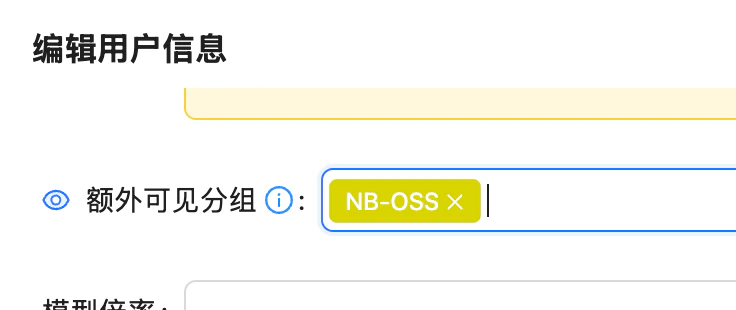
Contact an admin to enable the NB-OSS visible group for your account (add NB-OSS under "Edit User Info → Extra Visible Groups").
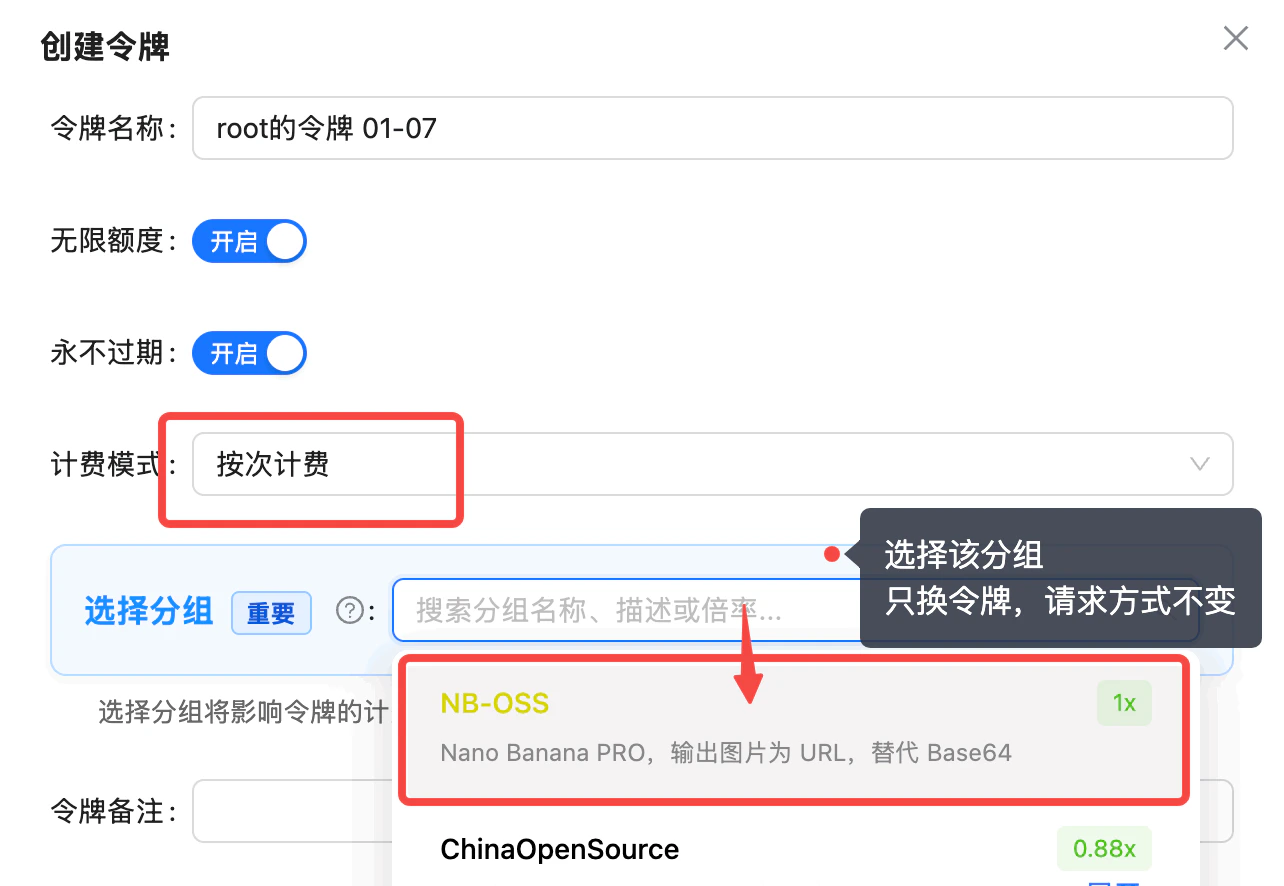
 When creating a token, set the billing model to "per-call billing" and select the **NB-OSS** group (Nano Banana PRO, image output as URL instead of Base64). You only swap the token; the request format stays the same.
 Swap in the token and run a test. **Your code needs to handle parsing URL output** — don't simply replace Base64; supporting both works best.
## Example Code
```bash theme={null}
curl --location 'https://api.apiyi.com/v1beta/models/gemini-3-pro-image-preview:generateContent' \
--header 'Authorization: Bearer sk-' \
--header 'Content-Type: application/json' \
--data '{
"contents": [
{
"parts": [
{
"fileData": {
"fileUri": "https://raw.githubusercontent.com/apiyi-api/ai-api-code-samples/refs/heads/main/Vision-API-OpenAI/otter.png",
"mimeType": "image/png"
}
},
{
"text": "add five dogs"
}
],
"role": "user"
}
],
"generationConfig": {"responseModalities": ["IMAGE"],
"imageConfig": {
"aspectRatio": "16:9",
"imageSize": "2K"
}},
"safetySettings": []
}' > output.json
```
### Output Example
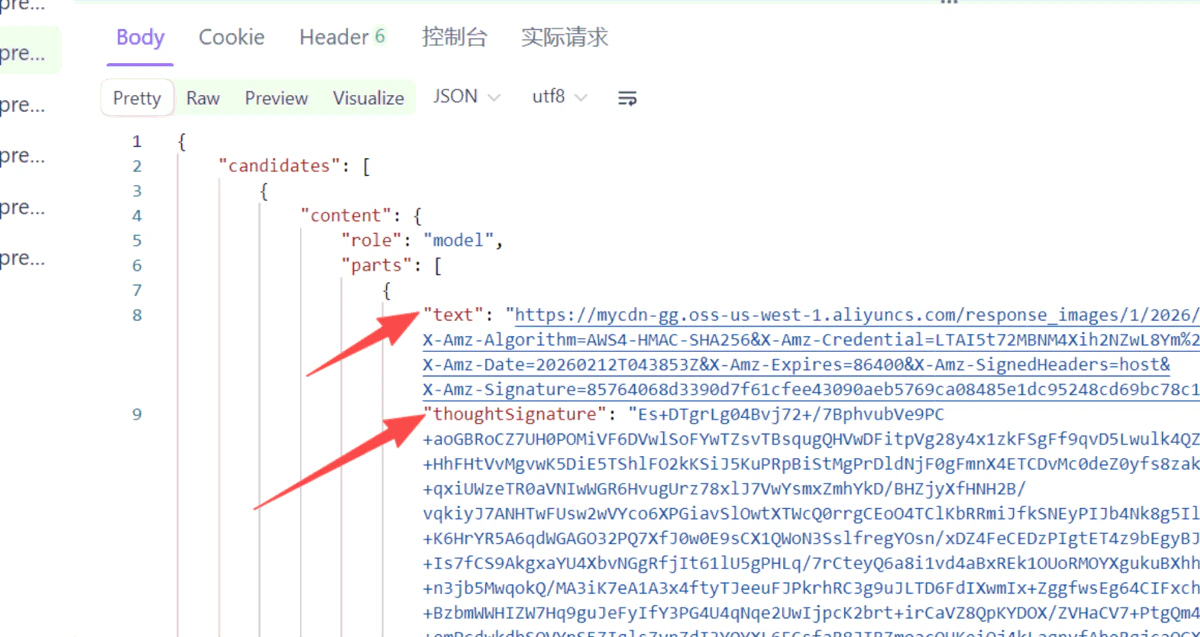
The image URL is in the `text` field, and the `thoughtSignature` below it is the base64 of the reasoning process.
Swap in the token and run a test. **Your code needs to handle parsing URL output** — don't simply replace Base64; supporting both works best.
## Example Code
```bash theme={null}
curl --location 'https://api.apiyi.com/v1beta/models/gemini-3-pro-image-preview:generateContent' \
--header 'Authorization: Bearer sk-' \
--header 'Content-Type: application/json' \
--data '{
"contents": [
{
"parts": [
{
"fileData": {
"fileUri": "https://raw.githubusercontent.com/apiyi-api/ai-api-code-samples/refs/heads/main/Vision-API-OpenAI/otter.png",
"mimeType": "image/png"
}
},
{
"text": "add five dogs"
}
],
"role": "user"
}
],
"generationConfig": {"responseModalities": ["IMAGE"],
"imageConfig": {
"aspectRatio": "16:9",
"imageSize": "2K"
}},
"safetySettings": []
}' > output.json
```
### Output Example
The image URL is in the `text` field, and the `thoughtSignature` below it is the base64 of the reasoning process.
 ### URL Won't Open?
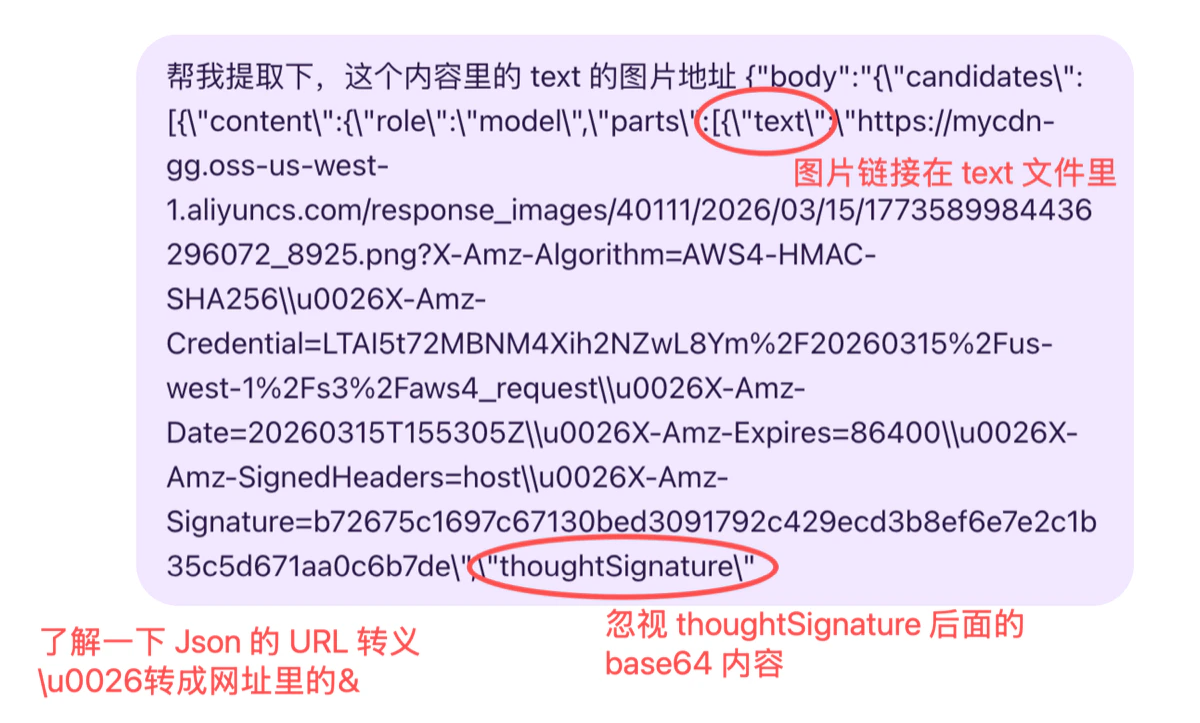
The key is to restore the escaped sequence `\u0026` in the output JSON back to a normal `&`, while ignoring the base64 content after `thoughtSignature`.
### URL Won't Open?
The key is to restore the escaped sequence `\u0026` in the output JSON back to a normal `&`, while ignoring the base64 content after `thoughtSignature`.