> ## Documentation Index
> Fetch the complete documentation index at: https://docs.apiyi.com/llms.txt
> Use this file to discover all available pages before exploring further.
# How Do I Manage API Keys Securely?
> A systematic guide to API key security, covering IP whitelists, model whitelists, spending caps, and how to check for leaked keys
## Short Answer
A key's maximum spending power is your **account balance** — meaning that if any single key leaks, your worst-case loss is everything left in your account.
Securing your keys comes down to four things: **issue separate keys per purpose, give each key a permission boundary, cap how much any single key can spend, and keep keys out of anywhere someone else could see them.**
**The most commonly overlooked item**: leaving "Unlimited Quota" enabled on a key exposes your entire account balance through that one key. Test keys in particular should always have a spending cap.
## 1. Give the Token a Permission Boundary
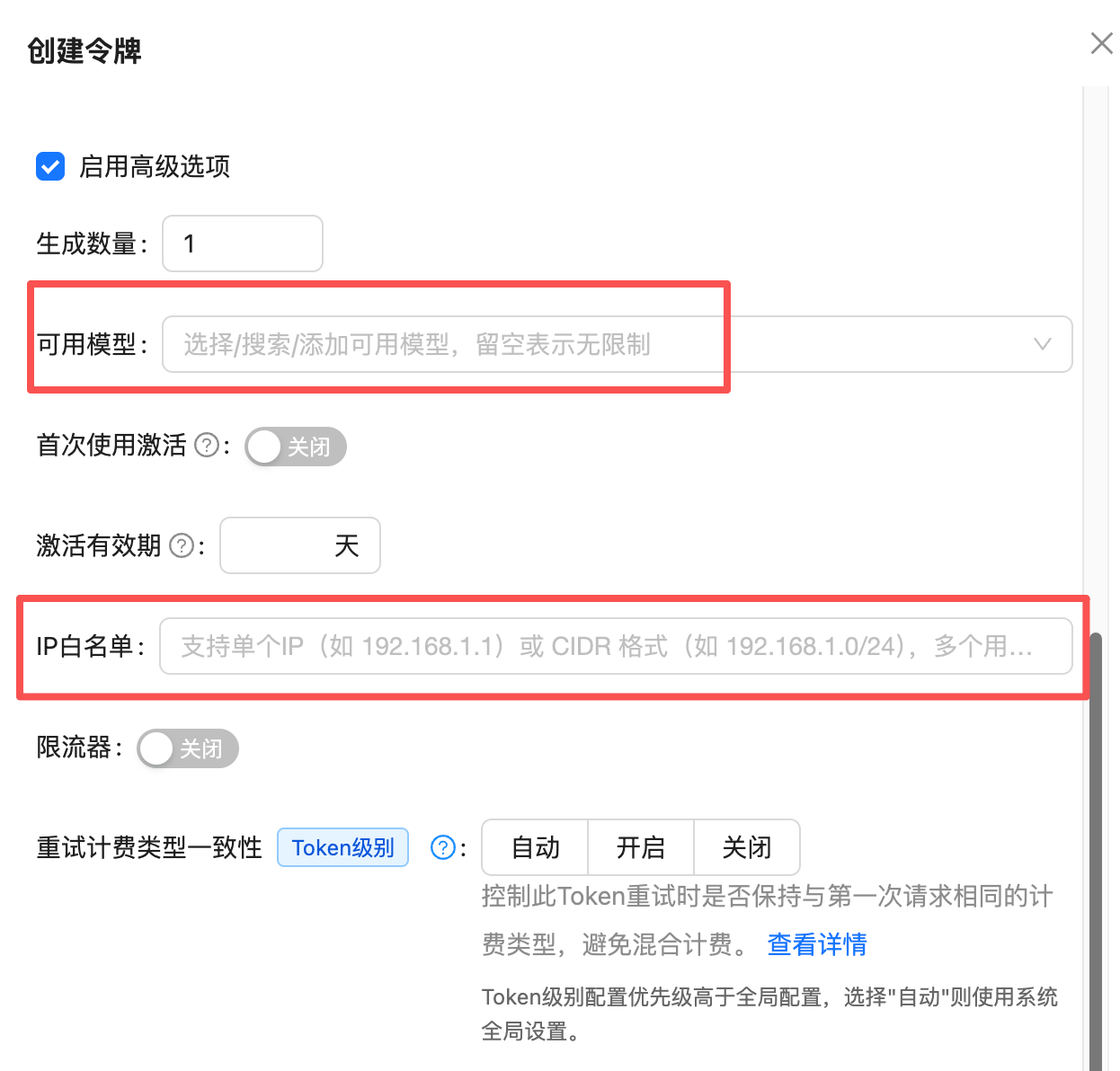
When creating a token, tick **"Enable Advanced Options"** to reveal the IP whitelist and available-models settings.
 ### IP Whitelist (Recommended for Production)
This is **the strongest protection available**. Once set, only requests from the specified IPs can use the token — even if the key leaks, it is useless from any other machine.
| Format | Example |
| ------------------ | -------------------------------------- |
| Single IP | `192.168.1.1` |
| CIDR range | `192.168.1.0/24` |
| Multiple addresses | Several entries can be listed together |
Production servers usually have a fixed IP, which makes them an excellent fit for IP whitelisting. Enter your server's **public egress IP**, not its internal address.
**Do not enable this on dynamic-IP connections.** Home broadband and office networks rotate their egress IP, and every call will fail the moment it changes. Use a spending cap instead for those environments.
### Available-Models Whitelist (For Dedicated Tokens)
Leaving "Available Models" **empty means no restriction** — the token can call any model on the platform. Once you fill it in, the token can **only** use the models you listed.
This cuts both ways:
Single-purpose tokens: a service that only generates images, a token shared with an outside collaborator, or per-model budget isolation.
Everyday personal use and exploratory testing. You have to return to the console every time you switch models, and mismatched model aliases can break calls.
In most cases we **do not recommend** setting available models. See [Do I Need to Set Available Models on a Token?](/en/faq/token-model-whitelist) for the full trade-off analysis.
## 2. Set a Spending Cap on the Token
This one applies to **everyone**, and doubly so for test keys.
When creating the token, switch off "Unlimited Quota" and enter an amount under "Authorized Quota" — or use one of the presets below the field (\$5 / \$20 / \$50 / \$100 / \$200 / \$500).
### IP Whitelist (Recommended for Production)
This is **the strongest protection available**. Once set, only requests from the specified IPs can use the token — even if the key leaks, it is useless from any other machine.
| Format | Example |
| ------------------ | -------------------------------------- |
| Single IP | `192.168.1.1` |
| CIDR range | `192.168.1.0/24` |
| Multiple addresses | Several entries can be listed together |
Production servers usually have a fixed IP, which makes them an excellent fit for IP whitelisting. Enter your server's **public egress IP**, not its internal address.
**Do not enable this on dynamic-IP connections.** Home broadband and office networks rotate their egress IP, and every call will fail the moment it changes. Use a spending cap instead for those environments.
### Available-Models Whitelist (For Dedicated Tokens)
Leaving "Available Models" **empty means no restriction** — the token can call any model on the platform. Once you fill it in, the token can **only** use the models you listed.
This cuts both ways:
Single-purpose tokens: a service that only generates images, a token shared with an outside collaborator, or per-model budget isolation.
Everyday personal use and exploratory testing. You have to return to the console every time you switch models, and mismatched model aliases can break calls.
In most cases we **do not recommend** setting available models. See [Do I Need to Set Available Models on a Token?](/en/faq/token-model-whitelist) for the full trade-off analysis.
## 2. Set a Spending Cap on the Token
This one applies to **everyone**, and doubly so for test keys.
When creating the token, switch off "Unlimited Quota" and enter an amount under "Authorized Quota" — or use one of the presets below the field (\$5 / \$20 / \$50 / \$100 / \$200 / \$500).
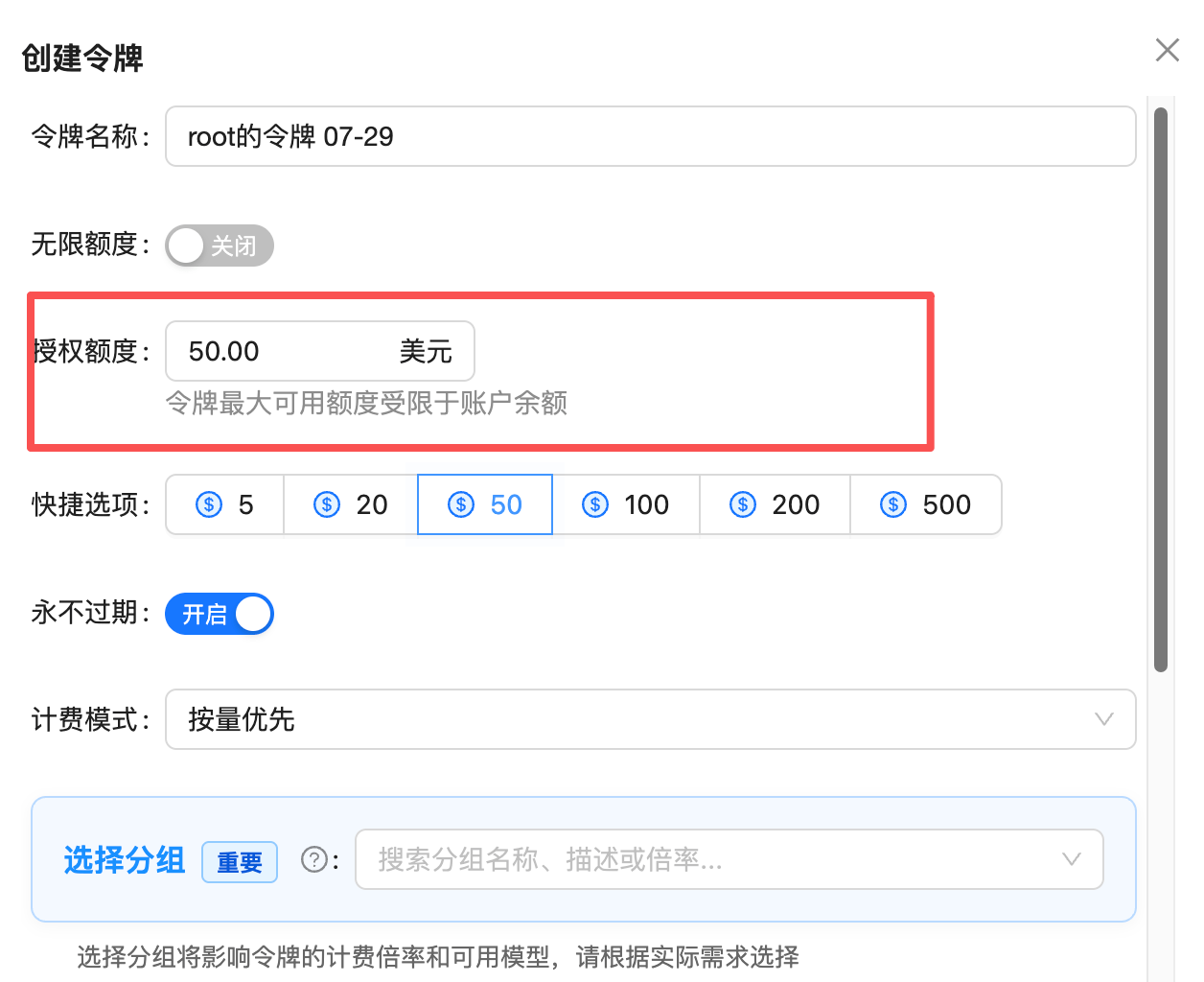 The point of a quota is to **cap your loss at a number you can absorb**:
* A leaked key with a \$20 quota costs you at most \$20
* A leaked key with "Unlimited Quota" on can cost you your **entire account balance**
A token's maximum spending power is **limited by your account balance**. Setting a \$500 quota does not reserve or freeze that money — it is purely a ceiling on that token's consumption. What it can actually spend still depends on the balance available.
## 3. Keep Production and Test Keys Separate
Never use one key for both live traffic and local testing. Once they are separate, you can disable a misbehaving test token outright without touching production.
| | Production key | Test key |
| -------------------- | -------------------------------------- | -------------------------------------- |
| **IP whitelist** | Recommended (server IP is fixed) | Usually off (IP changes) |
| **Authorized quota** | Estimate from traffic, leave headroom | **Always set one**, \$5–\$50 suggested |
| **Available models** | Optional; lock it for stable workloads | Leave empty for easy model switching |
| **Expiry** | Can be set to never expire | Set an expiry date |
| **Count** | One per project or service | One per test task, disable when done |
Give tokens **recognizable names** in the console (e.g. `prod-image-service`, `test-model-compare-0729`) rather than the default. It makes locating and disabling the right one much faster when something goes wrong. See [Tokens and Groups](/en/faq/token-and-groups).
## 4. Keep Keys Out of These Places
### Code Repositories
This is the most common leak path by far. Once a key is committed to Git, **it stays in the commit history even after you delete the file**, and anyone with repository access can dig it out.
Read from environment variables instead:
```python theme={null}
import os
api_key = os.environ["APIYI_API_KEY"] # Correct
api_key = "sk-your-api-key" # Wrong: a real key hardcoded in source
```
Add `.env` to `.gitignore`, and **scan before you commit**. This command works as a self-check:
```bash theme={null}
grep -rnE '(^|[^A-Za-z0-9])sk-[A-Za-z0-9]{10,}' .
```
The `(^|[^A-Za-z0-9])` prefix in that pattern matters. Without it, the `sk-` inside ordinary words like `task-`, `risk-`, and `disk-` produces a flood of false positives that buries the real findings.
### Public Docs, Screenshots, and Logs
Before publishing documentation or a technical write-up, review the prose, the code samples, and the **screenshots**. Console screenshots, terminal recordings, and error logs all routinely carry a full key. Use a placeholder such as `sk-your-api-key` in every example.
**Public GitHub repositories are especially dangerous.** They are continuously scanned by automated bots, and a leaked key is often exploited within minutes. Before open-sourcing a project, verify that neither the code nor the commit history contains a real key.
### Conversations with AI and AI Agents
This risk path is only a couple of years old, and it is the one most often underestimated.
Pasting a key into a chat box feels temporary, but in practice:
AI coding tools typically store the full conversation as plaintext files on your machine, retained indefinitely and never cleaned up automatically.
Resuming an old session sends the entire transcript again as context, so the key is not sitting still.
These tools often snapshot files before and after edits, so a script containing a key ends up copied several times over.
Those files are readable by **any program running as you** — a weaker boundary than your code repository has.
**Always use a disposable key for AI tools and agents**: create it separately, give it a small quota (say \$5) and a short expiry, then delete it in the console the moment the task is done. Never hand a production key to an AI tool.
## What to Do If a Key Has Already Leaked
Go to the [token page](https://api.apiyi.com/token) and delete or disable the affected token. This is the only action that stops the bleeding right away, and it comes **before any investigation**.
Issue a new token — this time with a spending cap and whatever permission boundaries apply — and update your application config.
Review your [call logs](/en/faq/call-logs) for anomalies during the exposure window: unfamiliar models, unusual volume, or requests at hours you were not working.
Track down where the key actually leaked — code, docs, screenshots, chat transcripts — and clean each one out. Otherwise the replacement key leaks the same way.
## Common Questions
Most likely the wrong IP. You need the server's **public egress IP**, not an internal address like `192.168.x.x`.
If you are calling from home broadband or an office network, the egress IP rotates with your ISP, and such environments are a poor fit for IP whitelisting — use a spending cap instead.
To troubleshoot, clear the IP whitelist first, confirm calls recover, then add the correct IPs back one at a time.
No. An authorized quota is only a **spending ceiling** for that token, not a prepayment or a hold.
You can give five tokens a \$100 quota each while holding only \$50 in the account — they share that \$50, and once it runs out none of them work. A token's maximum spending power is always bounded by the account balance.
There is no limit; create as many as you need.
We suggest splitting them along **project plus environment** lines, e.g. `prod-support-bot`, `prod-image-service`, `test-model-eval`. Finer-grained tokens let you disable exactly one without disrupting anything else, and each token's spending and logs can be reviewed independently.
No. Calls are rejected once the quota is exhausted, but the token itself remains. Just **edit the token and raise the authorized quota** in the console to resume — no need to create a new one or update your config.
That is part of why a spending cap is worth setting: it is a recoverable brake, not a one-way destruction.
Check the call logs. Three signals matter most: **models you never use**, **calls outside your working hours**, and **request volume that does not match your workload**.
See [How Do I Investigate Unexpected Key Usage?](/en/faq/troubleshoot-key-usage) for the full procedure.
## Related Docs
Full reference on creating, editing, and grouping tokens.
Whether to set available models, and what to watch out for.
Use logs to pin down the real caller behind unexpected usage.
How APIYI encrypts traffic and protects your data on the platform side.
Security is never a small matter. Every setting above lives on the [token management page](https://api.apiyi.com/token) — a few minutes of configuration blocks the large majority of the risk.
The point of a quota is to **cap your loss at a number you can absorb**:
* A leaked key with a \$20 quota costs you at most \$20
* A leaked key with "Unlimited Quota" on can cost you your **entire account balance**
A token's maximum spending power is **limited by your account balance**. Setting a \$500 quota does not reserve or freeze that money — it is purely a ceiling on that token's consumption. What it can actually spend still depends on the balance available.
## 3. Keep Production and Test Keys Separate
Never use one key for both live traffic and local testing. Once they are separate, you can disable a misbehaving test token outright without touching production.
| | Production key | Test key |
| -------------------- | -------------------------------------- | -------------------------------------- |
| **IP whitelist** | Recommended (server IP is fixed) | Usually off (IP changes) |
| **Authorized quota** | Estimate from traffic, leave headroom | **Always set one**, \$5–\$50 suggested |
| **Available models** | Optional; lock it for stable workloads | Leave empty for easy model switching |
| **Expiry** | Can be set to never expire | Set an expiry date |
| **Count** | One per project or service | One per test task, disable when done |
Give tokens **recognizable names** in the console (e.g. `prod-image-service`, `test-model-compare-0729`) rather than the default. It makes locating and disabling the right one much faster when something goes wrong. See [Tokens and Groups](/en/faq/token-and-groups).
## 4. Keep Keys Out of These Places
### Code Repositories
This is the most common leak path by far. Once a key is committed to Git, **it stays in the commit history even after you delete the file**, and anyone with repository access can dig it out.
Read from environment variables instead:
```python theme={null}
import os
api_key = os.environ["APIYI_API_KEY"] # Correct
api_key = "sk-your-api-key" # Wrong: a real key hardcoded in source
```
Add `.env` to `.gitignore`, and **scan before you commit**. This command works as a self-check:
```bash theme={null}
grep -rnE '(^|[^A-Za-z0-9])sk-[A-Za-z0-9]{10,}' .
```
The `(^|[^A-Za-z0-9])` prefix in that pattern matters. Without it, the `sk-` inside ordinary words like `task-`, `risk-`, and `disk-` produces a flood of false positives that buries the real findings.
### Public Docs, Screenshots, and Logs
Before publishing documentation or a technical write-up, review the prose, the code samples, and the **screenshots**. Console screenshots, terminal recordings, and error logs all routinely carry a full key. Use a placeholder such as `sk-your-api-key` in every example.
**Public GitHub repositories are especially dangerous.** They are continuously scanned by automated bots, and a leaked key is often exploited within minutes. Before open-sourcing a project, verify that neither the code nor the commit history contains a real key.
### Conversations with AI and AI Agents
This risk path is only a couple of years old, and it is the one most often underestimated.
Pasting a key into a chat box feels temporary, but in practice:
AI coding tools typically store the full conversation as plaintext files on your machine, retained indefinitely and never cleaned up automatically.
Resuming an old session sends the entire transcript again as context, so the key is not sitting still.
These tools often snapshot files before and after edits, so a script containing a key ends up copied several times over.
Those files are readable by **any program running as you** — a weaker boundary than your code repository has.
**Always use a disposable key for AI tools and agents**: create it separately, give it a small quota (say \$5) and a short expiry, then delete it in the console the moment the task is done. Never hand a production key to an AI tool.
## What to Do If a Key Has Already Leaked
Go to the [token page](https://api.apiyi.com/token) and delete or disable the affected token. This is the only action that stops the bleeding right away, and it comes **before any investigation**.
Issue a new token — this time with a spending cap and whatever permission boundaries apply — and update your application config.
Review your [call logs](/en/faq/call-logs) for anomalies during the exposure window: unfamiliar models, unusual volume, or requests at hours you were not working.
Track down where the key actually leaked — code, docs, screenshots, chat transcripts — and clean each one out. Otherwise the replacement key leaks the same way.
## Common Questions
Most likely the wrong IP. You need the server's **public egress IP**, not an internal address like `192.168.x.x`.
If you are calling from home broadband or an office network, the egress IP rotates with your ISP, and such environments are a poor fit for IP whitelisting — use a spending cap instead.
To troubleshoot, clear the IP whitelist first, confirm calls recover, then add the correct IPs back one at a time.
No. An authorized quota is only a **spending ceiling** for that token, not a prepayment or a hold.
You can give five tokens a \$100 quota each while holding only \$50 in the account — they share that \$50, and once it runs out none of them work. A token's maximum spending power is always bounded by the account balance.
There is no limit; create as many as you need.
We suggest splitting them along **project plus environment** lines, e.g. `prod-support-bot`, `prod-image-service`, `test-model-eval`. Finer-grained tokens let you disable exactly one without disrupting anything else, and each token's spending and logs can be reviewed independently.
No. Calls are rejected once the quota is exhausted, but the token itself remains. Just **edit the token and raise the authorized quota** in the console to resume — no need to create a new one or update your config.
That is part of why a spending cap is worth setting: it is a recoverable brake, not a one-way destruction.
Check the call logs. Three signals matter most: **models you never use**, **calls outside your working hours**, and **request volume that does not match your workload**.
See [How Do I Investigate Unexpected Key Usage?](/en/faq/troubleshoot-key-usage) for the full procedure.
## Related Docs
Full reference on creating, editing, and grouping tokens.
Whether to set available models, and what to watch out for.
Use logs to pin down the real caller behind unexpected usage.
How APIYI encrypts traffic and protects your data on the platform side.
Security is never a small matter. Every setting above lives on the [token management page](https://api.apiyi.com/token) — a few minutes of configuration blocks the large majority of the risk.