> ## Documentation Index
> Fetch the complete documentation index at: https://docs.apiyi.com/llms.txt
> Use this file to discover all available pages before exploring further.
# What should I know about log timezone settings and data export?
> Keep your account timezone at the default UTC+0 and dismiss the console's timezone switch suggestion. Switching misaligns the call-data chart on the Logs page and shifts the date attribution of the billing summary; for line-by-line records use Export with background async export, which is always UTC+0.
## Short answer
The default `London (UTC+0/+1)` is the correct setting — **do not change it**. Logs are stored in UTC, so UTC+0 matches the data source
When the console detects a different device timezone it shows a "本地设置建议" (Local Settings Suggestion) dialog — **choose 暂时忽略 (Dismiss)** on the left, not the switch button
The 导出 (Export) button on the Logs page always emits UTC+0. The 汇总账单 (Billing Summary) follows your account timezone, so a changed timezone shifts date attribution
**If you already switched, just set it back to `London (UTC+0/+1)`.** The timezone only affects how data is displayed and aggregated — **no call data is modified or lost**. Once it is set back, the chart and the billing dates return to normal.
## Where to check your account timezone
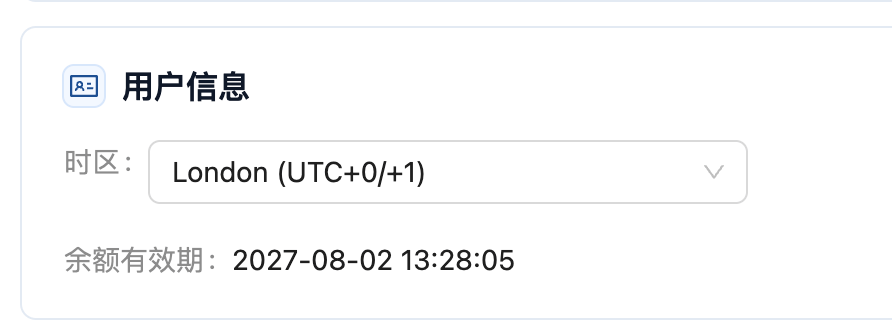
The current account timezone is shown in the 用户信息 (User Info) section of the console. It should read `London (UTC+0/+1)`, which is UTC+0.
 ## Choose "暂时忽略" (Dismiss) when the suggestion dialog appears
When your account timezone (UTC) differs from your current device timezone (for example `Asia/Shanghai`), the console opens a "本地设置建议" (Local Settings Suggestion) dialog offering to switch.
## Choose "暂时忽略" (Dismiss) when the suggestion dialog appears
When your account timezone (UTC) differs from your current device timezone (for example `Asia/Shanghai`), the console opens a "本地设置建议" (Local Settings Suggestion) dialog offering to switch.
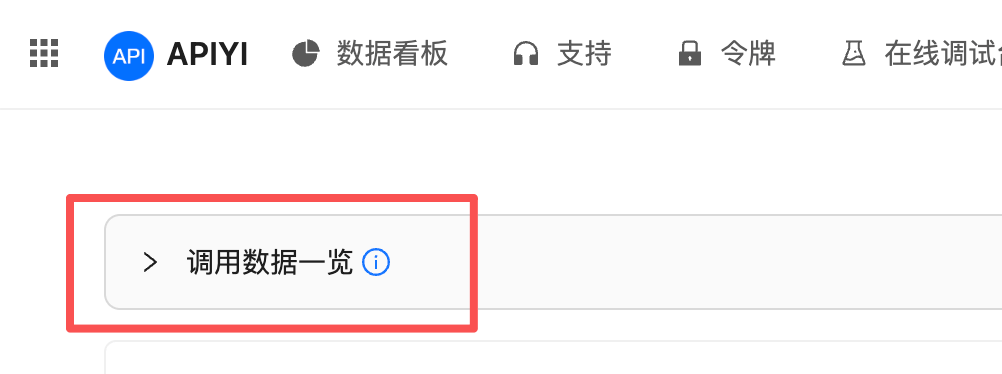
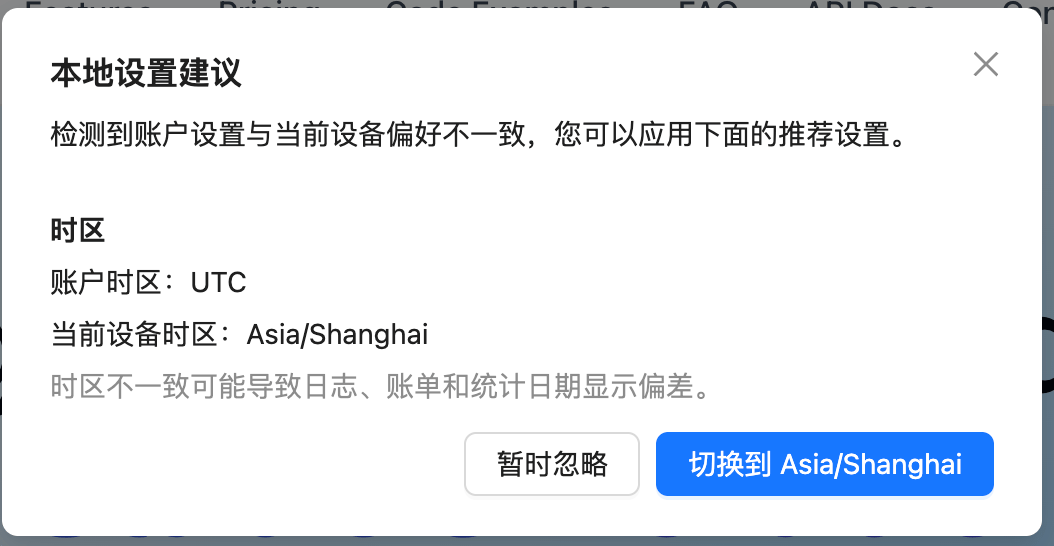 **Choose 暂时忽略 (Dismiss) — do not switch.** After switching, the **调用数据一览 (Call Data Overview)** chart at the top of the Logs page renders incorrectly: the time buckets no longer line up with the chart range, so the data looks missing or shifted as a whole.
This is the section that is affected:
**Choose 暂时忽略 (Dismiss) — do not switch.** After switching, the **调用数据一览 (Call Data Overview)** chart at the top of the Logs page renders incorrectly: the time buckets no longer line up with the chart range, so the data looks missing or shifted as a whole.
This is the section that is affected:
 Timestamps in the log detail list also follow the account timezone, so keeping UTC+0 aligns the detail list, the chart and the export files on a single basis — you only ever apply one fixed offset.
## Which export should you use?
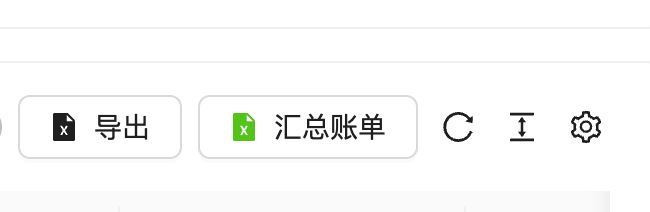
The Logs page has two buttons in the top-right corner, 导出 (Export) and 汇总账单 (Billing Summary). They use different timezone bases, and that is the easiest thing to get wrong.
Timestamps in the log detail list also follow the account timezone, so keeping UTC+0 aligns the detail list, the chart and the export files on a single basis — you only ever apply one fixed offset.
## Which export should you use?
The Logs page has two buttons in the top-right corner, 导出 (Export) and 汇总账单 (Billing Summary). They use different timezone bases, and that is the easiest thing to get wrong.
 | | 导出 (Export) | 汇总账单 (Billing Summary) |
| -------------- | ------------------------------------------- | ---------------------------------------- |
| Timezone basis | **Always UTC+0**, matching the stored logs | **Follows the account timezone setting** |
| Granularity | Individual call records (selectable fields) | Spend aggregated by date |
| Volume | Large batches, can run asynchronously | Small, downloads directly |
| Best for | Reconciliation, audit, custom analysis | A quick look at total spend for a period |
### Billing Summary: aggregated by account timezone
The Billing Summary aggregates **by your account timezone setting**. If the account timezone has been changed to UTC+8, calls made after **16:00 (UTC+8)** on a given day are counted into the **next day** in the summary, which makes that day's total look wrong.
If you hit this, **set the account timezone back to UTC+0 and export the Billing Summary again** — the date attribution will be correct.
### Export → background async export (recommended)
When you need line-by-line spend records, use the 导出 (Export) button and pick **后台异步导出 (background async export)** in the dialog.
| | 导出 (Export) | 汇总账单 (Billing Summary) |
| -------------- | ------------------------------------------- | ---------------------------------------- |
| Timezone basis | **Always UTC+0**, matching the stored logs | **Follows the account timezone setting** |
| Granularity | Individual call records (selectable fields) | Spend aggregated by date |
| Volume | Large batches, can run asynchronously | Small, downloads directly |
| Best for | Reconciliation, audit, custom analysis | A quick look at total spend for a period |
### Billing Summary: aggregated by account timezone
The Billing Summary aggregates **by your account timezone setting**. If the account timezone has been changed to UTC+8, calls made after **16:00 (UTC+8)** on a given day are counted into the **next day** in the summary, which makes that day's total look wrong.
If you hit this, **set the account timezone back to UTC+0 and export the Billing Summary again** — the date attribution will be correct.
### Export → background async export (recommended)
When you need line-by-line spend records, use the 导出 (Export) button and pick **后台异步导出 (background async export)** in the dialog.
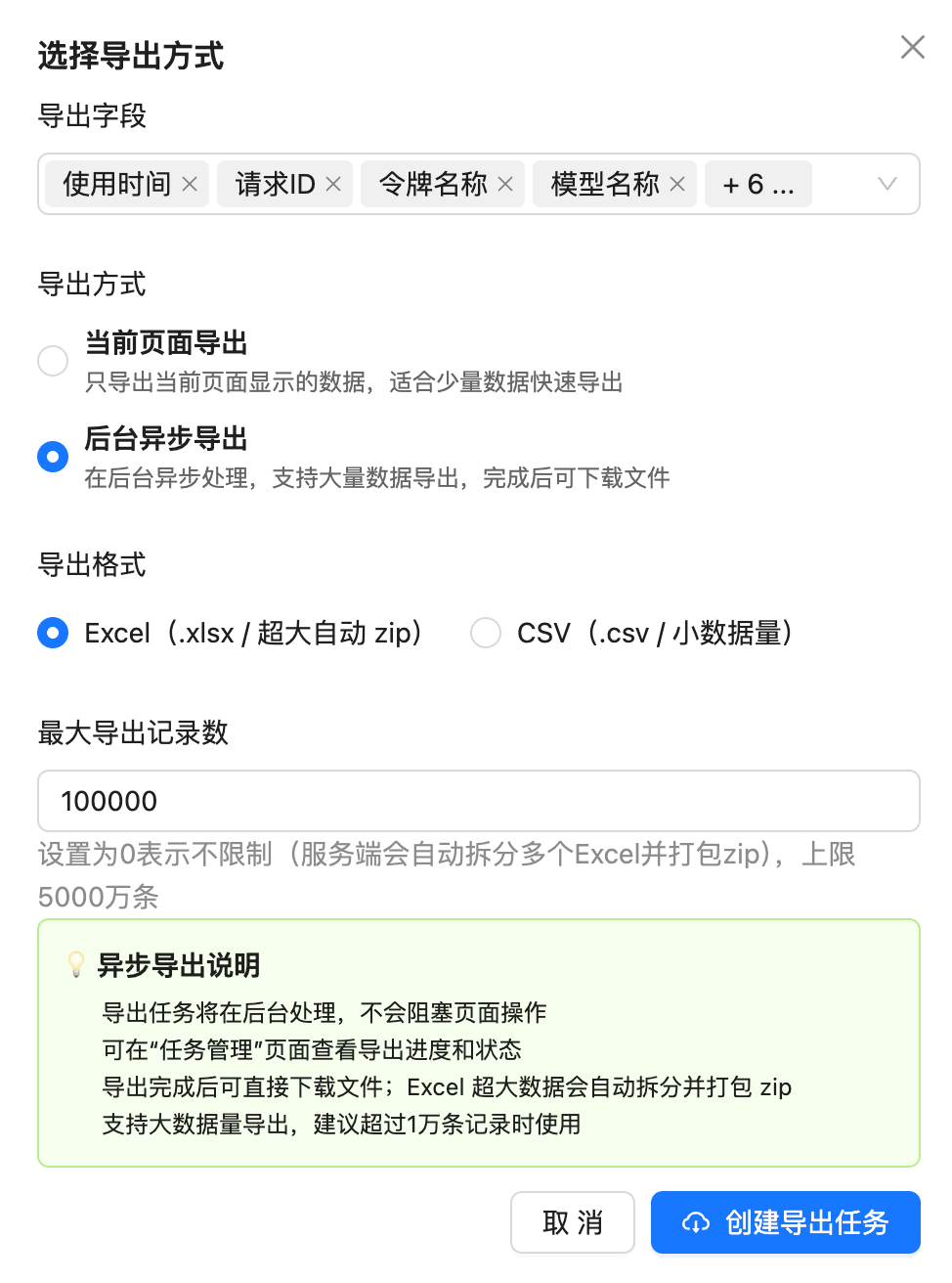 Key points:
* **The timezone is always UTC+0**, regardless of the account setting, because this exports the stored logs themselves. Convert to local time yourself (UTC+8 users add 8 hours)
* **Selectable fields**: usage time, request ID, token name, model name and more — pick what your reconciliation needs
* **Export mode**: for large volumes choose background async export; the job runs in the background without blocking the page, and it is recommended above 10,000 records
* **Format**: Excel (`.xlsx`, very large exports are split and zipped automatically) or CSV (`.csv`, for small volumes)
* **Maximum record count**: `0` means unlimited (the server splits into multiple Excel files and zips them), with a ceiling of 50 million records
* **Progress**: once the job is created, track its progress and status on the 任务管理 (Task Management) page, then download the file
For the full export walkthrough and archiving advice, see [How long are call logs kept?](/en/faq/log-retention-policy).
## Common questions
Because the backend call logs are database logs recorded in UTC. Keeping the account at UTC+0 puts the page display, the chart and the export files on the same basis, so you apply one fixed offset everywhere. Once it is set to a local timezone, the conversion rules differ between places, which makes misreading more likely, not less.
No. The timezone only affects display and aggregation; no call record or charge is modified. Set the account timezone back to `London (UTC+0/+1)` and both the chart and the billing summary dates return to normal.
**Add 8 hours** to the times in the export file. For example `2026-08-09 08:00` in the file corresponds to **2026/8/9 16:00 (UTC+8)**. Watch that 8-hour shift when reconciling across day boundaries.
No. The exported fields match what the console shows — time, request ID, token name, model, token counts, amount, status — with no prompts or model output. See [How long are call logs kept?](/en/faq/log-retention-policy).
Yes, see the [Log Query API](/en/api-capabilities/log-query). Its `start_timestamp`, `end_timestamp` and `created_at` are all **Unix second timestamps**, independent of the console timezone setting, so your code converts them as needed — a good fit for automated reconciliation.
First check the job status on the 任务管理 (Task Management) page. For very large volumes (millions of records) the server needs time to split and package the files; narrow the time range or set a sensible maximum record count and export in batches.
## Related documents
* [How do I view my call records?](/en/faq/call-logs)
* [How do I read the billing amounts in the logs?](/en/faq/log-billing-explained)
* [How long are call logs kept?](/en/faq/log-retention-policy)
* [Log Query API](/en/api-capabilities/log-query)
* [Live update: dismiss the console's timezone switch suggestion](/en/live/2026-08/timezone-switch-prompt-ignore)
Key points:
* **The timezone is always UTC+0**, regardless of the account setting, because this exports the stored logs themselves. Convert to local time yourself (UTC+8 users add 8 hours)
* **Selectable fields**: usage time, request ID, token name, model name and more — pick what your reconciliation needs
* **Export mode**: for large volumes choose background async export; the job runs in the background without blocking the page, and it is recommended above 10,000 records
* **Format**: Excel (`.xlsx`, very large exports are split and zipped automatically) or CSV (`.csv`, for small volumes)
* **Maximum record count**: `0` means unlimited (the server splits into multiple Excel files and zips them), with a ceiling of 50 million records
* **Progress**: once the job is created, track its progress and status on the 任务管理 (Task Management) page, then download the file
For the full export walkthrough and archiving advice, see [How long are call logs kept?](/en/faq/log-retention-policy).
## Common questions
Because the backend call logs are database logs recorded in UTC. Keeping the account at UTC+0 puts the page display, the chart and the export files on the same basis, so you apply one fixed offset everywhere. Once it is set to a local timezone, the conversion rules differ between places, which makes misreading more likely, not less.
No. The timezone only affects display and aggregation; no call record or charge is modified. Set the account timezone back to `London (UTC+0/+1)` and both the chart and the billing summary dates return to normal.
**Add 8 hours** to the times in the export file. For example `2026-08-09 08:00` in the file corresponds to **2026/8/9 16:00 (UTC+8)**. Watch that 8-hour shift when reconciling across day boundaries.
No. The exported fields match what the console shows — time, request ID, token name, model, token counts, amount, status — with no prompts or model output. See [How long are call logs kept?](/en/faq/log-retention-policy).
Yes, see the [Log Query API](/en/api-capabilities/log-query). Its `start_timestamp`, `end_timestamp` and `created_at` are all **Unix second timestamps**, independent of the console timezone setting, so your code converts them as needed — a good fit for automated reconciliation.
First check the job status on the 任务管理 (Task Management) page. For very large volumes (millions of records) the server needs time to split and package the files; narrow the time range or set a sensible maximum record count and export in batches.
## Related documents
* [How do I view my call records?](/en/faq/call-logs)
* [How do I read the billing amounts in the logs?](/en/faq/log-billing-explained)
* [How long are call logs kept?](/en/faq/log-retention-policy)
* [Log Query API](/en/api-capabilities/log-query)
* [Live update: dismiss the console's timezone switch suggestion](/en/live/2026-08/timezone-switch-prompt-ignore)