> ## Documentation Index
> Fetch the complete documentation index at: https://docs.apiyi.com/llms.txt
> Use this file to discover all available pages before exploring further.
# How do I sign in with a Passkey?
> APIYI now supports passkey sign-in. Bind one from your Profile page and log in with a fingerprint, face scan, or device screen lock — no password to remember, and immune to phishing and credential stuffing.
## Short answer
APIYI now supports **passkey** sign-in. Once bound, logging in on a machine you use regularly takes nothing more than a **fingerprint, face scan, or your device screen lock** — no account password required.
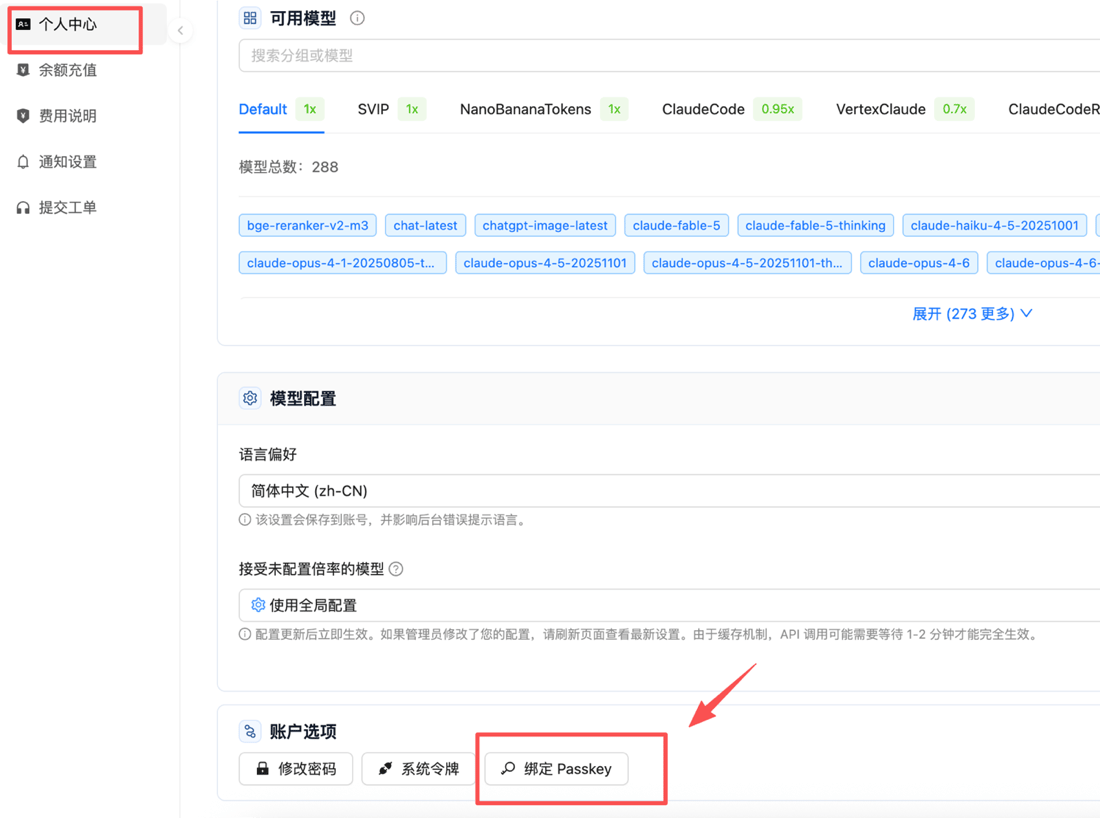
Where to bind: after logging in, go to **Profile → scroll to the bottom → Account Options → Bind Passkey**, at `https://api.apiyi.com/account/profile`.
**Why it is worth doing**: no password to remember (forgotten passwords are by far the most common login support request), and passkeys are inherently phishing- and credential-stuffing-resistant — the private key never leaves your device or password manager, and there is no stealable password stored on the server.
## What a passkey is
A passkey is passwordless sign-in built on the WebAuthn / FIDO2 standard. When you bind one, your device generates a key pair:
* The **private key** stays in your device's secure element or password manager and is **never uploaded**;
* The **public key** is stored by APIYI and can only verify signatures — it cannot be used to derive the private key.
At sign-in, your device signs a challenge with the private key, and all you do is authorize that signature with a **fingerprint, face scan, or screen lock**.
Any device with biometrics logs you in directly — no email reset flow
A passkey is bound to the domain, so a look-alike site cannot trigger verification at all
There is no password on the server to leak, so breaches elsewhere do not reach your account here
## How to bind one
**Prerequisite**: you must already be **signed in** to bind a passkey. It adds a sign-in method to an existing account — it cannot be used to register a new one.
After signing in, go to `https://api.apiyi.com/account/profile`, or click **Profile** in the left navigation.
In the **Account Options** card at the very bottom of the page, click **Bind Passkey**.
 Your browser opens a system dialog asking where to save the passkey for apiyi.com. Pick whichever fits your setup:
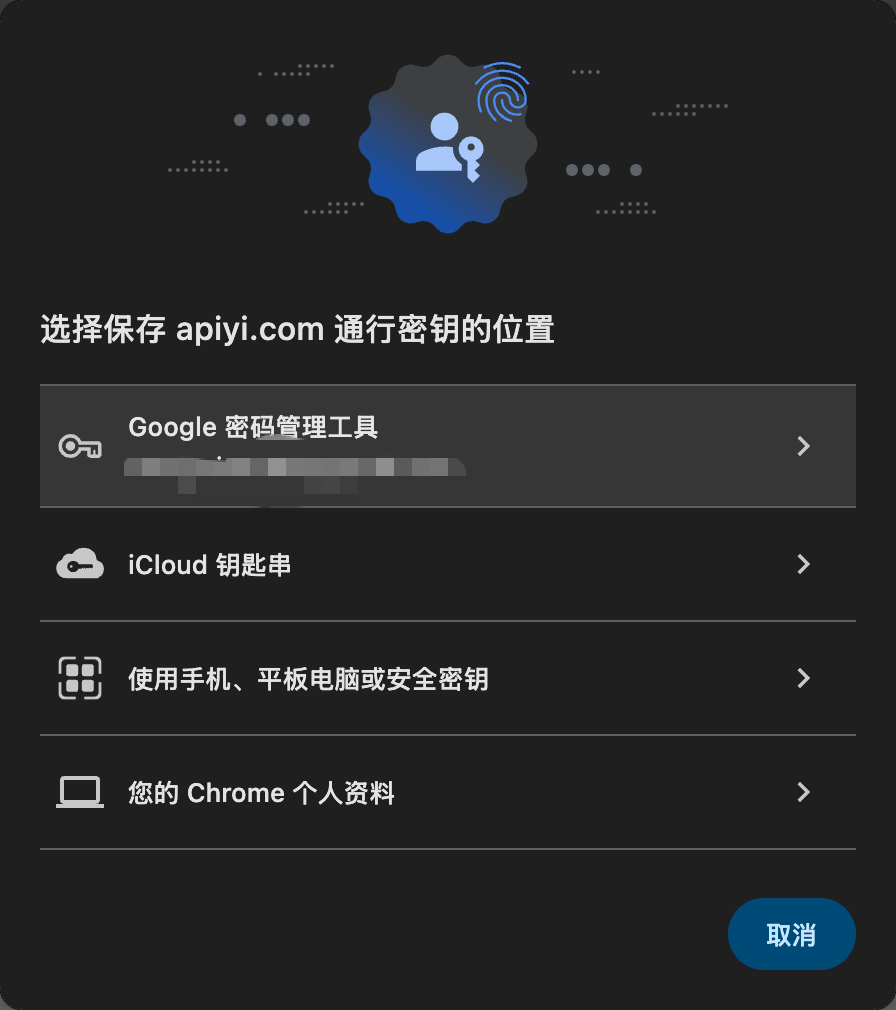 | Storage location | Best for | Behavior |
| ------------------------------ | ------------------------------------------------- | ----------------------------------------------- |
| iCloud Keychain | Mac / iPhone / iPad users | Syncs automatically across your Apple devices |
| Google Password Manager | Chrome / Android users | Syncs across devices, survives a machine change |
| Phone, tablet, or security key | Signing in temporarily on someone else's computer | Scan a QR code and verify on your own phone |
| This browser profile | One computer you always use | Stays on this machine only, no sync |
Confirm with your **fingerprint, face scan, or screen lock** as prompted. From then on, choose passkey sign-in on the login page and one verification gets you in.
## Checking status and unbinding
Once bound, return to **Profile → Account Options** and the button becomes **Unbind Passkey**, with the **last used date** shown next to it — a quick way to confirm whether and when your passkey was used.
| Storage location | Best for | Behavior |
| ------------------------------ | ------------------------------------------------- | ----------------------------------------------- |
| iCloud Keychain | Mac / iPhone / iPad users | Syncs automatically across your Apple devices |
| Google Password Manager | Chrome / Android users | Syncs across devices, survives a machine change |
| Phone, tablet, or security key | Signing in temporarily on someone else's computer | Scan a QR code and verify on your own phone |
| This browser profile | One computer you always use | Stays on this machine only, no sync |
Confirm with your **fingerprint, face scan, or screen lock** as prompted. From then on, choose passkey sign-in on the login page and one verification gets you in.
## Checking status and unbinding
Once bound, return to **Profile → Account Options** and the button becomes **Unbind Passkey**, with the **last used date** shown next to it — a quick way to confirm whether and when your passkey was used.
 Click **Unbind Passkey** whenever you want to remove it. Unbinding returns the account to its existing sign-in methods and does not affect your balance, tokens, or usage records.
**Unbind or re-bind before switching machines**: if the passkey lives only in one browser profile (no sync), it disappears when you change computers or reinstall the OS. Passkeys stored in iCloud Keychain or Google Password Manager are unaffected.
## Things to watch out for
**Always keep a backup sign-in method.** A passkey is an addition, not a replacement — make sure your password still works, your registered email can still receive mail, or GitHub sign-in is linked. Recovering a lost device with no fallback is considerably more painful.
* **Do not bind on a shared computer**: a passkey lives on the device, so binding one on a public or borrowed machine leaves sign-in capability behind on it. For temporary access, choose the "phone, tablet, or security key" option and verify by QR code on your own phone.
* **Check the domain before verifying**: during a legitimate bind or sign-in, the dialog shows `apiyi.com`. If the domain is wrong, stop — that check is exactly how passkeys defeat phishing.
* **Sync depends on where you saved it**: iCloud Keychain syncs across Apple devices, Google Password Manager syncs across devices, a local browser profile does not sync at all. Choose based on whether you need to sign in from multiple devices.
* **A passkey is not an API key**: passkeys only cover signing in to the console and have no effect on API calls. For API credential hygiene, see [how to manage API keys securely](/en/faq/key-security-management).
* **Browser requirements**: a recent version of Chrome, Edge, Safari, or Firefox, on a device with fingerprint / face / screen-lock verification. Older browsers may not show the binding option at all.
## Common questions
Yes. A passkey **adds** a sign-in method; password sign-in and GitHub sign-in keep working as before. We recommend keeping at least one fallback available.
It depends on where you saved it. Passkeys in **iCloud Keychain** or **Google Password Manager** sync across devices and work as soon as you sign in to that account on the new machine. One saved only in a **local browser profile** does not sync, so you will need to bind again on the new device.
Sign in with a fallback method (password or GitHub), unbind the old passkey from your Profile page, then bind a new one on your new device. This is precisely why we insist on keeping a backup sign-in method.
If the passkey is stored in iCloud Keychain or Google Password Manager, it syncs to your other devices automatically and usually needs no re-binding. To use it across ecosystems that do not sync with each other (say a Mac and an Android phone), unbind and re-bind within the other ecosystem, or use the "phone, tablet, or security key" QR flow for occasional access.
No. Fingerprint and face data are verified **locally on your device** and never sent to the site. All APIYI stores is a public key from which the private key cannot be derived.
Usual causes: an outdated browser, no screen lock or biometrics configured on the device, browser permissions blocking the prompt, or an embedded browser without WebAuthn support (common inside mobile apps). Switch to the latest Chrome / Edge / Safari, enable screen-lock verification in your OS, and try again.
## Related documents
* [What if I forgot my password?](/en/faq/forgot-password)
* [GitHub login shows 'Account Already Bound'?](/en/faq/github-bindng-bindng-error)
* [How do I manage API keys securely?](/en/faq/key-security-management)
* [Which email providers does APIYI support for registration?](/en/faq/email-registration)
* [How does APIYI ensure data security?](/en/faq/data-security)
Click **Unbind Passkey** whenever you want to remove it. Unbinding returns the account to its existing sign-in methods and does not affect your balance, tokens, or usage records.
**Unbind or re-bind before switching machines**: if the passkey lives only in one browser profile (no sync), it disappears when you change computers or reinstall the OS. Passkeys stored in iCloud Keychain or Google Password Manager are unaffected.
## Things to watch out for
**Always keep a backup sign-in method.** A passkey is an addition, not a replacement — make sure your password still works, your registered email can still receive mail, or GitHub sign-in is linked. Recovering a lost device with no fallback is considerably more painful.
* **Do not bind on a shared computer**: a passkey lives on the device, so binding one on a public or borrowed machine leaves sign-in capability behind on it. For temporary access, choose the "phone, tablet, or security key" option and verify by QR code on your own phone.
* **Check the domain before verifying**: during a legitimate bind or sign-in, the dialog shows `apiyi.com`. If the domain is wrong, stop — that check is exactly how passkeys defeat phishing.
* **Sync depends on where you saved it**: iCloud Keychain syncs across Apple devices, Google Password Manager syncs across devices, a local browser profile does not sync at all. Choose based on whether you need to sign in from multiple devices.
* **A passkey is not an API key**: passkeys only cover signing in to the console and have no effect on API calls. For API credential hygiene, see [how to manage API keys securely](/en/faq/key-security-management).
* **Browser requirements**: a recent version of Chrome, Edge, Safari, or Firefox, on a device with fingerprint / face / screen-lock verification. Older browsers may not show the binding option at all.
## Common questions
Yes. A passkey **adds** a sign-in method; password sign-in and GitHub sign-in keep working as before. We recommend keeping at least one fallback available.
It depends on where you saved it. Passkeys in **iCloud Keychain** or **Google Password Manager** sync across devices and work as soon as you sign in to that account on the new machine. One saved only in a **local browser profile** does not sync, so you will need to bind again on the new device.
Sign in with a fallback method (password or GitHub), unbind the old passkey from your Profile page, then bind a new one on your new device. This is precisely why we insist on keeping a backup sign-in method.
If the passkey is stored in iCloud Keychain or Google Password Manager, it syncs to your other devices automatically and usually needs no re-binding. To use it across ecosystems that do not sync with each other (say a Mac and an Android phone), unbind and re-bind within the other ecosystem, or use the "phone, tablet, or security key" QR flow for occasional access.
No. Fingerprint and face data are verified **locally on your device** and never sent to the site. All APIYI stores is a public key from which the private key cannot be derived.
Usual causes: an outdated browser, no screen lock or biometrics configured on the device, browser permissions blocking the prompt, or an embedded browser without WebAuthn support (common inside mobile apps). Switch to the latest Chrome / Edge / Safari, enable screen-lock verification in your OS, and try again.
## Related documents
* [What if I forgot my password?](/en/faq/forgot-password)
* [GitHub login shows 'Account Already Bound'?](/en/faq/github-bindng-bindng-error)
* [How do I manage API keys securely?](/en/faq/key-security-management)
* [Which email providers does APIYI support for registration?](/en/faq/email-registration)
* [How does APIYI ensure data security?](/en/faq/data-security)