> ## Documentation Index
> Fetch the complete documentation index at: https://docs.apiyi.com/llms.txt
> Use this file to discover all available pages before exploring further.
# Tokens & Groups
> Learn what an APIYI token (API KEY) does, how to create and edit it, and how groups work — including default groups and fallback groups.
## What is a token (API KEY)
A token is the **API KEY** you use to call APIYI, starting with `sk-`. It is the credential for your identity and permissions. Its main roles include:
Every API call must carry a token to verify your identity and account.
Set a dedicated quota, expiry date, allowed models, and groups per token.
Track each token's spend, remaining quota, and call logs independently.
Create separate tokens for different projects or team members.
After registration, the system automatically generates a **default token** that works out of the box. You can also create additional tokens as needed.
## How to create a token
Open the "Token" page from the top navigation: [https://api.apiyi.com/token](https://api.apiyi.com/token)
Click the "New" button in the top-right corner to open the create-token dialog.
Set the token name, quota (unlimited optional), expiry (never-expire optional), billing mode, and group (see below).
After saving, click the copy icon to the right of the token to copy the full `sk-` KEY.
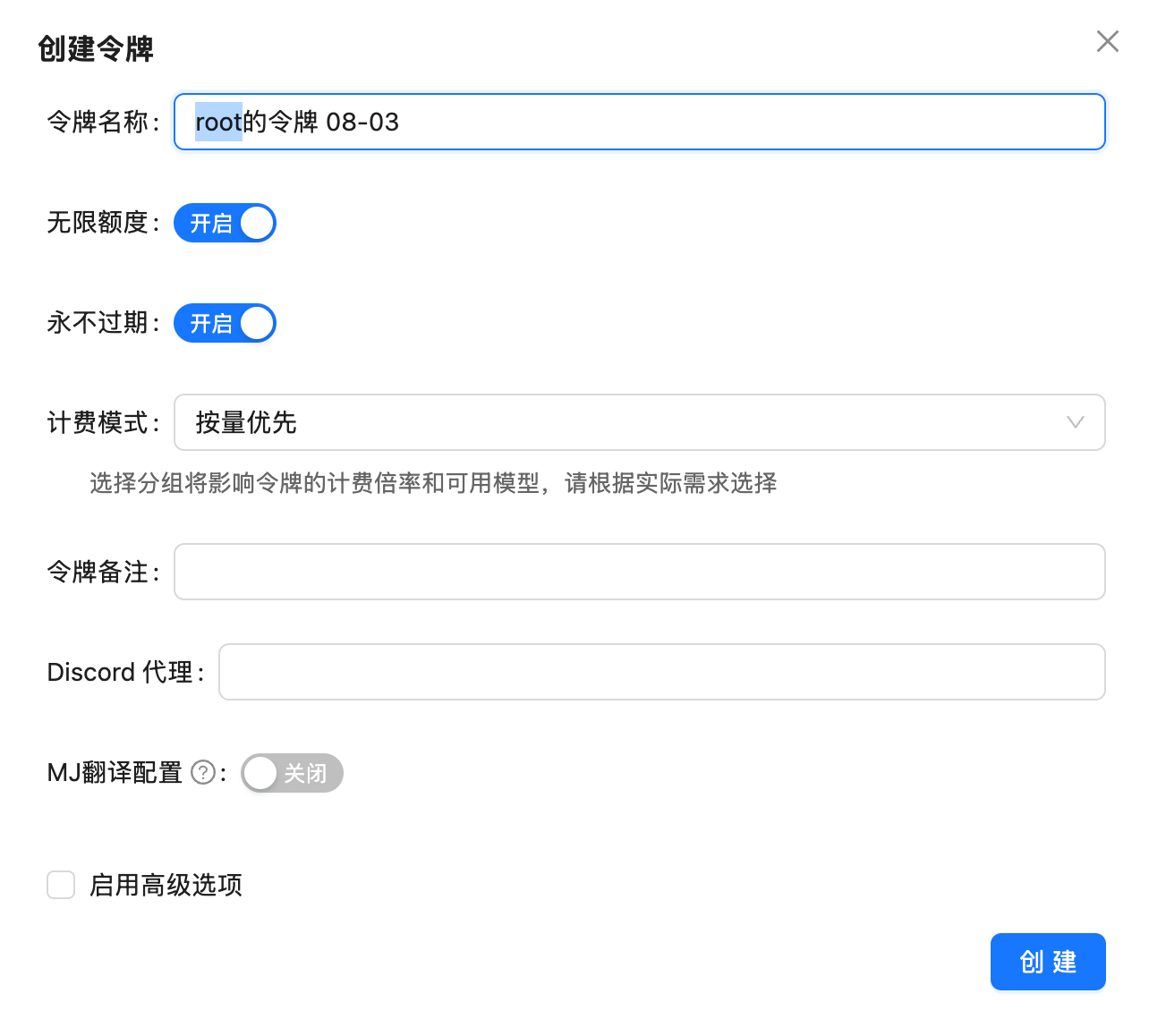 You **do not need to set allowed models** when creating a token. A whitelist mechanism applies: leave it empty and the token can use all 400+ models; set it and the token is limited to those models. See [Token Model Whitelist](/faq/token-model-whitelist).
## Editing a token & viewing code examples
Click the **management menu (wrench icon)** in the "Actions" column to expand all operations:
You **do not need to set allowed models** when creating a token. A whitelist mechanism applies: leave it empty and the token can use all 400+ models; set it and the token is limited to those models. See [Token Model Whitelist](/faq/token-model-whitelist).
## Editing a token & viewing code examples
Click the **management menu (wrench icon)** in the "Actions" column to expand all operations:
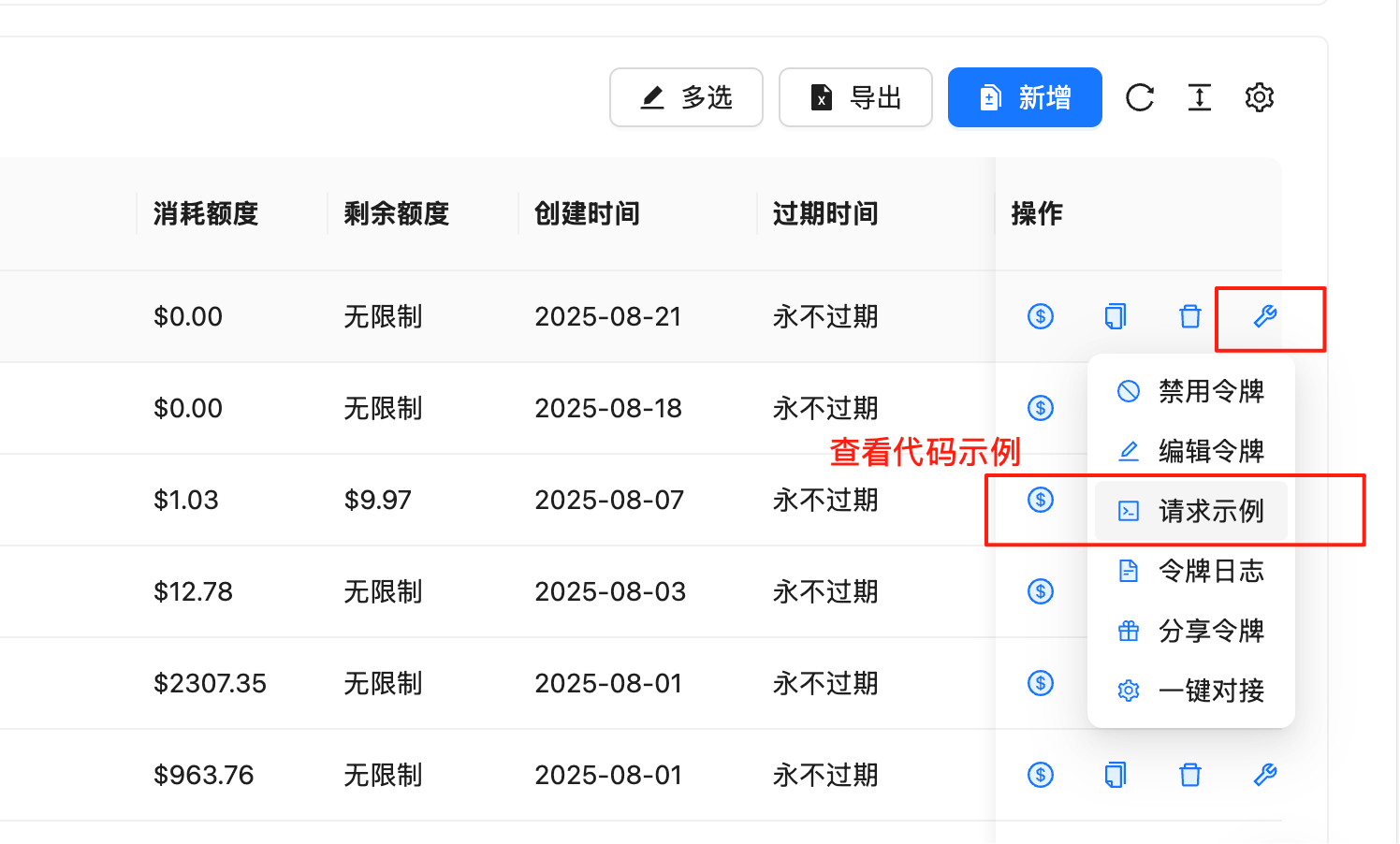 | Action | Description |
| --------------------------------- | --------------------------------------------------------------------------------------------------------- |
| **Disable token** | Temporarily disable the token; calls will be rejected |
| **Edit token** | Change name, quota, expiry, billing mode, group, etc. |
| **Request example** | **View code examples** — ready-to-run call code in multiple languages (curl, Python, etc.) for this token |
| **Token logs** | View this token's call records |
| **Share token / One-click setup** | Quickly share or integrate with third-party tools |
"Request example" is the **code example** entry point. It generates runnable call code with the current token pre-filled, so you don't have to assemble the KEY and endpoint manually — ideal for quick testing and integration.
## Will sharing one token among multiple people get rate-limited?
A common question from customers: **"If one token is shared by multiple people, will it be rate-limited?"**
The answer: **the token itself has no rate limit**. Rate limiting follows the **account**, regardless of how many tokens you have or how many people use them — one token shared by 10 people behaves exactly the same as 10 tokens used by 1 person each.
In general, a single account running at up to **100 RPM** is perfectly fine — enough for the vast majority of teams and applications.
**TPM is not enforced**, so you don't need to worry about long contexts or high concurrent token volume triggering limits.
Sharing a token doesn't affect rate limits, but from a **management** perspective we still recommend separate tokens per member or project: each gets its own quota, call logs, and spend statistics.
## What is a group
**A group is a "resource channel" you can choose for a token.** Different groups map to different upstream resources, available model ranges, and billing multipliers, and are **open for users to choose**.
In short: the same model may be served by multiple upstream channels, and the group lets you choose which channel to use. **Different models may require different groups**, so picking the right group ensures the call works and gets the corresponding discount.
In the vast majority of cases, the **default group (Default)** is all you need — it has full model coverage, including text models, the NanoBanana series, Veo 3.1, and most others.
## Default group & fallback groups
A single token can have up to **3 groups**: **1 default group + 2 fallback groups**.
The group the token uses first; covers most models. Every token must have 1 default group.
Backup channels that activate automatically when the default group cannot serve a request. Up to 2, improving call success rate.
| Action | Description |
| --------------------------------- | --------------------------------------------------------------------------------------------------------- |
| **Disable token** | Temporarily disable the token; calls will be rejected |
| **Edit token** | Change name, quota, expiry, billing mode, group, etc. |
| **Request example** | **View code examples** — ready-to-run call code in multiple languages (curl, Python, etc.) for this token |
| **Token logs** | View this token's call records |
| **Share token / One-click setup** | Quickly share or integrate with third-party tools |
"Request example" is the **code example** entry point. It generates runnable call code with the current token pre-filled, so you don't have to assemble the KEY and endpoint manually — ideal for quick testing and integration.
## Will sharing one token among multiple people get rate-limited?
A common question from customers: **"If one token is shared by multiple people, will it be rate-limited?"**
The answer: **the token itself has no rate limit**. Rate limiting follows the **account**, regardless of how many tokens you have or how many people use them — one token shared by 10 people behaves exactly the same as 10 tokens used by 1 person each.
In general, a single account running at up to **100 RPM** is perfectly fine — enough for the vast majority of teams and applications.
**TPM is not enforced**, so you don't need to worry about long contexts or high concurrent token volume triggering limits.
Sharing a token doesn't affect rate limits, but from a **management** perspective we still recommend separate tokens per member or project: each gets its own quota, call logs, and spend statistics.
## What is a group
**A group is a "resource channel" you can choose for a token.** Different groups map to different upstream resources, available model ranges, and billing multipliers, and are **open for users to choose**.
In short: the same model may be served by multiple upstream channels, and the group lets you choose which channel to use. **Different models may require different groups**, so picking the right group ensures the call works and gets the corresponding discount.
In the vast majority of cases, the **default group (Default)** is all you need — it has full model coverage, including text models, the NanoBanana series, Veo 3.1, and most others.
## Default group & fallback groups
A single token can have up to **3 groups**: **1 default group + 2 fallback groups**.
The group the token uses first; covers most models. Every token must have 1 default group.
Backup channels that activate automatically when the default group cannot serve a request. Up to 2, improving call success rate.
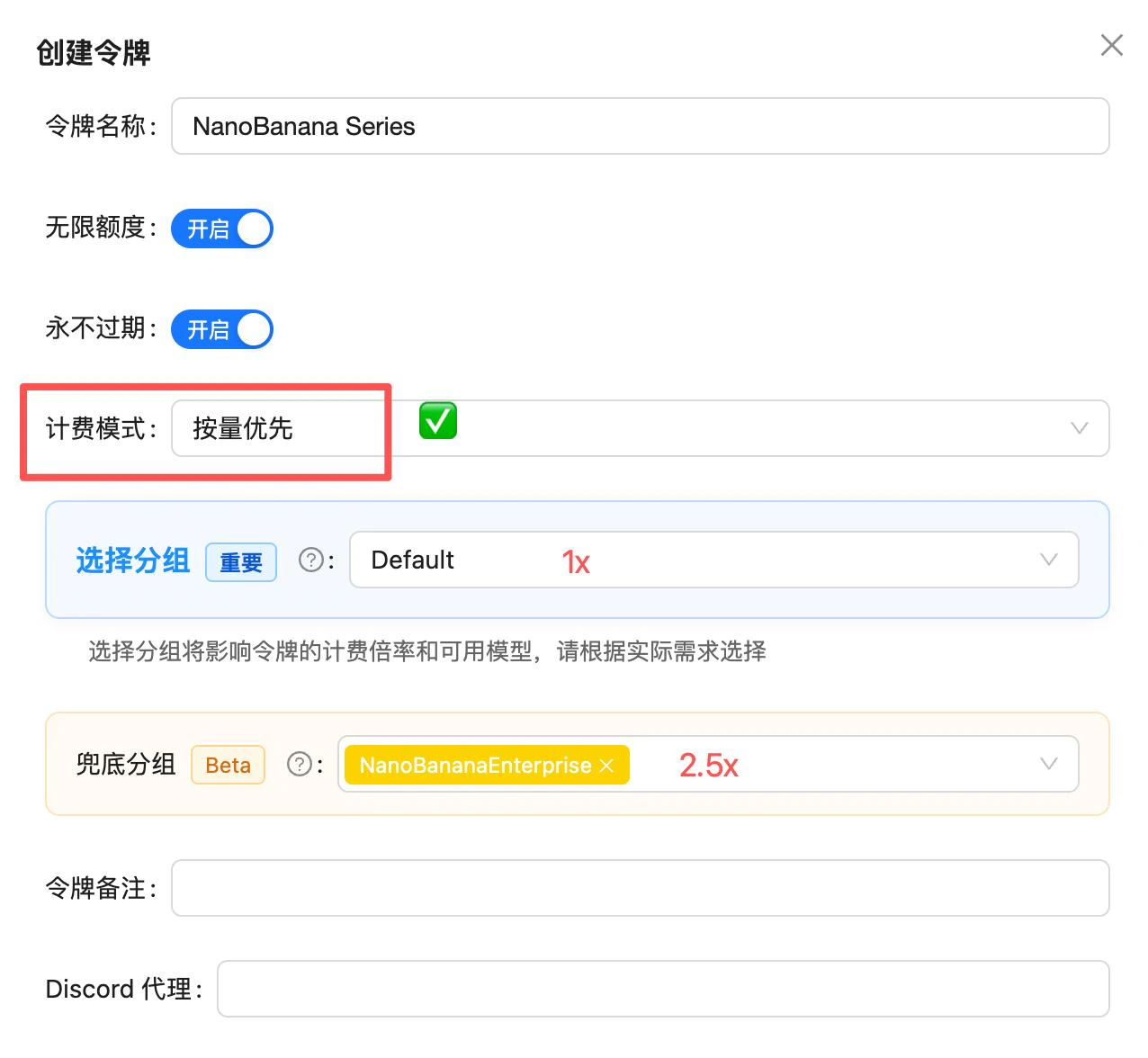 In the create/edit token dialog:
* **Select group**: sets the default (primary) group, `Default` by default
* **Fallback group**: add 1–2 backup groups that take over when the primary is unavailable
**The group affects the token's billing multiplier and available models.** Choose based on the models you actually use. When unsure, keep the default `Default`.
## Different models need different groups
The default group covers most models, but some models (especially **video models**) require a dedicated group:
| Model / scenario | Group to choose |
| ------------------------------------------------------ | ----------------- |
| Text, multimodal, NanoBanana, Veo 3.1, and most models | **Default** |
| Sora 2 official video | **Sora2Official** |
| Alibaba Wan video series | **Wan** |
When calling Sora 2 official, Wan, and other dedicated-group models, the model will be unavailable if the token lacks the matching group. Consider adding the commonly used dedicated group as a fallback, or create a separate token for these models.
## Group overview
Below are the groups and descriptions provided by the system (the console display is authoritative):
In the create/edit token dialog:
* **Select group**: sets the default (primary) group, `Default` by default
* **Fallback group**: add 1–2 backup groups that take over when the primary is unavailable
**The group affects the token's billing multiplier and available models.** Choose based on the models you actually use. When unsure, keep the default `Default`.
## Different models need different groups
The default group covers most models, but some models (especially **video models**) require a dedicated group:
| Model / scenario | Group to choose |
| ------------------------------------------------------ | ----------------- |
| Text, multimodal, NanoBanana, Veo 3.1, and most models | **Default** |
| Sora 2 official video | **Sora2Official** |
| Alibaba Wan video series | **Wan** |
When calling Sora 2 official, Wan, and other dedicated-group models, the model will be unavailable if the token lacks the matching group. Consider adding the commonly used dedicated group as a fallback, or create a separate token for these models.
## Group overview
Below are the groups and descriptions provided by the system (the console display is authoritative):
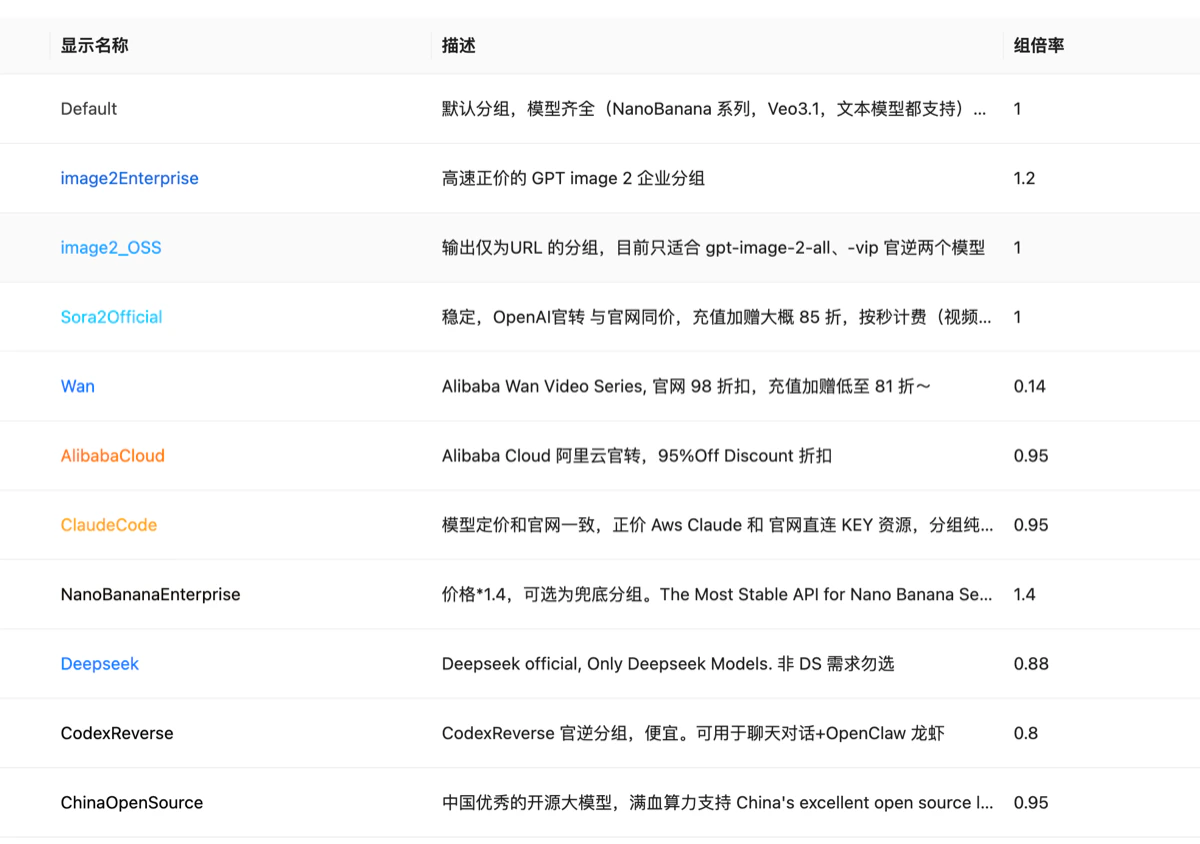 The "Group multiplier" column is a relative value priced in RMB — it is **not a direct USD discount ratio**, so there's no need to over-analyze it. Just pick the group that matches your model. To understand multipliers and price conversion, see [What is a model's multiplier?](/faq/model-multiplier).
## Related docs
Understand the difference between pay-per-usage and pay-per-call modes.
How to limit the models a single token can use.
Understand multiplier meaning and price calculation.
View call records and spend details per token.
The "Group multiplier" column is a relative value priced in RMB — it is **not a direct USD discount ratio**, so there's no need to over-analyze it. Just pick the group that matches your model. To understand multipliers and price conversion, see [What is a model's multiplier?](/faq/model-multiplier).
## Related docs
Understand the difference between pay-per-usage and pay-per-call modes.
How to limit the models a single token can use.
Understand multiplier meaning and price calculation.
View call records and spend details per token.