> ## Documentation Index
> Fetch the complete documentation index at: https://docs.apiyi.com/llms.txt
> Use this file to discover all available pages before exploring further.
# DeepSeek Harness
> An open-source plugin-based AI Agent harness from DeepSeek AI with Web UI, headless CLI, and Python SDK support
## Overview
DeepSeek Harness (`dsh`) is an open-source AI Agent harness developed by DeepSeek AI. It follows an “everything is a plugin” architecture, allowing models, tools, filesystems, terminals, sessions, and workflows to be composed into an extensible agent runtime.
With APIYI, you can run DeepSeek Harness locally and use APIYI’s OpenAI-compatible endpoint to configure models, execute development tasks, and maintain persistent sessions.
Compose models, tools, sessions, and workflows through plugins and extend the Agent as needed.
Start a local Web UI with one command and configure models, workspaces, and sessions in the browser.
Submit one-off tasks from the command line for automation scripts, batch jobs, and development workflows.
Persist sessions, tool calls, and workspace state to continue tasks and troubleshoot executions.
**Project information**: DeepSeek Harness is open source under the MIT license. The project repository is `github.com/deepseek-ai/deepseek-harness`. It is currently in Developer Preview, so future releases may include breaking compatibility changes.
## Installation and startup
### Start the Web UI with npm
Install Node.js, then run:
```bash theme={null}
npx @deepseek-ai/dsh web
```
When the server starts, open `http://127.0.0.1:3080`. On the first run, configure APIYI from the model settings in the Web UI.
### Run from source
To run the repository source or contribute to the project:
```bash theme={null}
git clone https://github.com/deepseek-ai/deepseek-harness.git
cd deepseek-harness
pnpm install
pnpm run build
pnpm dsh web
```
### Use the headless CLI
After building from source, submit a one-off task with:
```bash theme={null}
pnpm dsh --profile headless "Inspect the repository and explain the failing tests."
```
## Connect APIYI
DeepSeek Harness supports a native DeepSeek route and multi-provider routes based on `llm-pi-ai`. The current configuration uses the `apiyi` provider, the `openai-responses` protocol, and the `https://api.apiyi.com/v1` endpoint. Its default model is `deepseek-v4-pro-0813`.
The configuration file is `$DSH_HOME/settings.yaml`. When `DSH_HOME` is not set, the default Windows location is typically `C:\Users\Administrator\.dsh\settings.yaml`.
### Option 1: Configure from the Web UI (recommended)
Create a token in the APIYI Console. Never commit a real token to a project file, shell history, or public log.
Start the Web UI, open **Settings → Models**, and choose **Add custom provider**.
Use the following values as a starting point:
| Field | Recommended value |
| -------------------- | -------------------------- |
| Provider ID | `apiyi` |
| Display name | `apiyi` |
| Base URL | `https://api.apiyi.com/v1` |
| API protocol | `openai-responses` |
| Credential reference | `APIYI_API_KEY` |
| Model | `deepseek-v4-pro-0813` |
Your current configuration uses `deepseek-v4-pro-0813` as the default model. It also maintains other APIYI models in the configuration file; use the current APIYI model list when switching models.
Save the provider, select the newly added model in the model picker, and start a new session to test the connection.
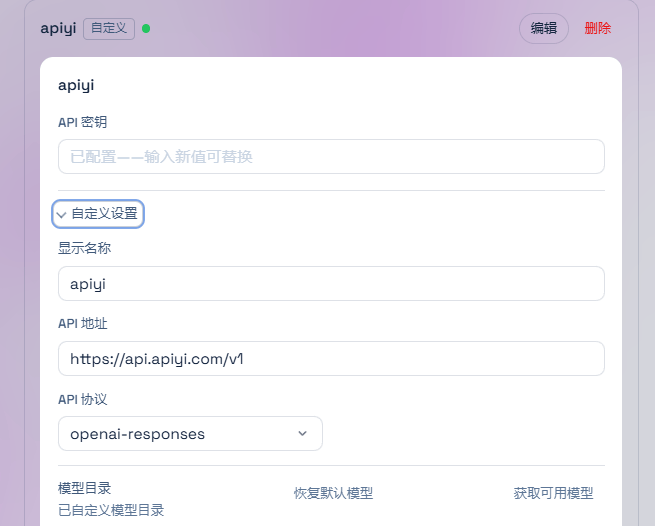 When you save a key through the Web UI, DeepSeek Harness stores it in its local credential store and only returns a redacted descriptor to the page. Configuration changes take effect on the next request and normally do not require a Web UI restart.
### Option 2: Configure settings.yaml
For file-based configuration, declare an APIYI provider in `$DSH_HOME/settings.yaml` and reference the token through an environment variable:
```yaml theme={null}
llm-pi-ai:
providers:
apiyi:
displayName: apiyi
apiKeyEnv: APIYI_API_KEY
api: openai-responses
baseURL: https://api.apiyi.com/v1
models:
- id: deepseek-v4-pro-0813
```
macOS or Linux:
```bash theme={null}
export APIYI_API_KEY=YOUR_API_KEY
```
Windows PowerShell:
```powershell theme={null}
$env:APIYI_API_KEY = "YOUR_API_KEY"
```
`apiKeyEnv` is only a credential reference. Do not put the actual token in `settings.yaml`. To add another model, add its model ID to the `models` list.
## Common usage patterns
### Local Web Agent
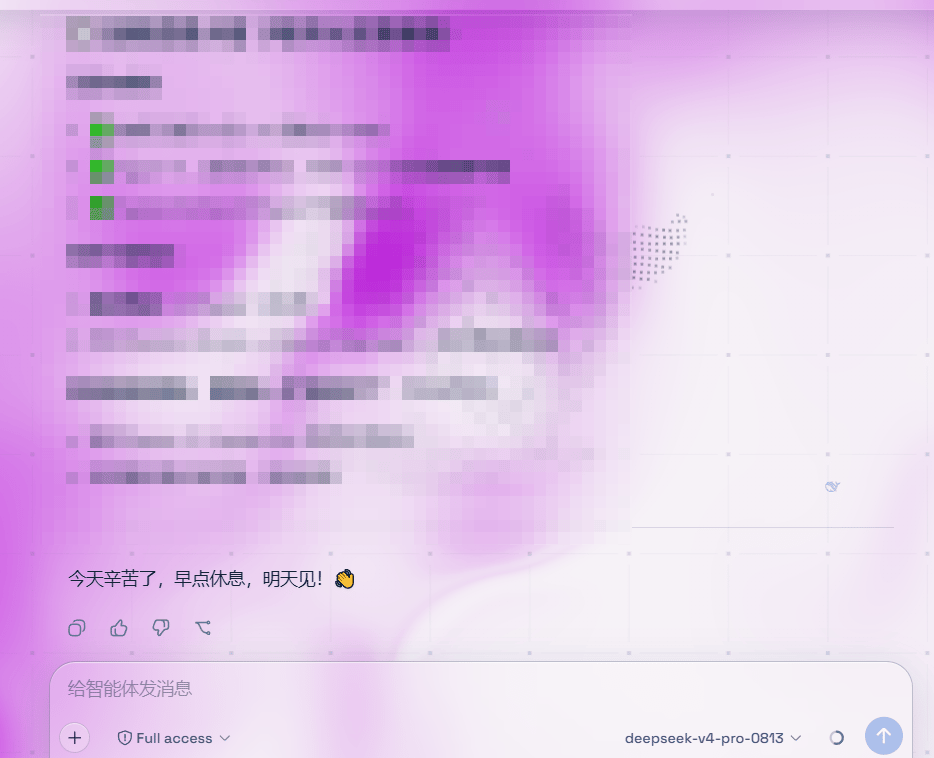
Use the browser-based Web UI for code analysis, file organization, test debugging, and project maintenance. Choose a workspace for the session, then describe the goal and constraints in natural language.
When you save a key through the Web UI, DeepSeek Harness stores it in its local credential store and only returns a redacted descriptor to the page. Configuration changes take effect on the next request and normally do not require a Web UI restart.
### Option 2: Configure settings.yaml
For file-based configuration, declare an APIYI provider in `$DSH_HOME/settings.yaml` and reference the token through an environment variable:
```yaml theme={null}
llm-pi-ai:
providers:
apiyi:
displayName: apiyi
apiKeyEnv: APIYI_API_KEY
api: openai-responses
baseURL: https://api.apiyi.com/v1
models:
- id: deepseek-v4-pro-0813
```
macOS or Linux:
```bash theme={null}
export APIYI_API_KEY=YOUR_API_KEY
```
Windows PowerShell:
```powershell theme={null}
$env:APIYI_API_KEY = "YOUR_API_KEY"
```
`apiKeyEnv` is only a credential reference. Do not put the actual token in `settings.yaml`. To add another model, add its model ID to the `models` list.
## Common usage patterns
### Local Web Agent
Use the browser-based Web UI for code analysis, file organization, test debugging, and project maintenance. Choose a workspace for the session, then describe the goal and constraints in natural language.
 ### Automated tasks
The headless profile runs one task and prints the final response, making it suitable for local scripts and automation workflows:
```bash theme={null}
pnpm dsh --profile headless "Review the changed files and summarize possible regressions."
```
### Python SDK
DeepSeek Harness provides `deepseek-harness-sdk`, which can start a runtime and call an Agent from Python. Note that the bundled Python runtime uses `deepseek-official` by default; it does not automatically inherit the `apiyi` route used by the current Web/headless configuration.
```bash theme={null}
python -m pip install deepseek-harness-sdk
```
```python theme={null}
from deepseek_harness import DeepSeekHarness
with DeepSeekHarness(
provider="apiyi",
model="deepseek-v4-pro-0813",
cwd="/absolute/path/to/workspace",
session_root="/absolute/path/to/sessions",
cordis="/absolute/path/to/apiyi.cordis.yml",
) as harness:
result = harness.run(
"Inspect the repository and summarize the failing tests.",
session_id="example-001",
)
print(result.final_response)
```
To use the `apiyi` route above, the custom Cordis composition must mount `@deepseek-ai/dsh-llm-pi-ai` and provide `apiKeyEnv: APIYI_API_KEY`, `api: openai-responses`, and the APIYI model list through `settings.yaml` or the composition configuration.
The Python SDK guide lists Linux x64, Linux arm64, and macOS 14 or later on arm64 for the bundled persistent-terminal composition. That composition does not support Windows Agents. Windows users should prefer the Web UI or CLI.
## Model selection
APIYI models are updated continuously. Check the latest model list, capabilities, and usage recommendations before choosing a production model:
Review current model recommendations, capability comparisons, and usage guidance. Use the model IDs currently available in the APIYI model list.
## Best practices
* Use a separate session ID for each independent task. Reuse an existing ID only when you need to continue the same conversation and persistent shell state.
* The Python SDK example uses a writable workspace and a `danger-full-access` composition. Run it in a disposable checkout or container.
* Do not put API keys in `cordis.yml`, `settings.yaml`, source code, or commit logs. Prefer the Web UI credential store or an environment-variable reference.
* DeepSeek Harness is in Developer Preview. Before upgrading, confirm that your plugin configuration and model routes remain compatible.
## Frequently asked questions
The current configuration uses the `apiyi` provider, the `openai-responses` protocol, the `https://api.apiyi.com/v1` Base URL, and `deepseek-v4-pro-0813` as the default model.
Use `https://api.apiyi.com/v1` as the Base URL and `openai-responses` as the protocol, matching the current configuration. Do not change the protocol without confirming endpoint compatibility.
Check that the Provider ID is a non-empty lowercase value, the model ID is correct, and the saved configuration belongs to the `llm-pi-ai` provider. The current default is `deepseek-v4-pro-0813`; a custom model must be included in the `models` list before it can be selected.
In the Web UI, return to **Settings → Models** and save credentials for the provider. With `settings.yaml`, confirm that `APIYI_API_KEY` is set and that `apiKeyEnv` points to that environment variable.
Check the APIYI token and Base URL first. DeepSeek Harness uses `GET /models` for model discovery on OpenAI-compatible custom providers. If an endpoint does not provide that route, enter the model ID manually.
The bundled persistent-terminal composition does not support Windows Agents. Windows users can use the Web UI or CLI; for the Python SDK, follow the platform requirements in the project documentation.
The project is in Developer Preview, so upgrades may include breaking changes. Recheck the provider configuration, model ID, and plugin composition against the latest project documentation.
## Related resources
Get an API key and learn about Base URLs and basic API usage.
Review current models, capabilities, and usage guidance.
`github.com/deepseek-ai/deepseek-harness`
Review the project documentation for provider, credential, and model configuration.
## Get help
### Automated tasks
The headless profile runs one task and prints the final response, making it suitable for local scripts and automation workflows:
```bash theme={null}
pnpm dsh --profile headless "Review the changed files and summarize possible regressions."
```
### Python SDK
DeepSeek Harness provides `deepseek-harness-sdk`, which can start a runtime and call an Agent from Python. Note that the bundled Python runtime uses `deepseek-official` by default; it does not automatically inherit the `apiyi` route used by the current Web/headless configuration.
```bash theme={null}
python -m pip install deepseek-harness-sdk
```
```python theme={null}
from deepseek_harness import DeepSeekHarness
with DeepSeekHarness(
provider="apiyi",
model="deepseek-v4-pro-0813",
cwd="/absolute/path/to/workspace",
session_root="/absolute/path/to/sessions",
cordis="/absolute/path/to/apiyi.cordis.yml",
) as harness:
result = harness.run(
"Inspect the repository and summarize the failing tests.",
session_id="example-001",
)
print(result.final_response)
```
To use the `apiyi` route above, the custom Cordis composition must mount `@deepseek-ai/dsh-llm-pi-ai` and provide `apiKeyEnv: APIYI_API_KEY`, `api: openai-responses`, and the APIYI model list through `settings.yaml` or the composition configuration.
The Python SDK guide lists Linux x64, Linux arm64, and macOS 14 or later on arm64 for the bundled persistent-terminal composition. That composition does not support Windows Agents. Windows users should prefer the Web UI or CLI.
## Model selection
APIYI models are updated continuously. Check the latest model list, capabilities, and usage recommendations before choosing a production model:
Review current model recommendations, capability comparisons, and usage guidance. Use the model IDs currently available in the APIYI model list.
## Best practices
* Use a separate session ID for each independent task. Reuse an existing ID only when you need to continue the same conversation and persistent shell state.
* The Python SDK example uses a writable workspace and a `danger-full-access` composition. Run it in a disposable checkout or container.
* Do not put API keys in `cordis.yml`, `settings.yaml`, source code, or commit logs. Prefer the Web UI credential store or an environment-variable reference.
* DeepSeek Harness is in Developer Preview. Before upgrading, confirm that your plugin configuration and model routes remain compatible.
## Frequently asked questions
The current configuration uses the `apiyi` provider, the `openai-responses` protocol, the `https://api.apiyi.com/v1` Base URL, and `deepseek-v4-pro-0813` as the default model.
Use `https://api.apiyi.com/v1` as the Base URL and `openai-responses` as the protocol, matching the current configuration. Do not change the protocol without confirming endpoint compatibility.
Check that the Provider ID is a non-empty lowercase value, the model ID is correct, and the saved configuration belongs to the `llm-pi-ai` provider. The current default is `deepseek-v4-pro-0813`; a custom model must be included in the `models` list before it can be selected.
In the Web UI, return to **Settings → Models** and save credentials for the provider. With `settings.yaml`, confirm that `APIYI_API_KEY` is set and that `apiKeyEnv` points to that environment variable.
Check the APIYI token and Base URL first. DeepSeek Harness uses `GET /models` for model discovery on OpenAI-compatible custom providers. If an endpoint does not provide that route, enter the model ID manually.
The bundled persistent-terminal composition does not support Windows Agents. Windows users can use the Web UI or CLI; for the Python SDK, follow the platform requirements in the project documentation.
The project is in Developer Preview, so upgrades may include breaking changes. Recheck the provider configuration, model ID, and plugin composition against the latest project documentation.
## Related resources
Get an API key and learn about Base URLs and basic API usage.
Review current models, capabilities, and usage guidance.
`github.com/deepseek-ai/deepseek-harness`
Review the project documentation for provider, credential, and model configuration.
## Get help
 Scan to add support or [contact support directly](https://work.weixin.qq.com/kfid/kfc9adfd5810ece25ec)
APIYI configuration, DeepSeek Harness integration, and usage guidance
**Support**: [support@apiyi.com](mailto:support@apiyi.com)
**Business inquiries**: [business@apiyi.com](mailto:business@apiyi.com)
When contacting support, include the provider, model ID, Base URL, API protocol, error message, Node.js version, usage mode, and relevant screenshots so the issue can be diagnosed faster.
Scan to add support or [contact support directly](https://work.weixin.qq.com/kfid/kfc9adfd5810ece25ec)
APIYI configuration, DeepSeek Harness integration, and usage guidance
**Support**: [support@apiyi.com](mailto:support@apiyi.com)
**Business inquiries**: [business@apiyi.com](mailto:business@apiyi.com)
When contacting support, include the provider, model ID, Base URL, API protocol, error message, Node.js version, usage mode, and relevant screenshots so the issue can be diagnosed faster.