> ## Documentation Index
> Fetch the complete documentation index at: https://docs.apiyi.com/llms.txt
> Use this file to discover all available pages before exploring further.
# LobeHub
> Open-source AI chat client integration guide with custom providers and local knowledge base
LobeHub is an open-source, cross-platform AI chat client (formerly Lobe Chat) that supports multiple models, multimodal input, a plugin marketplace, and a local knowledge base. With APIYI, you can use a single API key in LobeHub to access 400+ mainstream AI models — no need to sign up and pay each provider separately.
Desktop, web, Docker, or Vercel — your data, your control
Built-in web search, code interpreter, vision, and video generation plugins
Upload PDFs and Markdown to build a RAG pipeline over your private data
## Quick Start
### 1. Get your APIYI API key
See the [API Key Management Guide](/en/faq/token-management) to get your API key.
### 2. Install LobeHub
LobeHub offers three ways to use it:
* **Desktop**: Official client for Windows, macOS, and Linux — download from `lobechat.com`
* **Web (official)**: Just visit `lobechat.com`, sign up, and use it without any self-hosting
* **Self-hosted**: Deploy via Docker / Vercel / local source — great for enterprise or privacy needs
For personal use, we recommend the official web or desktop client. If you have data privacy or compliance requirements, self-host with Docker (just configure APIYI via environment variables).
### 3. Create a custom provider
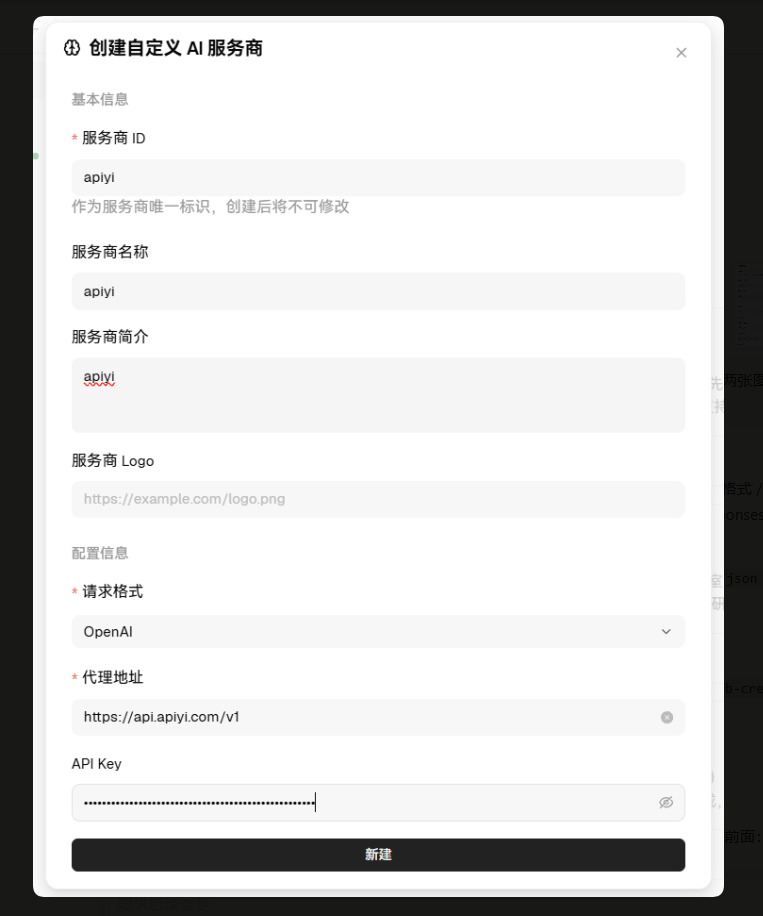 Go to `Settings → Model Providers`, click the `+` icon at the top right to add a custom provider, and fill in the fields as shown above:
| Field | Value | Notes |
| ------------------------ | -------------------------- | -------------------------------------------------- |
| **Provider ID** | `apiyi` | Unique identifier — cannot be changed once created |
| **Provider Name** | `apiyi` | Custom display name |
| **Provider Description** | `apiyi` | Custom description |
| **Provider Logo** | (leave blank) | Optional — custom logo URL |
| **Request Format** | `OpenAI` | APIYI is fully OpenAI-compatible |
| **Proxy URL** | `https://api.apiyi.com/v1` | Base URL — **must end with `/v1`** |
| **API Key** | Your APIYI API key | Get it from the APIYI console |
Click the **Create** button at the bottom right to save.
**Configuration tips**
* The `Proxy URL` MUST end with `/v1`, otherwise requests will fail to route
* Trim any leading/trailing spaces from your API key when pasting
* Choose `OpenAI` as the request format to access all 400+ APIYI models
* One key works across all enabled models — pay only for what you use
### 4. Verify connectivity
Go to `Settings → Model Providers`, click the `+` icon at the top right to add a custom provider, and fill in the fields as shown above:
| Field | Value | Notes |
| ------------------------ | -------------------------- | -------------------------------------------------- |
| **Provider ID** | `apiyi` | Unique identifier — cannot be changed once created |
| **Provider Name** | `apiyi` | Custom display name |
| **Provider Description** | `apiyi` | Custom description |
| **Provider Logo** | (leave blank) | Optional — custom logo URL |
| **Request Format** | `OpenAI` | APIYI is fully OpenAI-compatible |
| **Proxy URL** | `https://api.apiyi.com/v1` | Base URL — **must end with `/v1`** |
| **API Key** | Your APIYI API key | Get it from the APIYI console |
Click the **Create** button at the bottom right to save.
**Configuration tips**
* The `Proxy URL` MUST end with `/v1`, otherwise requests will fail to route
* Trim any leading/trailing spaces from your API key when pasting
* Choose `OpenAI` as the request format to access all 400+ APIYI models
* One key works across all enabled models — pay only for what you use
### 4. Verify connectivity
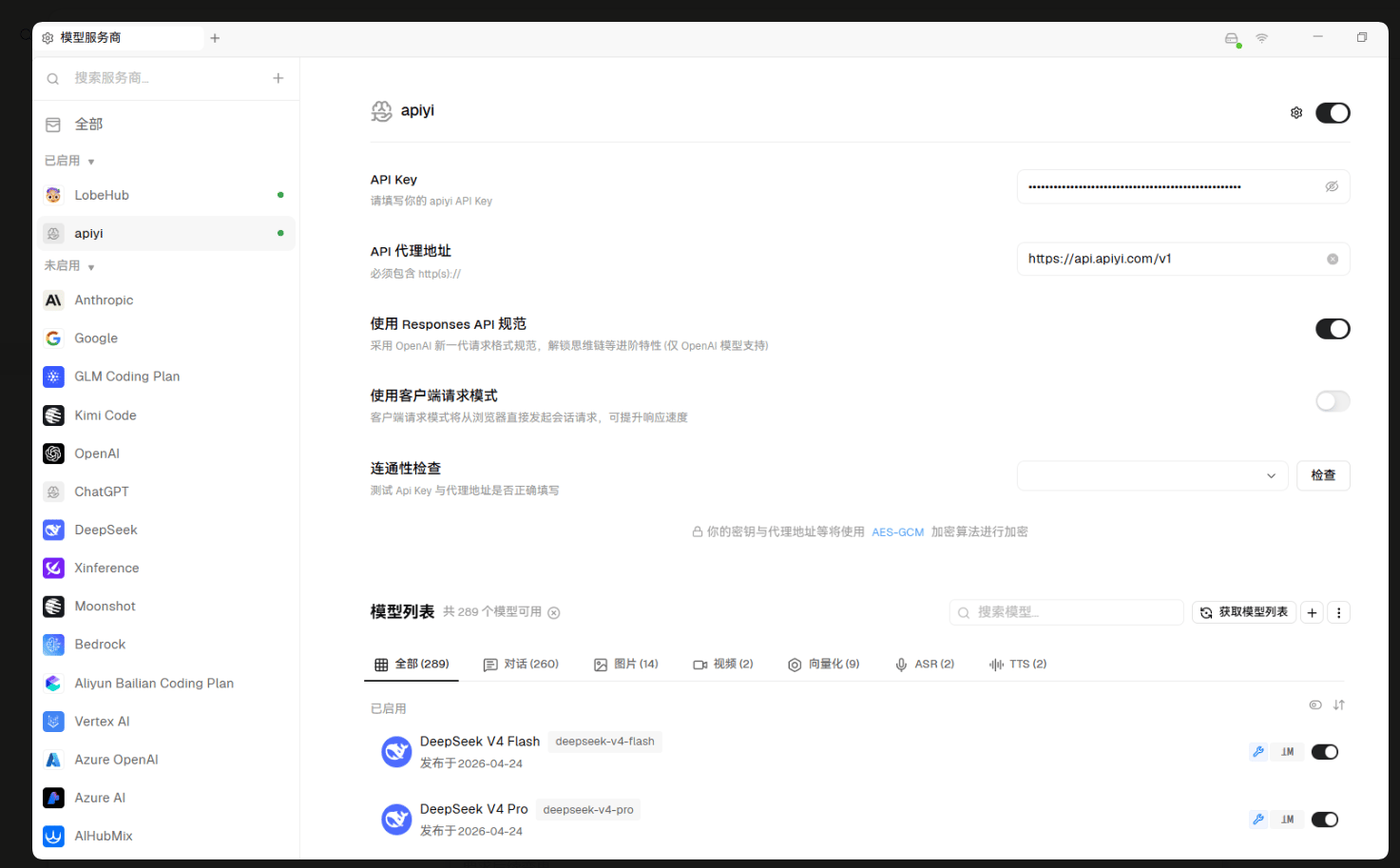 After creating the provider, you'll land on its detail page. From here you can:
1. **Confirm or update the API Key and Proxy URL**
2. **Enable advanced options** (optional):
* `Use Responses API spec` — enables OpenAI's newer request format (OpenAI models only)
* `Use client-side request mode` — browser sends requests directly, can improve response speed
3. **Connectivity check** — pick a model from the dropdown and click **Check**
4. **Fetch model list** — click the **Fetch model list** button to pull all available models from APIYI
After a successful fetch, the `Model list` shows everything APIYI currently offers, grouped by type: Chat, Image, Video, Embedding, ASR, TTS.
If the connectivity check fails, work through this checklist:
* Does the proxy URL end with `/v1`?
* Is the API key still valid? (verify in the APIYI console)
* Can your network reach `api.apiyi.com`?
* Is a firewall or proxy blocking HTTPS traffic?
### 5. Pick a model and start chatting
In the chat UI's model dropdown, select a model like `deepseek-v4-pro`, `claude-sonnet-4-5`, or `gpt-5` and you're ready to go.
Browse the latest model recommendations, performance comparisons, and scenario-based usage tips — covering writing, coding, fast response, image generation, video generation, and more.
**Why no concrete model list here?**
AI models iterate extremely fast. To keep recommendations accurate, we maintain the latest model list, performance data, and usage tips in the [Model Recommendation page](/en/api-capabilities/model-info).
## Access All 400+ Models With One Provider
LobeHub ships with built-in channels for many mainstream providers. Pick the channel that fits your use case:
| Channel | Models | Key advantage | API endpoint |
| ----------------------------- | ----------------------------------------------------- | ------------------------------------------- | -------------------------- |
| **OpenAI-compatible (apiyi)** | All 400+ models (Claude, Gemini, GPT, DeepSeek, etc.) | One key unlocks everything — simplest setup | `https://api.apiyi.com/v1` |
**One apiyi channel covers Claude, Gemini, and every other model**
APIYI wraps Claude, Gemini, GPT, DeepSeek, and other top models under the OpenAI-compatible protocol. So a single `apiyi` custom provider in LobeHub gives you access to all 400+ models in the dropdown — no need to set up separate channels per vendor.
## LobeHub Features Deep Dive
### Plugin marketplace
LobeHub ships with a rich plugin marketplace (`Settings → Plugins`). Recommended plugins:
* **Web Search** — give models real-time internet access
* **Code Interpreter** — run Python in-chat for data analysis and visualization
* **Chart Generation** — auto-generate flowcharts and mind maps
* **Image Generation** — generate images via models like `gpt-image-1` and `flux-kontext-pro`
### Local knowledge base (RAG)
LobeHub can build a local vector store from your files:
1. Go to the `Knowledge Base` page and create a new knowledge base
2. Upload PDF, Markdown, Word, Excel, or TXT files
3. The system chunks and embeds them automatically
4. In chat, select the knowledge base and the model will answer grounded in your files
The embedding step calls an embedding model (which is billed). We recommend using APIYI's `text-embedding-3-large` or similar embedding models.
### Multimodal chat
Upload images for vision understanding, recognition, and OCR:
* Recommended vision models: `gpt-4o`, `claude-sonnet-4-5`, `gemini-3-pro-image-preview`
* Just drag an image into the chat input and the model will recognize it
### Agent marketplace
LobeHub ships with a rich set of preset agents (translation, writing, coding, interview prep, etc.). You can also:
* One-click enable any community-shared agent from the `Agent marketplace`
* Build your own agent — custom persona, prompt, opening line, knowledge base, and plugins
### Conversation management
* Branch conversations, edit messages, regenerate responses
* Export conversations as Markdown, PNG, or JSON
* Global search across message history
## Advanced configuration
### Custom request parameters
You can tune common parameters on the provider detail page:
```yaml theme={null}
Default parameters:
Temperature: 0.7 # Creativity (reasoning models like gpt-5 / deepseek-r1 must use 1)
Top P: 0.9 # Sampling (reasoning models must use 1)
Max Tokens: 4096 # Maximum output length
Context Length: 8192 # Context window
```
Reasoning models (GPT-5, DeepSeek-R1, o1 series, etc.) only support `Temperature = 1` and `Top P = 1`. Other values are ignored or cause errors server-side.
### Network proxy and self-hosting
For proxy use or self-hosted LobeHub:
1. **Desktop client**: `Settings → Network` to configure HTTP/HTTPS proxy
2. **Self-hosted (Docker)**: inject APIYI config via environment variables:
```bash theme={null}
OPENAI_API_KEY=sk-your-apiyi-key
OPENAI_PROXY_URL=https://api.apiyi.com/v1
CUSTOM_MODELS=gpt-5,claude-sonnet-4-5,deepseek-v4-pro
```
3. **Client-side request mode**: enables browser-direct requests (only if the browser can reach APIYI)
### Keyboard shortcuts
| Shortcut | Action |
| ---------------------- | ---------------- |
| `Ctrl/Cmd + N` | New conversation |
| `Ctrl/Cmd + K` | Quick search |
| `Ctrl/Cmd + /` | Command palette |
| `Ctrl/Cmd + Shift + M` | Switch model |
## Mobile
LobeHub's desktop client runs on Windows / macOS / Linux. For mobile, use the responsive web app at `lobechat.com` — no separate install required.
## Troubleshooting
### Connection failure / connectivity check fails
| Symptom | What to check |
| ---------- | ---------------------------------------------------------------------- |
| 401 / 403 | API key invalid or balance exhausted — verify in the APIYI console |
| 404 | Proxy URL missing the `/v1` suffix |
| Timeout | Network issue — check proxy or firewall |
| CORS error | Turn off `Client-side request mode`, or go through a server-side proxy |
### Model list is empty
* Click **Fetch model list** to pull again
* Wait 1-2 seconds, then refresh the page
* Confirm the API key is active in the APIYI console
### Slow response or stream interruptions
* Switch to a faster model (e.g., `gpt-5-mini`, `claude-haiku-4-5`, `deepseek-v4-flash`)
* Disable unneeded plugins
* Check network latency
* Trim long context (close stale conversations)
### Knowledge base retrieval is inaccurate
* Reduce chunk size for finer-grained retrieval
* Switch to a stronger embedding model on APIYI
* Add more relevant documents to boost recall
## Best Practices
### Model selection strategy
Use the right model for the right task — match by complexity:
* **Daily chat / simple Q\&A**: `gpt-5-mini`, `claude-haiku-4-5`, `deepseek-v4-flash`
* **Complex reasoning / long-doc analysis**: `gpt-5`, `claude-opus-4-5`, `deepseek-v4-pro`
* **Coding**: `claude-sonnet-4-5`, `gpt-5`, `deepseek-v4-pro`
* **Image understanding**: `gpt-4o`, `claude-sonnet-4-5`, `gemini-3-pro-image-preview`
* **Image generation**: `gpt-image-1`, `flux-kontext-pro`
For the full model list and performance comparisons, see the [Model Recommendation page](/en/api-capabilities/model-info).
### Context management
* Periodically prune stale conversations
* Break complex tasks into shorter conversations
* Use the `branch conversation` feature to explore alternative replies
### Security and privacy
* Don't share your API key in public
* Rotate keys periodically (one-click reset in the APIYI console)
* For sensitive conversations, self-host LobeHub — data stays local
### Self-hosting tips
* Use Docker + PostgreSQL in production, not the built-in DB
* Put Cloudflare in front as a reverse proxy
* Manage secrets via environment variables for easy multi-instance deployment
## Comparison with other clients
| Feature | LobeHub | ChatBox | Cherry Studio |
| ---------------------------------- | --------------- | ---------------------- | ---------------- |
| **Open-source & self-hostable** | ✅ | ❌ | ❌ |
| **Local knowledge base (RAG)** | ✅ built-in | ❌ | ❌ |
| **Plugin marketplace** | ✅ rich | ❌ | partial |
| **Multimodal** | ✅ | ✅ | ✅ |
| **Multi-channel native protocols** | ✅ many built-in | OpenAI-compatible only | ✅ three formats |
| **Mobile** | Responsive web | Native apps | Native apps |
| **Cross-platform** | Desktop + web | Desktop + mobile + web | Desktop + mobile |
| **Self-hosted** | ✅ Docker/Vercel | ❌ | ❌ |
**When to choose LobeHub?**
* You need a **local knowledge base** or **plugin ecosystem** (web search, code interpreter, charts, etc.)
* You want **private deployment** with full data control
* You want one **unified open-source UI** across desktop + web
If you prioritize **out-of-the-box experience and native mobile apps**, pick ChatBox. For **Claude / Gemini native protocols with Prompt Cache savings**, pick Cherry Studio.
Need more help? Check the `lobechat.com` docs or visit the [APIYI website](https://api.apiyi.com).
After creating the provider, you'll land on its detail page. From here you can:
1. **Confirm or update the API Key and Proxy URL**
2. **Enable advanced options** (optional):
* `Use Responses API spec` — enables OpenAI's newer request format (OpenAI models only)
* `Use client-side request mode` — browser sends requests directly, can improve response speed
3. **Connectivity check** — pick a model from the dropdown and click **Check**
4. **Fetch model list** — click the **Fetch model list** button to pull all available models from APIYI
After a successful fetch, the `Model list` shows everything APIYI currently offers, grouped by type: Chat, Image, Video, Embedding, ASR, TTS.
If the connectivity check fails, work through this checklist:
* Does the proxy URL end with `/v1`?
* Is the API key still valid? (verify in the APIYI console)
* Can your network reach `api.apiyi.com`?
* Is a firewall or proxy blocking HTTPS traffic?
### 5. Pick a model and start chatting
In the chat UI's model dropdown, select a model like `deepseek-v4-pro`, `claude-sonnet-4-5`, or `gpt-5` and you're ready to go.
Browse the latest model recommendations, performance comparisons, and scenario-based usage tips — covering writing, coding, fast response, image generation, video generation, and more.
**Why no concrete model list here?**
AI models iterate extremely fast. To keep recommendations accurate, we maintain the latest model list, performance data, and usage tips in the [Model Recommendation page](/en/api-capabilities/model-info).
## Access All 400+ Models With One Provider
LobeHub ships with built-in channels for many mainstream providers. Pick the channel that fits your use case:
| Channel | Models | Key advantage | API endpoint |
| ----------------------------- | ----------------------------------------------------- | ------------------------------------------- | -------------------------- |
| **OpenAI-compatible (apiyi)** | All 400+ models (Claude, Gemini, GPT, DeepSeek, etc.) | One key unlocks everything — simplest setup | `https://api.apiyi.com/v1` |
**One apiyi channel covers Claude, Gemini, and every other model**
APIYI wraps Claude, Gemini, GPT, DeepSeek, and other top models under the OpenAI-compatible protocol. So a single `apiyi` custom provider in LobeHub gives you access to all 400+ models in the dropdown — no need to set up separate channels per vendor.
## LobeHub Features Deep Dive
### Plugin marketplace
LobeHub ships with a rich plugin marketplace (`Settings → Plugins`). Recommended plugins:
* **Web Search** — give models real-time internet access
* **Code Interpreter** — run Python in-chat for data analysis and visualization
* **Chart Generation** — auto-generate flowcharts and mind maps
* **Image Generation** — generate images via models like `gpt-image-1` and `flux-kontext-pro`
### Local knowledge base (RAG)
LobeHub can build a local vector store from your files:
1. Go to the `Knowledge Base` page and create a new knowledge base
2. Upload PDF, Markdown, Word, Excel, or TXT files
3. The system chunks and embeds them automatically
4. In chat, select the knowledge base and the model will answer grounded in your files
The embedding step calls an embedding model (which is billed). We recommend using APIYI's `text-embedding-3-large` or similar embedding models.
### Multimodal chat
Upload images for vision understanding, recognition, and OCR:
* Recommended vision models: `gpt-4o`, `claude-sonnet-4-5`, `gemini-3-pro-image-preview`
* Just drag an image into the chat input and the model will recognize it
### Agent marketplace
LobeHub ships with a rich set of preset agents (translation, writing, coding, interview prep, etc.). You can also:
* One-click enable any community-shared agent from the `Agent marketplace`
* Build your own agent — custom persona, prompt, opening line, knowledge base, and plugins
### Conversation management
* Branch conversations, edit messages, regenerate responses
* Export conversations as Markdown, PNG, or JSON
* Global search across message history
## Advanced configuration
### Custom request parameters
You can tune common parameters on the provider detail page:
```yaml theme={null}
Default parameters:
Temperature: 0.7 # Creativity (reasoning models like gpt-5 / deepseek-r1 must use 1)
Top P: 0.9 # Sampling (reasoning models must use 1)
Max Tokens: 4096 # Maximum output length
Context Length: 8192 # Context window
```
Reasoning models (GPT-5, DeepSeek-R1, o1 series, etc.) only support `Temperature = 1` and `Top P = 1`. Other values are ignored or cause errors server-side.
### Network proxy and self-hosting
For proxy use or self-hosted LobeHub:
1. **Desktop client**: `Settings → Network` to configure HTTP/HTTPS proxy
2. **Self-hosted (Docker)**: inject APIYI config via environment variables:
```bash theme={null}
OPENAI_API_KEY=sk-your-apiyi-key
OPENAI_PROXY_URL=https://api.apiyi.com/v1
CUSTOM_MODELS=gpt-5,claude-sonnet-4-5,deepseek-v4-pro
```
3. **Client-side request mode**: enables browser-direct requests (only if the browser can reach APIYI)
### Keyboard shortcuts
| Shortcut | Action |
| ---------------------- | ---------------- |
| `Ctrl/Cmd + N` | New conversation |
| `Ctrl/Cmd + K` | Quick search |
| `Ctrl/Cmd + /` | Command palette |
| `Ctrl/Cmd + Shift + M` | Switch model |
## Mobile
LobeHub's desktop client runs on Windows / macOS / Linux. For mobile, use the responsive web app at `lobechat.com` — no separate install required.
## Troubleshooting
### Connection failure / connectivity check fails
| Symptom | What to check |
| ---------- | ---------------------------------------------------------------------- |
| 401 / 403 | API key invalid or balance exhausted — verify in the APIYI console |
| 404 | Proxy URL missing the `/v1` suffix |
| Timeout | Network issue — check proxy or firewall |
| CORS error | Turn off `Client-side request mode`, or go through a server-side proxy |
### Model list is empty
* Click **Fetch model list** to pull again
* Wait 1-2 seconds, then refresh the page
* Confirm the API key is active in the APIYI console
### Slow response or stream interruptions
* Switch to a faster model (e.g., `gpt-5-mini`, `claude-haiku-4-5`, `deepseek-v4-flash`)
* Disable unneeded plugins
* Check network latency
* Trim long context (close stale conversations)
### Knowledge base retrieval is inaccurate
* Reduce chunk size for finer-grained retrieval
* Switch to a stronger embedding model on APIYI
* Add more relevant documents to boost recall
## Best Practices
### Model selection strategy
Use the right model for the right task — match by complexity:
* **Daily chat / simple Q\&A**: `gpt-5-mini`, `claude-haiku-4-5`, `deepseek-v4-flash`
* **Complex reasoning / long-doc analysis**: `gpt-5`, `claude-opus-4-5`, `deepseek-v4-pro`
* **Coding**: `claude-sonnet-4-5`, `gpt-5`, `deepseek-v4-pro`
* **Image understanding**: `gpt-4o`, `claude-sonnet-4-5`, `gemini-3-pro-image-preview`
* **Image generation**: `gpt-image-1`, `flux-kontext-pro`
For the full model list and performance comparisons, see the [Model Recommendation page](/en/api-capabilities/model-info).
### Context management
* Periodically prune stale conversations
* Break complex tasks into shorter conversations
* Use the `branch conversation` feature to explore alternative replies
### Security and privacy
* Don't share your API key in public
* Rotate keys periodically (one-click reset in the APIYI console)
* For sensitive conversations, self-host LobeHub — data stays local
### Self-hosting tips
* Use Docker + PostgreSQL in production, not the built-in DB
* Put Cloudflare in front as a reverse proxy
* Manage secrets via environment variables for easy multi-instance deployment
## Comparison with other clients
| Feature | LobeHub | ChatBox | Cherry Studio |
| ---------------------------------- | --------------- | ---------------------- | ---------------- |
| **Open-source & self-hostable** | ✅ | ❌ | ❌ |
| **Local knowledge base (RAG)** | ✅ built-in | ❌ | ❌ |
| **Plugin marketplace** | ✅ rich | ❌ | partial |
| **Multimodal** | ✅ | ✅ | ✅ |
| **Multi-channel native protocols** | ✅ many built-in | OpenAI-compatible only | ✅ three formats |
| **Mobile** | Responsive web | Native apps | Native apps |
| **Cross-platform** | Desktop + web | Desktop + mobile + web | Desktop + mobile |
| **Self-hosted** | ✅ Docker/Vercel | ❌ | ❌ |
**When to choose LobeHub?**
* You need a **local knowledge base** or **plugin ecosystem** (web search, code interpreter, charts, etc.)
* You want **private deployment** with full data control
* You want one **unified open-source UI** across desktop + web
If you prioritize **out-of-the-box experience and native mobile apps**, pick ChatBox. For **Claude / Gemini native protocols with Prompt Cache savings**, pick Cherry Studio.
Need more help? Check the `lobechat.com` docs or visit the [APIYI website](https://api.apiyi.com).