> ## Documentation Index
> Fetch the complete documentation index at: https://docs.apiyi.com/llms.txt
> Use this file to discover all available pages before exploring further.
# WorkBuddy
> Tencent's all-scenario AI office workspace — state your requirement, it plans and executes autonomously, then delivers finished work. One APIYI key connects any large model
Tencent's all-scenario AI office workspace — state your requirement, it plans and executes autonomously, then delivers finished work. One APIYI key connects any large model.
## Overview
WorkBuddy is Tencent's AI Agent office product built around a new paradigm: **state your requirement, let it run the task, receive a finished deliverable**. Unlike conversational AI that only offers suggestions and text replies, WorkBuddy understands natural-language instructions, breaks the task down on its own, plans the steps, and carries out the operations. It handles multimodal work — documents, spreadsheets, slide decks, data analysis — and can read an authorized local folder for batch processing, delivering results you can actually sign off on (weekly reports, meeting minutes, decks, data dashboards).
WorkBuddy ships with mainstream models built in — Hunyuan, GLM, MiniMax, Kimi, DeepSeek (provided through Tencent Cloud's Token Plan) — and also lets you plug in any third-party large model as the underlying engine via **Model configuration**. Connecting APIYI gives you:
| Capability | Details |
| ------------------------------------- | ----------------------------------------------------------------------------------------------------------------------------------------------------------- |
| 🧩 One key, every model | No need to register with each vendor separately — a single APIYI key gives you GPT / Claude / Gemini / DeepSeek and the rest of the matrix inside WorkBuddy |
| 🔐 Key stored locally | Your configuration (including the API key) is saved only to `workbuddy/models.json` on your machine, never uploaded to the cloud |
| ⚡ Graphical one-step setup | Settings → Models → Custom: fill in the endpoint, key, and model name, then save. No config files to edit |
| 💰 Pay-as-you-go, on your own account | Costs from custom models are settled directly with APIYI and do not consume WorkBuddy's own credits or plan quota |
> ℹ️ **Product info**: WorkBuddy is made by Tencent. Website `www.workbuddy.cn`, official docs `www.workbuddy.cn/docs/workbuddy/Overview`.
## Install
WorkBuddy currently offers **Windows / macOS** desktop clients. Download the installer from the website and double-click to install — no command line needed:
| Platform | How to get it |
| -------------- | ------------------------------------------------------------------------------------------------------------------- |
| Website home | `www.workbuddy.cn` — click the download button to get the installer for your platform |
| Windows | See the official Windows installation guide: `/docs/workbuddy/From-Beginner-to-Expert-Guide/Installation-Win-Guide` |
| macOS | See the official Mac installation guide: `/docs/workbuddy/From-Beginner-to-Expert-Guide/Installation-Mac-Guide` |
| Older versions | Official docs, "Download History": `/docs/workbuddy/Download-History` |
Once installed, open WorkBuddy, sign in, and you can issue a task in one sentence from the **New task** bar — or follow the official "Quick Start" / "Your First Task" walkthroughs to get familiar with the basics.
## Connecting APIYI
WorkBuddy's model configuration dialog supports **OpenAI-compatible protocol APIs only** (the dialog says so at the top). APIYI provides a standard **OpenAI-compatible API**, so picking the **Custom** provider is all it takes — and you get the whole model matrix at once (GPT / Claude / Gemini / DeepSeek / Zhipu / Kimi and more).
### Graphical configuration (the only method, recommended)
In WorkBuddy, open **Settings → Models**, click **Add model**, and fill in the fields as follows:
| Field | What to enter |
| ---------------- | -------------------------------------------------------------------------------------------------------------------------------------------------------------------------- |
| Provider | Choose `Custom` |
| Endpoint | `https://api.apiyi.com/v1/chat/completions` — enter the **full path** down to `/chat/completions`. Do not enter just `https://api.apiyi.com` or `https://api.apiyi.com/v1` |
| API Key | Your APIYI key (`sk-...`) |
| Model name | The model ID you want, e.g. `claude-sonnet-5`, `gpt-5.4`, `deepseek-v3.2`, `kimi-k2.6` |
| Advanced options | Tick manually according to what your chosen model actually supports — see the note below |
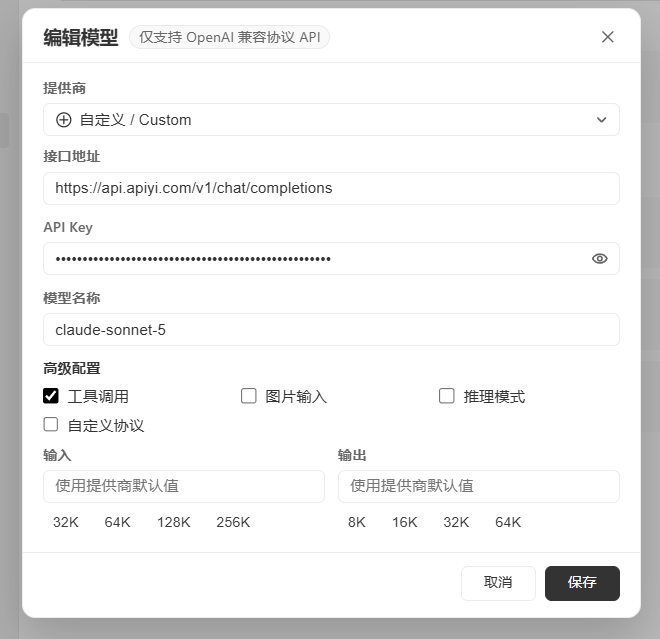 > ℹ️ **About the capability flags under "Advanced options"**: when you pick a **standard provider** such as Tencent Cloud's Token Plan, flags like tool calling and image input are filled in automatically. When you pick **Custom** to connect APIYI, they are **not** auto-detected — you have to tick them manually based on what your model really supports:
>
> * Go by the **actual capabilities** of the model ID you entered. When unsure, **tick fewer rather than more** — in the screenshot above, the `claude-sonnet-5` example has only tool calling enabled
> * Only add **Image input** / **Reasoning mode** after you've confirmed the model genuinely supports vision or enhanced reasoning
> * Ticking a capability the model doesn't have (for example enabling tool calling on a model that doesn't support it) can cause request errors, so tick only what you need
The **Input** and **Output** sections set context length and maximum output tokens. Leave them blank to use the provider's defaults, or pick a preset — 32K/64K/128K/256K for input, 8K/16K/32K/64K for output. Click **Save**, return to the chat view, and the model will appear under the Custom group in the model picker, ready to use.
> ⚠️ **Enter the endpoint in full as `https://api.apiyi.com/v1/chat/completions`** — the complete path ending in `/chat/completions`, as shown in the screenshot. An incomplete address such as `https://api.apiyi.com` or `https://api.apiyi.com/v1` will cause requests to fail.
**Extra tip**: when creating a token at `api.apiyi.com/token`, **some groups carry a discount** (the ClaudeCode group, for instance), and it stacks with top-up bonuses. The console is authoritative for current rates.
> 💡 **Why APIYI?**
>
> * **One key, many vendors**: OpenAI / Anthropic / Google / DeepSeek / Zhipu / Kimi and the rest of the matrix — configure once in WorkBuddy
> * **Price advantage**: typically 5%–20% below official pricing, with top-up bonuses on some models
> * **Direct access from mainland China**: reach overseas models without a proxy, so the WorkBuddy desktop client needs no extra network setup
> * **Standard OpenAI-compatible protocol**: matches WorkBuddy's **Custom** provider requirements exactly, with no need to turn on the custom-protocol switch
> ℹ️ **Costs and privacy**: all costs generated by custom models (token consumption and so on) are settled directly with APIYI, so keep an eye on your APIYI balance and usage. Your API key is stored only in `workbuddy/models.json` on your machine — WorkBuddy does not upload it to the cloud. Keep it safe, and delete or clear the configuration in Settings when you stop using it.
## Feature quick reference
| Feature | Details |
| ------------------------------------ | -------------------------------------------------------------------------------------------------------------- |
| ✨ Natural-language tasks | State the requirement in one sentence in the New task bar; no need to break complex steps down yourself |
| 📋 Autonomous planning and execution | Decomposes the task, plans the steps, executes the operations, and delivers a reviewable result |
| 🗂️ Multimodal task handling | Documents / spreadsheets / slide decks / data analysis and more |
| 📁 Local file operations | Reads an authorized local folder for batch organizing, renaming, and format conversion |
| 📨 Multi-platform assistant | Seven integration paths including WeChat, WeCom, Feishu, DingTalk, QQ, and the Yuanbao bot |
| 🧩 Skill marketplace and connectors | Curated zero-cost skills (Agent Browser, Web Search, and others) plus Tencent Docs / knowledge-base connectors |
## FAQ
### After connecting APIYI, will my API key be uploaded to WorkBuddy's cloud?
No. The official docs state explicitly that model configuration parameters (including the API key) are stored locally in `workbuddy/models.json` and are not uploaded to the cloud. At runtime WorkBuddy acts only as the transport link, forwarding your input to the APIYI endpoint you configured; the output comes straight back from that model. Beyond what's required for transmission, security auditing, troubleshooting, and legally mandated retention, WorkBuddy does not read or store conversation content.
### How are the costs of calling models through APIYI calculated? Do they consume WorkBuddy credits or plan quota?
They don't touch WorkBuddy's own credits or plan quota. All costs from custom models (token consumption, subscription fees, and so on) are paid and settled by you directly with APIYI, so keep an eye on your APIYI balance and usage to avoid unexpected spending.
### Does it support the Anthropic native protocol (`anthropic_messages`)?
Not currently. WorkBuddy's custom model dialog supports **OpenAI-compatible protocol APIs only** (clearly labeled at the top of the dialog). So when connecting APIYI, use its OpenAI-compatible endpoint `https://api.apiyi.com/v1/chat/completions` — the Anthropic native endpoint is not supported for now.
### When do I need the "custom protocol" switch, and how complete must the endpoint be?
The **custom protocol** switch is only needed when the model service you're connecting sits behind a gateway or proxy layer that uses a non-standard URL path — turning it on makes WorkBuddy skip path validation and send the request to exactly the address you entered. APIYI serves the standard `/chat/completions` path, so leave the switch **off** (its default). Either way, enter the endpoint **in full** as `https://api.apiyi.com/v1/chat/completions` (ending in `/chat/completions`). Don't enter only the base address (`https://api.apiyi.com` or `https://api.apiyi.com/v1`), and don't duplicate `/v1` — `.../v1/v1/chat/completions` will 404.
### How should I tick tool calling / image input / reasoning mode?
With standard providers such as Tencent Cloud's Token Plan, these flags are written in automatically. With **Custom** connecting APIYI they aren't auto-detected, so tick them manually according to what the model ID you entered really supports. When unsure, **tick fewer rather than more**. In the screenshot above, `claude-sonnet-5` has only tool calling enabled; add image input or reasoning mode once you've confirmed your model supports them. Ticking a capability the model doesn't have can cause request errors.
### What goes in the "Model name" field?
The model ID from the APIYI docs — for example `claude-sonnet-5`, `gpt-5.4`, `deepseek-v3.2`, `gemini-3.1-pro-preview`, or `kimi-k2.6`. To switch models, just edit that field in Settings and save; there's no need to reconfigure the endpoint or API key.
## Related resources
| Resource | Link |
| ------------------------------------ | -------------------------------------------------------------------------------------------------------------------------------------------------------- |
| 🌐 WorkBuddy website | `www.workbuddy.cn` |
| 📖 Official docs home | `www.workbuddy.cn/docs/workbuddy/Overview` |
| ⚙️ Model configuration docs | `www.workbuddy.cn/docs/workbuddy/From-Beginner-to-Expert-Guide/Function-Description/Model` |
| ⬇️ Windows / Mac installation guides | `www.workbuddy.cn/docs/workbuddy/From-Beginner-to-Expert-Guide/Installation-Win-Guide` (the Mac guide is `Installation-Mac-Guide` in the same directory) |
> ℹ️ **About the capability flags under "Advanced options"**: when you pick a **standard provider** such as Tencent Cloud's Token Plan, flags like tool calling and image input are filled in automatically. When you pick **Custom** to connect APIYI, they are **not** auto-detected — you have to tick them manually based on what your model really supports:
>
> * Go by the **actual capabilities** of the model ID you entered. When unsure, **tick fewer rather than more** — in the screenshot above, the `claude-sonnet-5` example has only tool calling enabled
> * Only add **Image input** / **Reasoning mode** after you've confirmed the model genuinely supports vision or enhanced reasoning
> * Ticking a capability the model doesn't have (for example enabling tool calling on a model that doesn't support it) can cause request errors, so tick only what you need
The **Input** and **Output** sections set context length and maximum output tokens. Leave them blank to use the provider's defaults, or pick a preset — 32K/64K/128K/256K for input, 8K/16K/32K/64K for output. Click **Save**, return to the chat view, and the model will appear under the Custom group in the model picker, ready to use.
> ⚠️ **Enter the endpoint in full as `https://api.apiyi.com/v1/chat/completions`** — the complete path ending in `/chat/completions`, as shown in the screenshot. An incomplete address such as `https://api.apiyi.com` or `https://api.apiyi.com/v1` will cause requests to fail.
**Extra tip**: when creating a token at `api.apiyi.com/token`, **some groups carry a discount** (the ClaudeCode group, for instance), and it stacks with top-up bonuses. The console is authoritative for current rates.
> 💡 **Why APIYI?**
>
> * **One key, many vendors**: OpenAI / Anthropic / Google / DeepSeek / Zhipu / Kimi and the rest of the matrix — configure once in WorkBuddy
> * **Price advantage**: typically 5%–20% below official pricing, with top-up bonuses on some models
> * **Direct access from mainland China**: reach overseas models without a proxy, so the WorkBuddy desktop client needs no extra network setup
> * **Standard OpenAI-compatible protocol**: matches WorkBuddy's **Custom** provider requirements exactly, with no need to turn on the custom-protocol switch
> ℹ️ **Costs and privacy**: all costs generated by custom models (token consumption and so on) are settled directly with APIYI, so keep an eye on your APIYI balance and usage. Your API key is stored only in `workbuddy/models.json` on your machine — WorkBuddy does not upload it to the cloud. Keep it safe, and delete or clear the configuration in Settings when you stop using it.
## Feature quick reference
| Feature | Details |
| ------------------------------------ | -------------------------------------------------------------------------------------------------------------- |
| ✨ Natural-language tasks | State the requirement in one sentence in the New task bar; no need to break complex steps down yourself |
| 📋 Autonomous planning and execution | Decomposes the task, plans the steps, executes the operations, and delivers a reviewable result |
| 🗂️ Multimodal task handling | Documents / spreadsheets / slide decks / data analysis and more |
| 📁 Local file operations | Reads an authorized local folder for batch organizing, renaming, and format conversion |
| 📨 Multi-platform assistant | Seven integration paths including WeChat, WeCom, Feishu, DingTalk, QQ, and the Yuanbao bot |
| 🧩 Skill marketplace and connectors | Curated zero-cost skills (Agent Browser, Web Search, and others) plus Tencent Docs / knowledge-base connectors |
## FAQ
### After connecting APIYI, will my API key be uploaded to WorkBuddy's cloud?
No. The official docs state explicitly that model configuration parameters (including the API key) are stored locally in `workbuddy/models.json` and are not uploaded to the cloud. At runtime WorkBuddy acts only as the transport link, forwarding your input to the APIYI endpoint you configured; the output comes straight back from that model. Beyond what's required for transmission, security auditing, troubleshooting, and legally mandated retention, WorkBuddy does not read or store conversation content.
### How are the costs of calling models through APIYI calculated? Do they consume WorkBuddy credits or plan quota?
They don't touch WorkBuddy's own credits or plan quota. All costs from custom models (token consumption, subscription fees, and so on) are paid and settled by you directly with APIYI, so keep an eye on your APIYI balance and usage to avoid unexpected spending.
### Does it support the Anthropic native protocol (`anthropic_messages`)?
Not currently. WorkBuddy's custom model dialog supports **OpenAI-compatible protocol APIs only** (clearly labeled at the top of the dialog). So when connecting APIYI, use its OpenAI-compatible endpoint `https://api.apiyi.com/v1/chat/completions` — the Anthropic native endpoint is not supported for now.
### When do I need the "custom protocol" switch, and how complete must the endpoint be?
The **custom protocol** switch is only needed when the model service you're connecting sits behind a gateway or proxy layer that uses a non-standard URL path — turning it on makes WorkBuddy skip path validation and send the request to exactly the address you entered. APIYI serves the standard `/chat/completions` path, so leave the switch **off** (its default). Either way, enter the endpoint **in full** as `https://api.apiyi.com/v1/chat/completions` (ending in `/chat/completions`). Don't enter only the base address (`https://api.apiyi.com` or `https://api.apiyi.com/v1`), and don't duplicate `/v1` — `.../v1/v1/chat/completions` will 404.
### How should I tick tool calling / image input / reasoning mode?
With standard providers such as Tencent Cloud's Token Plan, these flags are written in automatically. With **Custom** connecting APIYI they aren't auto-detected, so tick them manually according to what the model ID you entered really supports. When unsure, **tick fewer rather than more**. In the screenshot above, `claude-sonnet-5` has only tool calling enabled; add image input or reasoning mode once you've confirmed your model supports them. Ticking a capability the model doesn't have can cause request errors.
### What goes in the "Model name" field?
The model ID from the APIYI docs — for example `claude-sonnet-5`, `gpt-5.4`, `deepseek-v3.2`, `gemini-3.1-pro-preview`, or `kimi-k2.6`. To switch models, just edit that field in Settings and save; there's no need to reconfigure the endpoint or API key.
## Related resources
| Resource | Link |
| ------------------------------------ | -------------------------------------------------------------------------------------------------------------------------------------------------------- |
| 🌐 WorkBuddy website | `www.workbuddy.cn` |
| 📖 Official docs home | `www.workbuddy.cn/docs/workbuddy/Overview` |
| ⚙️ Model configuration docs | `www.workbuddy.cn/docs/workbuddy/From-Beginner-to-Expert-Guide/Function-Description/Model` |
| ⬇️ Windows / Mac installation guides | `www.workbuddy.cn/docs/workbuddy/From-Beginner-to-Expert-Guide/Installation-Win-Guide` (the Mac guide is `Installation-Mac-Guide` in the same directory) |