> ## Documentation Index
> Fetch the complete documentation index at: https://docs.apiyi.com/llms.txt
> Use this file to discover all available pages before exploring further.
# Feishu Bitable AI Image Generation Workflow
> A community-contributed end-to-end automation: Feishu field shortcut + Aliyun Function Compute + Coze workflow — operators fill prompts in a Bitable row to batch-call Nano Banana Pro and write image results back, all no-code.
## Overview
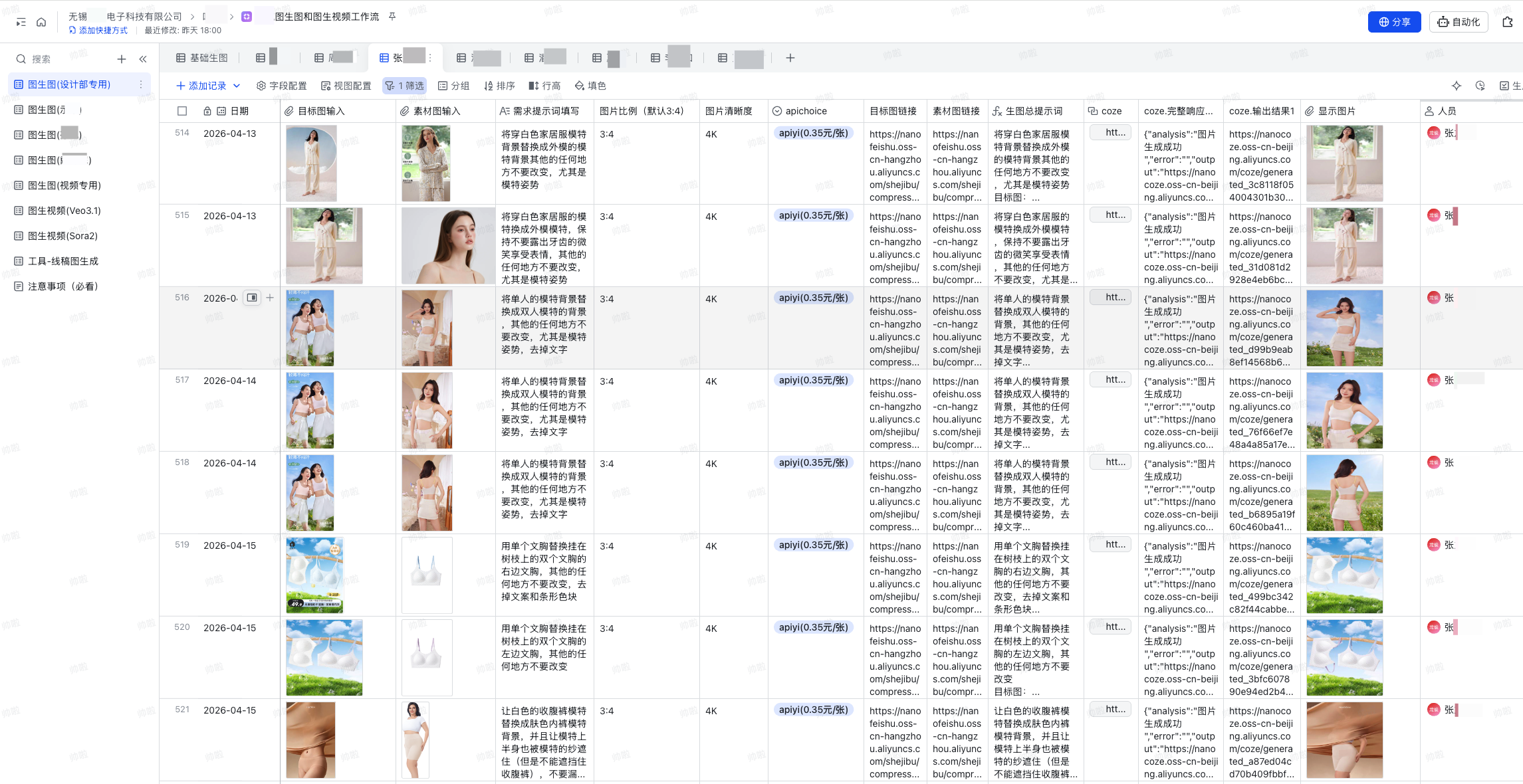
This is a complete, **turn-Feishu-Bitable-into-an-image-production-line** workflow: operators fill prompt + reference attachments in a row, attachments auto-convert to OSS URLs, a Coze workflow then calls Nano Banana Pro, and finally the generated image lands back in the row as an attachment — **zero code touches required from the user**.
The author (Shuaila1996) consolidated this from real production use; it includes 3 independent-but-cooperating pieces: a Feishu field shortcut, an Aliyun Function Compute function, and a Coze plugin.
 **Project Info**
* 📦 Form: Shared as a code package (**not published on GitHub**)
* 👤 Author: Shuaila1996
* 🎯 Use case: Feishu Enterprise Bitable + Aliyun + Coze CN
* 🔌 Model: `gemini-3-pro-image-preview` (Nano Banana Pro, via APIYI)
* 📝 Full source for the Feishu shortcut and Aliyun function is embedded in this doc; the Coze plugin source is in [Nano Banana Pro Coze Plugin](/en/scenarios/ecosystem/coze-nanobanana-plugin)
## Core Features
Operators fill prompts and upload reference images in Feishu Bitable — no code, no workflow editor
A custom Feishu field shortcut downloads the binary, forwards it to Aliyun FC, which compresses and uploads to OSS
The Coze workflow includes a "per-user API key" dictionary that routes APIYI keys per caller — for clean usage accounting
Bitable's native batch row operations + the field shortcut = one click to generate dozens to hundreds of images
The OSS URL returned from Coze is written back via Feishu's official "URL → attachment" shortcut, displayed inline as an image attachment
Moderation failures, refusals, timeouts come back as friendly text in the row, easy to triage
## Supported APIYI Models
| Model | Identifier | Use | API Doc |
| --------------- | ---------------------------- | ----------------------------- | -------------------------------------------------- |
| Nano Banana Pro | `gemini-3-pro-image-preview` | Text-to-image, image-to-image | [View doc](/en/api-capabilities/nano-banana-image) |
## Architecture
```text theme={null}
┌──────────────────┐
│ Feishu Bitable │ Operator fills: prompt + target/source images + caller
│ (Entry point) │
└────────┬─────────┘
│ ① Field shortcut trigger
↓
┌──────────────────┐
│ Feishu shortcut │ Download attachment binary, forward to Aliyun FC
│ (TypeScript) │
└────────┬─────────┘
│ ② HTTP POST
↓
┌──────────────────┐
│ Aliyun FC │ Receive binary → upload original → compress → return OSS URL
│ (Node.js) │
└────────┬─────────┘
│ ③ Write OSS URL back
↓
┌──────────────────┐
│ Feishu Bitable │ Formula field merges prompt + OSS URLs
│ (Field merge) │
└────────┬─────────┘
│ ④ Coze workflow shortcut
↓
┌──────────────────┐
│ Coze workflow │ Split params → pick API key → call Nano Banana Pro plugin
│ │
└────────┬─────────┘
│ ⑤ Return image URL
↓
┌──────────────────┐
│ Feishu Bitable │ URL-to-attachment shortcut, displayed as image field
│ (Result render) │
└──────────────────┘
```
## Deployment Steps
1. Provision an OSS bucket; create a RAM sub-account with `oss:PutObject` and `oss:ProcessObject` permissions
2. Provision Function Compute (FC); create an HTTP-triggered function on Node.js 18+
3. Install dependency: `ali-oss`
4. Configure environment variables (**never hardcode keys**):
```text theme={null}
OSS_REGION=oss-cn-beijing
OSS_BUCKET=your-bucket-name
OSS_AK=your-access-key-id
OSS_SK=your-access-key-secret
```
**Project Info**
* 📦 Form: Shared as a code package (**not published on GitHub**)
* 👤 Author: Shuaila1996
* 🎯 Use case: Feishu Enterprise Bitable + Aliyun + Coze CN
* 🔌 Model: `gemini-3-pro-image-preview` (Nano Banana Pro, via APIYI)
* 📝 Full source for the Feishu shortcut and Aliyun function is embedded in this doc; the Coze plugin source is in [Nano Banana Pro Coze Plugin](/en/scenarios/ecosystem/coze-nanobanana-plugin)
## Core Features
Operators fill prompts and upload reference images in Feishu Bitable — no code, no workflow editor
A custom Feishu field shortcut downloads the binary, forwards it to Aliyun FC, which compresses and uploads to OSS
The Coze workflow includes a "per-user API key" dictionary that routes APIYI keys per caller — for clean usage accounting
Bitable's native batch row operations + the field shortcut = one click to generate dozens to hundreds of images
The OSS URL returned from Coze is written back via Feishu's official "URL → attachment" shortcut, displayed inline as an image attachment
Moderation failures, refusals, timeouts come back as friendly text in the row, easy to triage
## Supported APIYI Models
| Model | Identifier | Use | API Doc |
| --------------- | ---------------------------- | ----------------------------- | -------------------------------------------------- |
| Nano Banana Pro | `gemini-3-pro-image-preview` | Text-to-image, image-to-image | [View doc](/en/api-capabilities/nano-banana-image) |
## Architecture
```text theme={null}
┌──────────────────┐
│ Feishu Bitable │ Operator fills: prompt + target/source images + caller
│ (Entry point) │
└────────┬─────────┘
│ ① Field shortcut trigger
↓
┌──────────────────┐
│ Feishu shortcut │ Download attachment binary, forward to Aliyun FC
│ (TypeScript) │
└────────┬─────────┘
│ ② HTTP POST
↓
┌──────────────────┐
│ Aliyun FC │ Receive binary → upload original → compress → return OSS URL
│ (Node.js) │
└────────┬─────────┘
│ ③ Write OSS URL back
↓
┌──────────────────┐
│ Feishu Bitable │ Formula field merges prompt + OSS URLs
│ (Field merge) │
└────────┬─────────┘
│ ④ Coze workflow shortcut
↓
┌──────────────────┐
│ Coze workflow │ Split params → pick API key → call Nano Banana Pro plugin
│ │
└────────┬─────────┘
│ ⑤ Return image URL
↓
┌──────────────────┐
│ Feishu Bitable │ URL-to-attachment shortcut, displayed as image field
│ (Result render) │
└──────────────────┘
```
## Deployment Steps
1. Provision an OSS bucket; create a RAM sub-account with `oss:PutObject` and `oss:ProcessObject` permissions
2. Provision Function Compute (FC); create an HTTP-triggered function on Node.js 18+
3. Install dependency: `ali-oss`
4. Configure environment variables (**never hardcode keys**):
```text theme={null}
OSS_REGION=oss-cn-beijing
OSS_BUCKET=your-bucket-name
OSS_AK=your-access-key-id
OSS_SK=your-access-key-secret
```
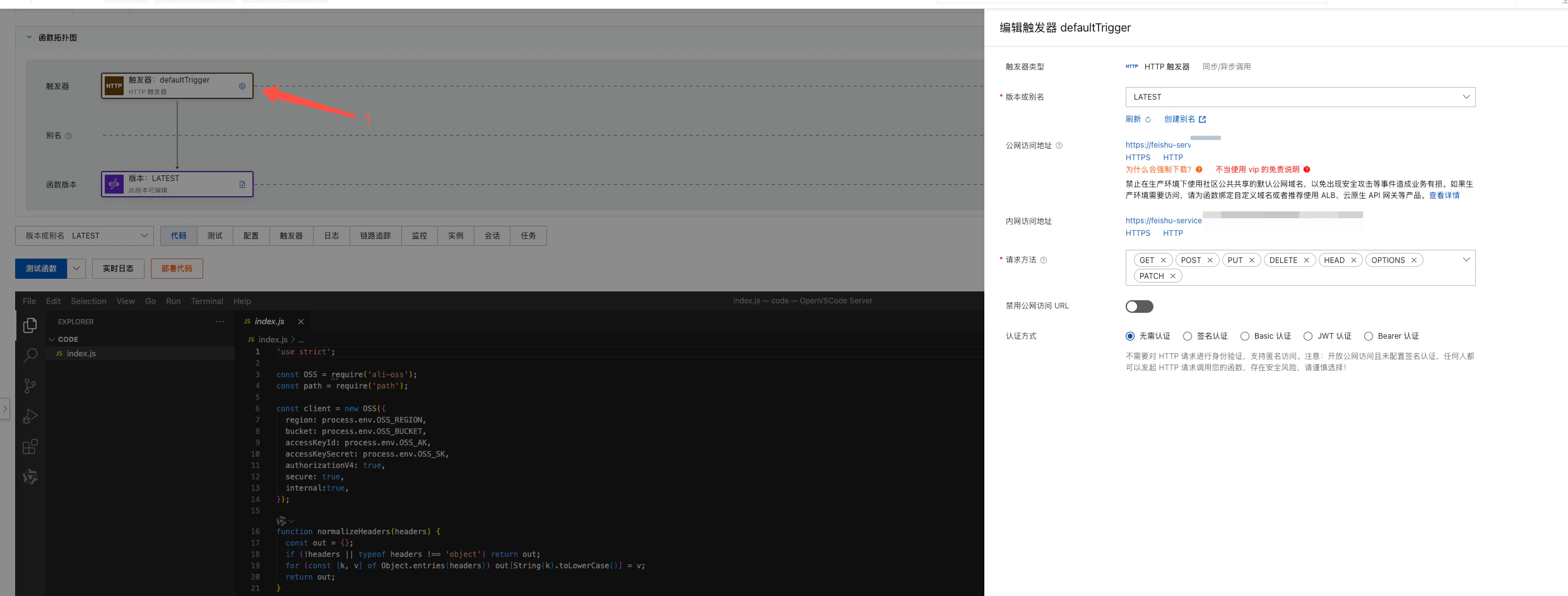 Drop the author's `aliyun-fc-oss-upload.js` into your FC function. The function:
* Receives the binary forwarded from the Feishu shortcut
* Uploads the original via `client.put`
* Saves a compressed copy via `client.processObjectSave` (long-edge 4500 / quality 95)
* Wraps the compressed public URL in a `feishuWrapper` structure that Feishu can parse
Note the function's **public trigger URL** when done.
Use the [Feishu field shortcut framework](https://feishu.feishu.cn/docx/SZFpd9v6EoHMI7xEhWhckLLfnBh) to deploy `feishu-attachment-to-oss.ts`. Two replacements:
```typescript theme={null}
basekit.addDomainList([
'your-fc.aliyun.com', // Your FC public domain (without https://)
'internal-api-drive-stream.feishu.cn',
]);
// ...
const uploadResp = await context.fetch(
'https://your-fc.aliyun.com', // Full public trigger URL
// ...
);
```
Feishu field shortcuts run inside Feishu's official sandbox where **many Node.js libraries are unavailable**, so attachment upload must be split into "shortcut downloads binary → FC uploads to OSS". You can't call the OSS SDK directly from the shortcut.
Package and submit to Feishu's official team to upload to your enterprise shortcut library.
Set up these fields in your Bitable:
| Field | Type | Note |
| ---------------- | ----------------------------------- | ----------------------------------- |
| Prompt | Text | User's image generation instruction |
| Target image | Attachment | Reference target |
| Source image | Attachment | Material for editing |
| Target image URL | Field shortcut (attachment → OSS) | Auto-populates OSS URL |
| Source image URL | Field shortcut (attachment → OSS) | Auto-populates OSS URL |
| Merged prompt | Formula | See below |
| Caller | Person / Text | Used to route API keys |
| apichoice | Text | Fixed value `apiyi` |
| Result URL | Field shortcut (Coze workflow call) | Triggers Coze |
| Generated image | Field shortcut (URL → attachment) | Renders the final image |
Formula example for `Merged prompt`:
```text theme={null}
[Prompt]&CHAR(10)&"Target: "&[Target image URL]&CHAR(10)&"Source: "&[Source image URL]
```
1. Deploy the Python plugin per [Nano Banana Pro Coze Plugin](/en/scenarios/ecosystem/coze-nanobanana-plugin)
2. Import the author's Coze workflow export, which includes:
* A code node to split images and prompt
* A "per-user API key" dictionary node (caller name → APIYI key)
* The Nano Banana Pro plugin node
* Success / failure / error aggregation
3. Maintain the "per-user API key" dictionary inside the workflow
Add either Feishu's official or a custom "Coze workflow call" field shortcut to the Bitable, configured as below:
Drop the author's `aliyun-fc-oss-upload.js` into your FC function. The function:
* Receives the binary forwarded from the Feishu shortcut
* Uploads the original via `client.put`
* Saves a compressed copy via `client.processObjectSave` (long-edge 4500 / quality 95)
* Wraps the compressed public URL in a `feishuWrapper` structure that Feishu can parse
Note the function's **public trigger URL** when done.
Use the [Feishu field shortcut framework](https://feishu.feishu.cn/docx/SZFpd9v6EoHMI7xEhWhckLLfnBh) to deploy `feishu-attachment-to-oss.ts`. Two replacements:
```typescript theme={null}
basekit.addDomainList([
'your-fc.aliyun.com', // Your FC public domain (without https://)
'internal-api-drive-stream.feishu.cn',
]);
// ...
const uploadResp = await context.fetch(
'https://your-fc.aliyun.com', // Full public trigger URL
// ...
);
```
Feishu field shortcuts run inside Feishu's official sandbox where **many Node.js libraries are unavailable**, so attachment upload must be split into "shortcut downloads binary → FC uploads to OSS". You can't call the OSS SDK directly from the shortcut.
Package and submit to Feishu's official team to upload to your enterprise shortcut library.
Set up these fields in your Bitable:
| Field | Type | Note |
| ---------------- | ----------------------------------- | ----------------------------------- |
| Prompt | Text | User's image generation instruction |
| Target image | Attachment | Reference target |
| Source image | Attachment | Material for editing |
| Target image URL | Field shortcut (attachment → OSS) | Auto-populates OSS URL |
| Source image URL | Field shortcut (attachment → OSS) | Auto-populates OSS URL |
| Merged prompt | Formula | See below |
| Caller | Person / Text | Used to route API keys |
| apichoice | Text | Fixed value `apiyi` |
| Result URL | Field shortcut (Coze workflow call) | Triggers Coze |
| Generated image | Field shortcut (URL → attachment) | Renders the final image |
Formula example for `Merged prompt`:
```text theme={null}
[Prompt]&CHAR(10)&"Target: "&[Target image URL]&CHAR(10)&"Source: "&[Source image URL]
```
1. Deploy the Python plugin per [Nano Banana Pro Coze Plugin](/en/scenarios/ecosystem/coze-nanobanana-plugin)
2. Import the author's Coze workflow export, which includes:
* A code node to split images and prompt
* A "per-user API key" dictionary node (caller name → APIYI key)
* The Nano Banana Pro plugin node
* Success / failure / error aggregation
3. Maintain the "per-user API key" dictionary inside the workflow
Add either Feishu's official or a custom "Coze workflow call" field shortcut to the Bitable, configured as below:
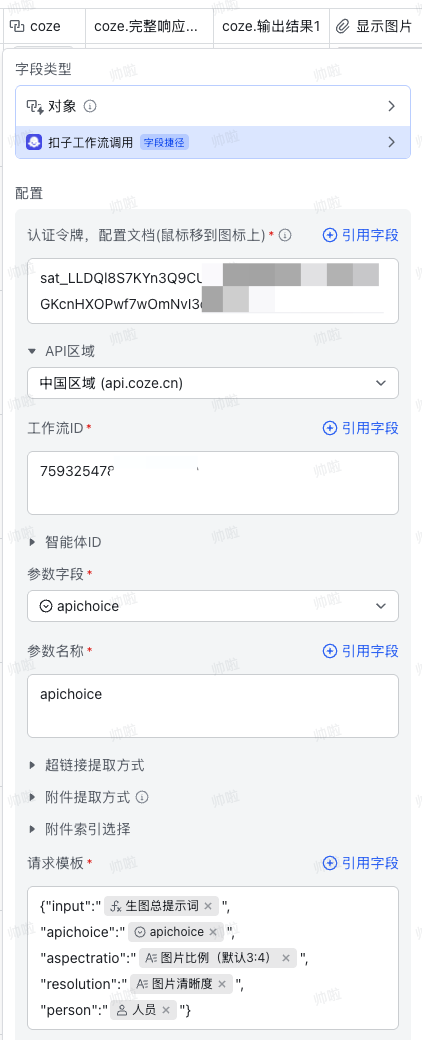 Key points:
* Fill in the workflow token and workflow ID from Coze
* Field names in the request template must **exactly match** Coze workflow input names
* Required fields follow Coze workflow's required flag
* The `apichoice` column should hold `apiyi`, **not** display strings like `apiyi(0.35元/张)` — the dictionary lookup will fail otherwise
Last step: convert the URL Coze returns into a Feishu image attachment. Two options:
1. **Buy directly**: use the official Coze "URL → attachment" field shortcut
2. **Build your own**: implement a custom URL-to-attachment field shortcut following the Feishu doc
## Bitable Merge Formula
The "Merged prompt" formula in Bitable:
```text theme={null}
[Prompt]&CHAR(10)&"Target: "&[Target image URL]&CHAR(10)&"Source: "&[Source image URL]
```
`CHAR(10)` is a newline, letting the Coze code node split prompt vs. image URLs by `\n`.
## Feishu Field Shortcut Full Source
Below is the complete `feishu-attachment-to-oss.ts`, ready to drop into the Feishu field-shortcut framework. **Before deploying, only the two `feishu-service` placeholders need replacing with your Aliyun FC public domain / URL.**
```typescript feishu-attachment-to-oss.ts theme={null}
import {
basekit,
FieldComponent,
FieldType,
FieldCode,
} from '@lark-opdev/block-basekit-server-api';
basekit.addDomainList([
'feishu-service',/*这里需要你们替换成阿里函数FC域名名称,名称是公网链接去掉"https:"剩余部分*/
'internal-api-drive-stream.feishu.cn',
]);
basekit.addField({
formItems: [
{
key: 'attachments',
label: '上传图片',
component: FieldComponent.FieldSelect,
props: {
supportType: [FieldType.Attachment],
},
validator: {
required: true,
},
},
{
key: 'bizType',
label: '业务类型',
component: FieldComponent.Input,
props: {
placeholder: '如 avatar / report / invoice',
},
},
],
resultType: {
type: FieldType.Text,
},
execute: async (formItemParams: any, context: any) => {
const { attachments = [], bizType = 'default' } = formItemParams;
const urls: string[] = [];
for (const attachment of attachments) {
if (!attachment?.tmp_url) continue;
/* 1️⃣ 下载飞书附件(二进制) */
const fileResp = await context.fetch(attachment.tmp_url);
const arrayBuffer = await fileResp.arrayBuffer();
/* 2️⃣ 调用 FC 事件函数 */
const uploadResp = await context.fetch(
'https://feishu-service',/*这里需要你们替换成自己的事件函数公网链接*/
{
method: 'POST',
headers: {
'Content-Type': 'application/octet-stream',
'X-File-Name': encodeURIComponent(attachment.name || 'file'),
'X-Biz-Type': encodeURIComponent(bizType),
},
body: arrayBuffer,
}
);
/* 3️⃣ 解析事件函数返回 */
const result = await uploadResp.json();
/**
* result 结构:
* {
* statusCode: number,
* headers: object,
* body: string // ⚠️ JSON 字符串
* }
*/
if (result.statusCode !== 200) {
throw new Error(`upload failed: ${result.body}`);
}
// ⚠️ 事件函数的 body 需要再 parse 一次
const bodyObj = JSON.parse(result.body);
urls.push(bodyObj.url);
}
return {
code: FieldCode.Success,
data: urls.join('\n'),
};
},
});
export default basekit;
```
## Aliyun Function Compute Full Source
Below is the complete `aliyun-fc-oss-upload.js`, ready to paste into Aliyun Function Compute (Node.js 18+). **All credentials are read from environment variables — never hardcode.**
The function returns a `feishuWrapper(...)` double-layer structure: the HTTP layer always returns 200 (so Feishu's `fetch` doesn't throw on non-2xx); the real status and payload sit inside `body` (a **JSON string**), which Feishu unwraps with `JSON.parse(result.body)`.
```javascript aliyun-fc-oss-upload.js theme={null}
'use strict';
const OSS = require('ali-oss');
const path = require('path');
const client = new OSS({
region: process.env.OSS_REGION,
bucket: process.env.OSS_BUCKET,
accessKeyId: process.env.OSS_AK,
accessKeySecret: process.env.OSS_SK,
authorizationV4: true,
secure: true,
internal:true,
});
function normalizeHeaders(headers) {
const out = {};
if (!headers || typeof headers !== 'object') return out;
for (const [k, v] of Object.entries(headers)) out[String(k).toLowerCase()] = v;
return out;
}
function getHeader(headersLower, name, defVal) {
const v = headersLower[String(name).toLowerCase()];
return v == null ? defVal : v;
}
function isTrue(v) {
return v === true || v === 'true' || v === 1 || v === '1';
}
function safeDecode(v) {
if (v == null) return v;
try {
return decodeURIComponent(String(v));
} catch {
return String(v);
}
}
function parseEvent(event) {
// 你的环境:HTTP 触发器事件通常是 Buffer 包着 JSON
if (Buffer.isBuffer(event)) {
const first = event.slice(0, 1).toString();
if (first === '{' || first === '[') {
return JSON.parse(event.toString('utf8'));
}
// 非 JSON:当成原始 body(这种情况下一般拿不到 headers)
return { __rawBody: event };
}
if (typeof event === 'string') {
try {
const obj = JSON.parse(event);
if (obj && typeof obj === 'object') return obj;
} catch {}
return { __rawBody: Buffer.from(event) };
}
if (event && typeof event === 'object') return event;
return {};
}
function bodyToBuffer(eventObj) {
// 原始 body 模式(极少数)
if (eventObj.__rawBody) return eventObj.__rawBody;
const raw = eventObj.body;
if (raw == null) {
const err = new Error('Missing request body');
err.statusCode = 400;
throw err;
}
const base64 = isTrue(eventObj.isBase64Encoded);
if (base64) {
if (typeof raw !== 'string') {
const err = new Error('isBase64Encoded=true but body is not string');
err.statusCode = 400;
throw err;
}
return Buffer.from(raw, 'base64');
}
if (Buffer.isBuffer(raw)) return raw;
if (typeof raw === 'string') return Buffer.from(raw);
if (typeof raw === 'object' && raw.type === 'Buffer' && Array.isArray(raw.data)) {
return Buffer.from(raw.data);
}
if (ArrayBuffer.isView(raw)) return Buffer.from(raw.buffer, raw.byteOffset, raw.byteLength);
if (raw instanceof ArrayBuffer) return Buffer.from(new Uint8Array(raw));
const err = new Error('Unsupported body type');
err.statusCode = 415;
throw err;
}
/**
* ✅ 返回给飞书的"wrapper 结构"
* 让飞书侧能用 result.statusCode 和 JSON.parse(result.body)
*/
function feishuWrapper(statusCode, payloadObj, extraHeaders = {}) {
return {
statusCode: 200, // HTTP 层保持 200,让飞书 fetch 不因非 2xx 抛异常
headers: {
'Content-Type': 'application/json',
...extraHeaders,
},
body: JSON.stringify({
statusCode,
headers: { 'Content-Type': 'application/json' },
body: JSON.stringify(payloadObj), // ⚠️ body 必须是字符串
}),
};
}
exports.handler = async (event, context) => {
const requestId = context?.requestId || context?.fcRequestId || '';
try {
const eventObj = parseEvent(event);
const headersLower = normalizeHeaders(eventObj.headers);
// 处理 OPTIONS 预检(避免偶发调用)
const method =
eventObj?.httpMethod ||
eventObj?.method ||
eventObj?.requestContext?.http?.method ||
'';
if (method && method.toUpperCase() === 'OPTIONS') {
return {
statusCode: 204,
headers: {
'Access-Control-Allow-Origin': '*',
'Access-Control-Allow-Headers': '*',
'Access-Control-Allow-Methods': 'POST,OPTIONS',
},
body: '',
};
}
const bodyBuf = bodyToBuffer(eventObj);
if (!bodyBuf || bodyBuf.length === 0) {
return feishuWrapper(400, { error: 'Empty body', requestId });
}
// 可选:只验收不上传(飞书侧也能解析)
const dryRun = isTrue(getHeader(headersLower, 'x-dry-run', 'false'));
if (dryRun) {
return feishuWrapper(200, {
ok: true,
dryRun: true,
requestId,
size: bodyBuf.length,
contentType: getHeader(headersLower, 'content-type', ''),
});
}
const fileName = safeDecode(getHeader(headersLower, 'x-file-name', 'file')) || 'file';
const bizTypeRaw = safeDecode(getHeader(headersLower, 'x-biz-type', 'default')) || 'default';
const bizType = bizTypeRaw.replace(/[^a-zA-Z0-9-_]/g, '') || 'default';
const ext = path.extname(fileName) || '.bin';
const objectKey = `${bizType}/${Date.now()}${Math.random().toString(16).slice(2, 6)}${ext}`;
// 关键日志(生产保留最小必要)
console.log('[info]', JSON.stringify({
requestId,
size: bodyBuf.length,
objectKey,
contentType: getHeader(headersLower, 'content-type', ''),
isBase64Encoded: isTrue(eventObj.isBase64Encoded),
}));
const result = await client.put(objectKey, bodyBuf);
const processStr = 'image/resize,m_lfit,w_4500,h_4500/quality,Q_95';
const compressedKey = `${bizType}/compressed/${path.basename(objectKey)}`;
console.log('[img-save]', { objectKey, compressedKey, processStr, bucket: process.env.OSS_BUCKET });
await client.processObjectSave(
objectKey, // ✅ sourceObject:刚 put 的原图 key
compressedKey, // ✅ targetObject:要写回 OSS 的新 key
processStr, // ✅ 处理串
process.env.OSS_BUCKET // ✅ targetBucket
);
const publicHost = `${process.env.OSS_BUCKET}.${process.env.OSS_REGION}.aliyuncs.com`;
const publicUrl = `https://${publicHost}/${compressedKey}`;
console.log('[info]', JSON.stringify({
requestId,
objectKey,
ossStatus: result?.res?.status,
}));
// ✅ 按飞书期待格式返回
return feishuWrapper(200, {
url: publicUrl,
objectKey: compressedKey,
size: bodyBuf.length,
});
} catch (e) {
console.error('[error]', requestId, e);
// ✅ 错误也按 wrapper 返回,飞书能走到 upload failed: result.body
return feishuWrapper(500, { error: e.message, requestId });
}
};
```
## Coze Plugin Source
The Python plugin `coze-nanobanana-pro.py` is fully embedded in [Nano Banana Pro Coze Plugin](/en/scenarios/ecosystem/coze-nanobanana-plugin) under the "Plugin Full Source" section — copy and paste, no separate download.
## Security Notes
This stack involves **API keys, Aliyun AccessKey, Feishu tokens, Coze tokens** — multiple credentials. Always:
1. **Never hardcode keys**: Aliyun FC uses env vars, Coze uses platform encrypted config, Feishu shortcut wipes real URLs before commit
2. **OSS sub-account, minimum permissions**: only `oss:PutObject` + `oss:ProcessObject` on the target bucket, never global
3. **Distribute APIYI keys per person**: use the per-user dictionary, easy to audit and revoke
4. **Sign the FC public trigger**: enable signature auth on the Function Compute trigger to block external misuse
## FAQ
Two checks:
1. Is the FC public domain in `basekit.addDomainList` (**without https\://**)?
2. Is `context.fetch` using the full `https://` URL?
Feishu's sandbox blocks any domain you haven't declared.
Check first:
* Does the `apichoice` column hold `apiyi` (not display strings like `apiyi(0.35元/张)`)?
* Is the caller listed in the "per-user API key" dictionary?
* Does the caller's name match the Bitable person field exactly (whitespace, simplified vs. traditional)?
Coze returns a text URL by default; Feishu needs another "URL → attachment" shortcut to render. Either:
1. Buy Coze's official "URL → attachment" shortcut (easiest)
2. Build your own URL-to-attachment shortcut
Usually `processObjectSave` parameter or bucket region mismatch. Check:
* Is image processing enabled on the bucket?
* Does `process.env.OSS_REGION` match the bucket's actual region?
* Does the RAM sub-account have `oss:ProcessObject` permission?
Nano Banana Pro 4K is slow. Recommended:
* Add concurrency limits at the Coze workflow entry
* Trigger field shortcuts in Bitable in batches of 5–10 rows at a time
* Distribute different APIYI keys across callers to spread out rate limits
Yes — every piece is embedded in the docs (contributed by Shuaila1996), copy-paste ready:
* `feishu-attachment-to-oss.ts` (Feishu field shortcut) → see "Feishu Field Shortcut Full Source" above on this page
* `aliyun-fc-oss-upload.js` (Aliyun FC) → see "Aliyun Function Compute Full Source" above on this page
* `coze-nanobanana-pro.py` (Coze plugin) → see "Plugin Full Source" in [Nano Banana Pro Coze Plugin](/en/scenarios/ecosystem/coze-nanobanana-plugin)
## Related Resources
The companion Coze plugin code and detailed guide — also useful standalone for any Coze workflow that needs Nano Banana Pro
Full API doc, pricing, and generation samples
Nano Banana failure-troubleshooting guide
Manage API keys, view usage and balance
Key points:
* Fill in the workflow token and workflow ID from Coze
* Field names in the request template must **exactly match** Coze workflow input names
* Required fields follow Coze workflow's required flag
* The `apichoice` column should hold `apiyi`, **not** display strings like `apiyi(0.35元/张)` — the dictionary lookup will fail otherwise
Last step: convert the URL Coze returns into a Feishu image attachment. Two options:
1. **Buy directly**: use the official Coze "URL → attachment" field shortcut
2. **Build your own**: implement a custom URL-to-attachment field shortcut following the Feishu doc
## Bitable Merge Formula
The "Merged prompt" formula in Bitable:
```text theme={null}
[Prompt]&CHAR(10)&"Target: "&[Target image URL]&CHAR(10)&"Source: "&[Source image URL]
```
`CHAR(10)` is a newline, letting the Coze code node split prompt vs. image URLs by `\n`.
## Feishu Field Shortcut Full Source
Below is the complete `feishu-attachment-to-oss.ts`, ready to drop into the Feishu field-shortcut framework. **Before deploying, only the two `feishu-service` placeholders need replacing with your Aliyun FC public domain / URL.**
```typescript feishu-attachment-to-oss.ts theme={null}
import {
basekit,
FieldComponent,
FieldType,
FieldCode,
} from '@lark-opdev/block-basekit-server-api';
basekit.addDomainList([
'feishu-service',/*这里需要你们替换成阿里函数FC域名名称,名称是公网链接去掉"https:"剩余部分*/
'internal-api-drive-stream.feishu.cn',
]);
basekit.addField({
formItems: [
{
key: 'attachments',
label: '上传图片',
component: FieldComponent.FieldSelect,
props: {
supportType: [FieldType.Attachment],
},
validator: {
required: true,
},
},
{
key: 'bizType',
label: '业务类型',
component: FieldComponent.Input,
props: {
placeholder: '如 avatar / report / invoice',
},
},
],
resultType: {
type: FieldType.Text,
},
execute: async (formItemParams: any, context: any) => {
const { attachments = [], bizType = 'default' } = formItemParams;
const urls: string[] = [];
for (const attachment of attachments) {
if (!attachment?.tmp_url) continue;
/* 1️⃣ 下载飞书附件(二进制) */
const fileResp = await context.fetch(attachment.tmp_url);
const arrayBuffer = await fileResp.arrayBuffer();
/* 2️⃣ 调用 FC 事件函数 */
const uploadResp = await context.fetch(
'https://feishu-service',/*这里需要你们替换成自己的事件函数公网链接*/
{
method: 'POST',
headers: {
'Content-Type': 'application/octet-stream',
'X-File-Name': encodeURIComponent(attachment.name || 'file'),
'X-Biz-Type': encodeURIComponent(bizType),
},
body: arrayBuffer,
}
);
/* 3️⃣ 解析事件函数返回 */
const result = await uploadResp.json();
/**
* result 结构:
* {
* statusCode: number,
* headers: object,
* body: string // ⚠️ JSON 字符串
* }
*/
if (result.statusCode !== 200) {
throw new Error(`upload failed: ${result.body}`);
}
// ⚠️ 事件函数的 body 需要再 parse 一次
const bodyObj = JSON.parse(result.body);
urls.push(bodyObj.url);
}
return {
code: FieldCode.Success,
data: urls.join('\n'),
};
},
});
export default basekit;
```
## Aliyun Function Compute Full Source
Below is the complete `aliyun-fc-oss-upload.js`, ready to paste into Aliyun Function Compute (Node.js 18+). **All credentials are read from environment variables — never hardcode.**
The function returns a `feishuWrapper(...)` double-layer structure: the HTTP layer always returns 200 (so Feishu's `fetch` doesn't throw on non-2xx); the real status and payload sit inside `body` (a **JSON string**), which Feishu unwraps with `JSON.parse(result.body)`.
```javascript aliyun-fc-oss-upload.js theme={null}
'use strict';
const OSS = require('ali-oss');
const path = require('path');
const client = new OSS({
region: process.env.OSS_REGION,
bucket: process.env.OSS_BUCKET,
accessKeyId: process.env.OSS_AK,
accessKeySecret: process.env.OSS_SK,
authorizationV4: true,
secure: true,
internal:true,
});
function normalizeHeaders(headers) {
const out = {};
if (!headers || typeof headers !== 'object') return out;
for (const [k, v] of Object.entries(headers)) out[String(k).toLowerCase()] = v;
return out;
}
function getHeader(headersLower, name, defVal) {
const v = headersLower[String(name).toLowerCase()];
return v == null ? defVal : v;
}
function isTrue(v) {
return v === true || v === 'true' || v === 1 || v === '1';
}
function safeDecode(v) {
if (v == null) return v;
try {
return decodeURIComponent(String(v));
} catch {
return String(v);
}
}
function parseEvent(event) {
// 你的环境:HTTP 触发器事件通常是 Buffer 包着 JSON
if (Buffer.isBuffer(event)) {
const first = event.slice(0, 1).toString();
if (first === '{' || first === '[') {
return JSON.parse(event.toString('utf8'));
}
// 非 JSON:当成原始 body(这种情况下一般拿不到 headers)
return { __rawBody: event };
}
if (typeof event === 'string') {
try {
const obj = JSON.parse(event);
if (obj && typeof obj === 'object') return obj;
} catch {}
return { __rawBody: Buffer.from(event) };
}
if (event && typeof event === 'object') return event;
return {};
}
function bodyToBuffer(eventObj) {
// 原始 body 模式(极少数)
if (eventObj.__rawBody) return eventObj.__rawBody;
const raw = eventObj.body;
if (raw == null) {
const err = new Error('Missing request body');
err.statusCode = 400;
throw err;
}
const base64 = isTrue(eventObj.isBase64Encoded);
if (base64) {
if (typeof raw !== 'string') {
const err = new Error('isBase64Encoded=true but body is not string');
err.statusCode = 400;
throw err;
}
return Buffer.from(raw, 'base64');
}
if (Buffer.isBuffer(raw)) return raw;
if (typeof raw === 'string') return Buffer.from(raw);
if (typeof raw === 'object' && raw.type === 'Buffer' && Array.isArray(raw.data)) {
return Buffer.from(raw.data);
}
if (ArrayBuffer.isView(raw)) return Buffer.from(raw.buffer, raw.byteOffset, raw.byteLength);
if (raw instanceof ArrayBuffer) return Buffer.from(new Uint8Array(raw));
const err = new Error('Unsupported body type');
err.statusCode = 415;
throw err;
}
/**
* ✅ 返回给飞书的"wrapper 结构"
* 让飞书侧能用 result.statusCode 和 JSON.parse(result.body)
*/
function feishuWrapper(statusCode, payloadObj, extraHeaders = {}) {
return {
statusCode: 200, // HTTP 层保持 200,让飞书 fetch 不因非 2xx 抛异常
headers: {
'Content-Type': 'application/json',
...extraHeaders,
},
body: JSON.stringify({
statusCode,
headers: { 'Content-Type': 'application/json' },
body: JSON.stringify(payloadObj), // ⚠️ body 必须是字符串
}),
};
}
exports.handler = async (event, context) => {
const requestId = context?.requestId || context?.fcRequestId || '';
try {
const eventObj = parseEvent(event);
const headersLower = normalizeHeaders(eventObj.headers);
// 处理 OPTIONS 预检(避免偶发调用)
const method =
eventObj?.httpMethod ||
eventObj?.method ||
eventObj?.requestContext?.http?.method ||
'';
if (method && method.toUpperCase() === 'OPTIONS') {
return {
statusCode: 204,
headers: {
'Access-Control-Allow-Origin': '*',
'Access-Control-Allow-Headers': '*',
'Access-Control-Allow-Methods': 'POST,OPTIONS',
},
body: '',
};
}
const bodyBuf = bodyToBuffer(eventObj);
if (!bodyBuf || bodyBuf.length === 0) {
return feishuWrapper(400, { error: 'Empty body', requestId });
}
// 可选:只验收不上传(飞书侧也能解析)
const dryRun = isTrue(getHeader(headersLower, 'x-dry-run', 'false'));
if (dryRun) {
return feishuWrapper(200, {
ok: true,
dryRun: true,
requestId,
size: bodyBuf.length,
contentType: getHeader(headersLower, 'content-type', ''),
});
}
const fileName = safeDecode(getHeader(headersLower, 'x-file-name', 'file')) || 'file';
const bizTypeRaw = safeDecode(getHeader(headersLower, 'x-biz-type', 'default')) || 'default';
const bizType = bizTypeRaw.replace(/[^a-zA-Z0-9-_]/g, '') || 'default';
const ext = path.extname(fileName) || '.bin';
const objectKey = `${bizType}/${Date.now()}${Math.random().toString(16).slice(2, 6)}${ext}`;
// 关键日志(生产保留最小必要)
console.log('[info]', JSON.stringify({
requestId,
size: bodyBuf.length,
objectKey,
contentType: getHeader(headersLower, 'content-type', ''),
isBase64Encoded: isTrue(eventObj.isBase64Encoded),
}));
const result = await client.put(objectKey, bodyBuf);
const processStr = 'image/resize,m_lfit,w_4500,h_4500/quality,Q_95';
const compressedKey = `${bizType}/compressed/${path.basename(objectKey)}`;
console.log('[img-save]', { objectKey, compressedKey, processStr, bucket: process.env.OSS_BUCKET });
await client.processObjectSave(
objectKey, // ✅ sourceObject:刚 put 的原图 key
compressedKey, // ✅ targetObject:要写回 OSS 的新 key
processStr, // ✅ 处理串
process.env.OSS_BUCKET // ✅ targetBucket
);
const publicHost = `${process.env.OSS_BUCKET}.${process.env.OSS_REGION}.aliyuncs.com`;
const publicUrl = `https://${publicHost}/${compressedKey}`;
console.log('[info]', JSON.stringify({
requestId,
objectKey,
ossStatus: result?.res?.status,
}));
// ✅ 按飞书期待格式返回
return feishuWrapper(200, {
url: publicUrl,
objectKey: compressedKey,
size: bodyBuf.length,
});
} catch (e) {
console.error('[error]', requestId, e);
// ✅ 错误也按 wrapper 返回,飞书能走到 upload failed: result.body
return feishuWrapper(500, { error: e.message, requestId });
}
};
```
## Coze Plugin Source
The Python plugin `coze-nanobanana-pro.py` is fully embedded in [Nano Banana Pro Coze Plugin](/en/scenarios/ecosystem/coze-nanobanana-plugin) under the "Plugin Full Source" section — copy and paste, no separate download.
## Security Notes
This stack involves **API keys, Aliyun AccessKey, Feishu tokens, Coze tokens** — multiple credentials. Always:
1. **Never hardcode keys**: Aliyun FC uses env vars, Coze uses platform encrypted config, Feishu shortcut wipes real URLs before commit
2. **OSS sub-account, minimum permissions**: only `oss:PutObject` + `oss:ProcessObject` on the target bucket, never global
3. **Distribute APIYI keys per person**: use the per-user dictionary, easy to audit and revoke
4. **Sign the FC public trigger**: enable signature auth on the Function Compute trigger to block external misuse
## FAQ
Two checks:
1. Is the FC public domain in `basekit.addDomainList` (**without https\://**)?
2. Is `context.fetch` using the full `https://` URL?
Feishu's sandbox blocks any domain you haven't declared.
Check first:
* Does the `apichoice` column hold `apiyi` (not display strings like `apiyi(0.35元/张)`)?
* Is the caller listed in the "per-user API key" dictionary?
* Does the caller's name match the Bitable person field exactly (whitespace, simplified vs. traditional)?
Coze returns a text URL by default; Feishu needs another "URL → attachment" shortcut to render. Either:
1. Buy Coze's official "URL → attachment" shortcut (easiest)
2. Build your own URL-to-attachment shortcut
Usually `processObjectSave` parameter or bucket region mismatch. Check:
* Is image processing enabled on the bucket?
* Does `process.env.OSS_REGION` match the bucket's actual region?
* Does the RAM sub-account have `oss:ProcessObject` permission?
Nano Banana Pro 4K is slow. Recommended:
* Add concurrency limits at the Coze workflow entry
* Trigger field shortcuts in Bitable in batches of 5–10 rows at a time
* Distribute different APIYI keys across callers to spread out rate limits
Yes — every piece is embedded in the docs (contributed by Shuaila1996), copy-paste ready:
* `feishu-attachment-to-oss.ts` (Feishu field shortcut) → see "Feishu Field Shortcut Full Source" above on this page
* `aliyun-fc-oss-upload.js` (Aliyun FC) → see "Aliyun Function Compute Full Source" above on this page
* `coze-nanobanana-pro.py` (Coze plugin) → see "Plugin Full Source" in [Nano Banana Pro Coze Plugin](/en/scenarios/ecosystem/coze-nanobanana-plugin)
## Related Resources
The companion Coze plugin code and detailed guide — also useful standalone for any Coze workflow that needs Nano Banana Pro
Full API doc, pricing, and generation samples
Nano Banana failure-troubleshooting guide
Manage API keys, view usage and balance