> ## Documentation Index
> Fetch the complete documentation index at: https://docs.apiyi.com/llms.txt
> Use this file to discover all available pages before exploring further.
# Updream Desktop Integration with APIYI
> Use the hellojint/updream-openai-compatible-plugin plugin to forward image-generation tasks from Updream Desktop v0.2.0 to APIYI's OpenAI-compatible image endpoint. Suited for scenarios that need local execution or local credential storage.
## Overview
The plugin `hellojint/updream-openai-compatible-plugin` (GitHub) is an open-source image-generation plugin for **Updream Desktop v0.2.0** that speaks the **Universal OpenAI-compatible Image** protocol. Once installed, the desktop client forwards image-generation requests to any third-party API upstream that conforms to the OpenAI Images interface — **APIYI satisfies this requirement on the API path**.
**Project Info**
* Source: `github.com/hellojint/updream-openai-compatible-plugin` (GitHub)
* License: MIT
* Author: hellojint
* Plugin package name: `updream-openai-compatible-v1.updplugin`
* Based on: the OpenAI image-provider example from the official Updream plugin authoring guide
**Two integration paths**
If you don't require "local task execution / local credential storage", **prefer the Updream web client**:
[Updream integration with APIYI (web)](/en/scenarios/agent/updream). The web client connects to APIYI through the **"External Model Connector" skill + OpenAI-compatible** protocol, with **no plugin installation required** — it's the recommended path for most users.
The desktop + plugin path documented here is for users who need to hold the API key locally, run batch image-generation jobs, or hit OpenAI Images protocol limits on the web client.
## Core Features
Works with any upstream that exposes `/v1/images/generations` and authenticates with `Bearer`. APIYI satisfies this.
Tasks run locally in Updream Desktop v0.2.0 and return results to the web canvas.
The key is kept in the Updream system keychain and read at runtime. The plugin itself ships with no credentials.
The desktop client can hold several Providers (e.g. `openai`, `apiyi-compatible`) and switch between them.
Desktop clarity + aspect ratio auto-map to the upstream `size` parameter. Hard-coded `extra.size` overrides the mapping.
Compatible with `data[].url`, `data[].b64_json`, top-level `url`, etc. MIME is sniffed from Base64.
## APIYI model examples
The following IDs can be filled into the **Endpoint ID** field. They are examples only:
| Model name | Model ID | Use case |
| ---------------------------------------------- | ------------------------ | ---------------------------------------------------------------------- |
| GPT Image (example) | `gpt-image-1` | High-quality image generation |
| GPT Image v2 (example) | `gpt-image-2` | Latest generation (availability depends on APIYI's current model list) |
| Nano Banana (example) | `nano-banana` | Google's image model family |
| Gemini Flash Image (author screenshot example) | `gemini-3.1-flash-image` | Faster and lower cost |
> The actual supported models are listed on the [APIYI model recommendations](/en/api-capabilities/model-info) page. This table only demonstrates the field format the plugin accepts.
## Plugin configuration fields
Once the plugin is loaded into the desktop client, the **Add API-Key** form exposes:
| Field | Required | Description |
| ---------------------- | -------- | ---------------------------------------------------------------------------------------------------- |
| **Configuration name** | Yes | A custom label, e.g. `apiyi-compatible`, used to distinguish Providers in the list |
| **Protocol type** | Yes | Choose **Universal OpenAI-compatible Image** |
| **Generation type** | Yes | Choose `image` |
| **API-Key** | Yes | Your APIYI platform key. Stored in the Updream keychain and read at runtime |
| **API base URL** | Yes | Upstream Base URL. For APIYI use `https://api.apiyi.com/v1` |
| **Model** | Yes | Default (same as Endpoint ID), or select one explicitly |
| **Endpoint ID** | No | When set, it **overrides** the Model field as the final `model` value. Typically the model ID string |
| **Use proxy** | No | Route this Provider through the global proxy if needed |
API keys are sensitive. **Do not paste real keys into screenshots, docs, issues, READMEs, or chat.** In the [APIYI console](https://www.apiyi.com), create a dedicated key with a usage cap for the desktop client, and revoke it when you're done.
## Installation and configuration (walkthrough)
### Step 0: Desktop client overview
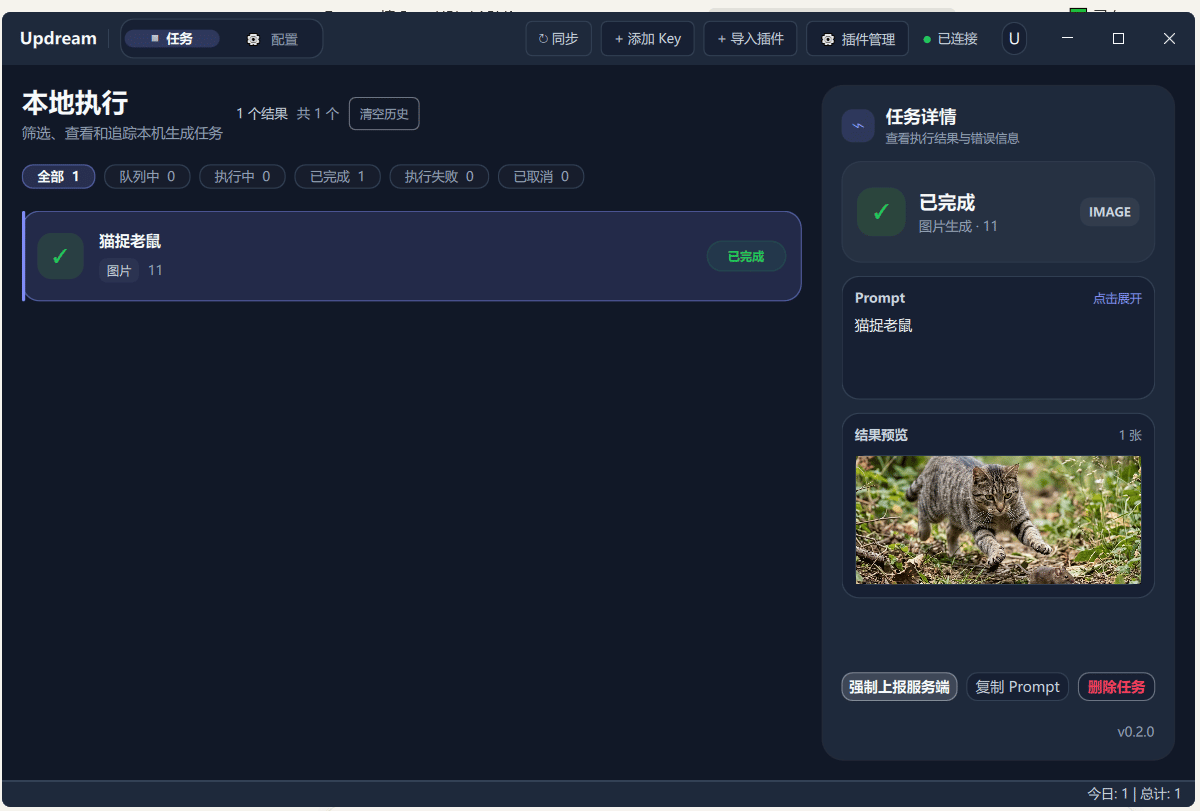 The v0.2.0 default layout: a "Local execution" task list on the left, a top bar with **Sync / Add Key / Import Plugin / Manage Plugins**, and the version label `v0.2.0` at the bottom-right.
### Step 1: Import the plugin
The v0.2.0 default layout: a "Local execution" task list on the left, a top bar with **Sync / Add Key / Import Plugin / Manage Plugins**, and the version label `v0.2.0` at the bottom-right.
### Step 1: Import the plugin
 Click the **Import Plugin** button at the top. In the file picker, select the downloaded `updream-openai-compatible-v1.updplugin` and **confirm the install** when asked. The author recommends reviewing `plugin.py` before confirming.
### Step 2: Verify the install
Click the **Import Plugin** button at the top. In the file picker, select the downloaded `updream-openai-compatible-v1.updplugin` and **confirm the install** when asked. The author recommends reviewing `plugin.py` before confirming.
### Step 2: Verify the install
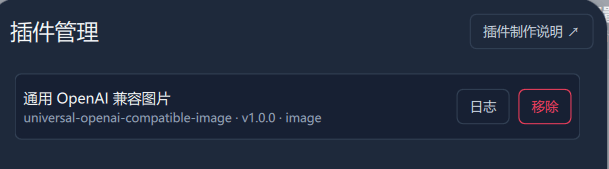 In the **Manage Plugins** page you'll see **Universal OpenAI-compatible Image** (universal-openai-compatible-image · v1.0.0 · image). At this point the desktop client is ready to call any OpenAI Images-compatible upstream.
### Step 3: Add a key
In the **Manage Plugins** page you'll see **Universal OpenAI-compatible Image** (universal-openai-compatible-image · v1.0.0 · image). At this point the desktop client is ready to call any OpenAI Images-compatible upstream.
### Step 3: Add a key
 Click the **Add Key** button to open the configuration form.
### Step 4: Configure APIYI
Click the **Add Key** button to open the configuration form.
### Step 4: Configure APIYI
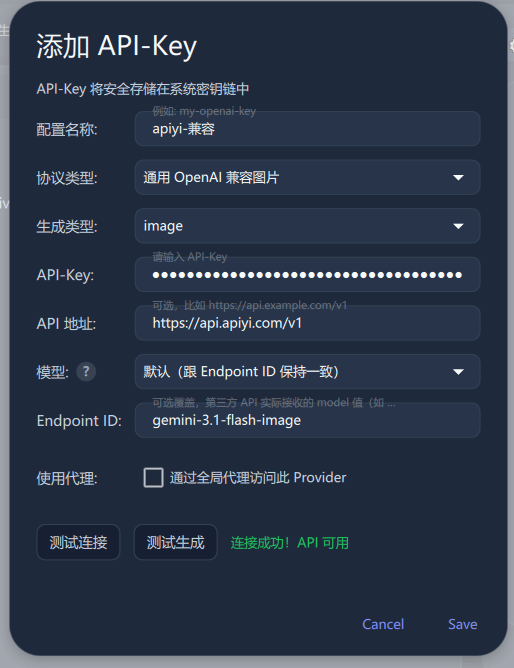 Fill in the form following the example in the screenshot:
| Field | Example |
| ------------------ | ---------------------------------------------------------------- |
| Configuration name | `apiyi-compatible` |
| Protocol type | Universal OpenAI-compatible Image |
| Generation type | `image` |
| API-Key | Your APIYI platform key (read at runtime, never written to code) |
| API base URL | `https://api.apiyi.com/v1` |
| Model | Default (same as Endpoint ID) |
| Endpoint ID | `gemini-3.1-flash-image` (taken from the APIYI model docs) |
Click **Test connection** and **Test generation**. When you see **Connection succeeded! API available**, save the configuration.
### Step 5: Confirm the Provider is enabled
Fill in the form following the example in the screenshot:
| Field | Example |
| ------------------ | ---------------------------------------------------------------- |
| Configuration name | `apiyi-compatible` |
| Protocol type | Universal OpenAI-compatible Image |
| Generation type | `image` |
| API-Key | Your APIYI platform key (read at runtime, never written to code) |
| API base URL | `https://api.apiyi.com/v1` |
| Model | Default (same as Endpoint ID) |
| Endpoint ID | `gemini-3.1-flash-image` (taken from the APIYI model docs) |
Click **Test connection** and **Test generation**. When you see **Connection succeeded! API available**, save the configuration.
### Step 5: Confirm the Provider is enabled
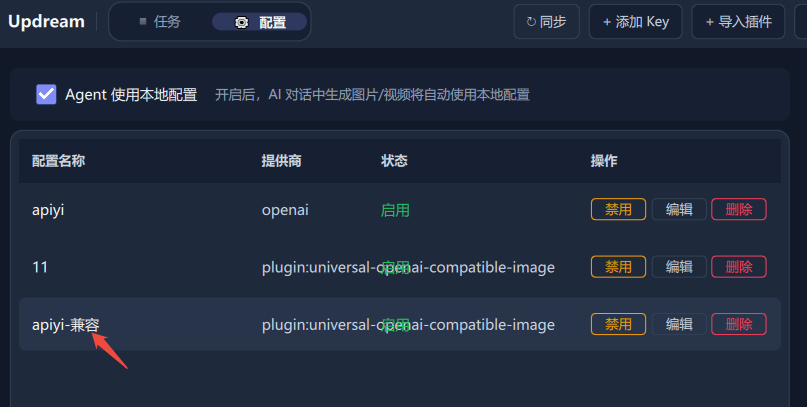 The **Configuration** page's Provider list now shows your new `apiyi-compatible` entry. Its provider identifier is `plugin:universal-openai-compatible-image` and the status is **Enabled**. You can switch between or disable Providers at any time.
After completing the desktop configuration, re-open the Updream **web client**. In the canvas node's image-generation Provider dropdown, select `apiyi-compatible` to issue tasks from the web client and have them executed by the desktop client.
## Usage: Web → Desktop → Web loop
After the five steps above, triggering an image generation from the **Updream web client** will use the `apiyi-compatible` Provider on the desktop side and forwards it to `https://api.apiyi.com/v1/images/generations`. The result flows back to the web canvas node.
The **Configuration** page's Provider list now shows your new `apiyi-compatible` entry. Its provider identifier is `plugin:universal-openai-compatible-image` and the status is **Enabled**. You can switch between or disable Providers at any time.
After completing the desktop configuration, re-open the Updream **web client**. In the canvas node's image-generation Provider dropdown, select `apiyi-compatible` to issue tasks from the web client and have them executed by the desktop client.
## Usage: Web → Desktop → Web loop
After the five steps above, triggering an image generation from the **Updream web client** will use the `apiyi-compatible` Provider on the desktop side and forwards it to `https://api.apiyi.com/v1/images/generations`. The result flows back to the web canvas node.
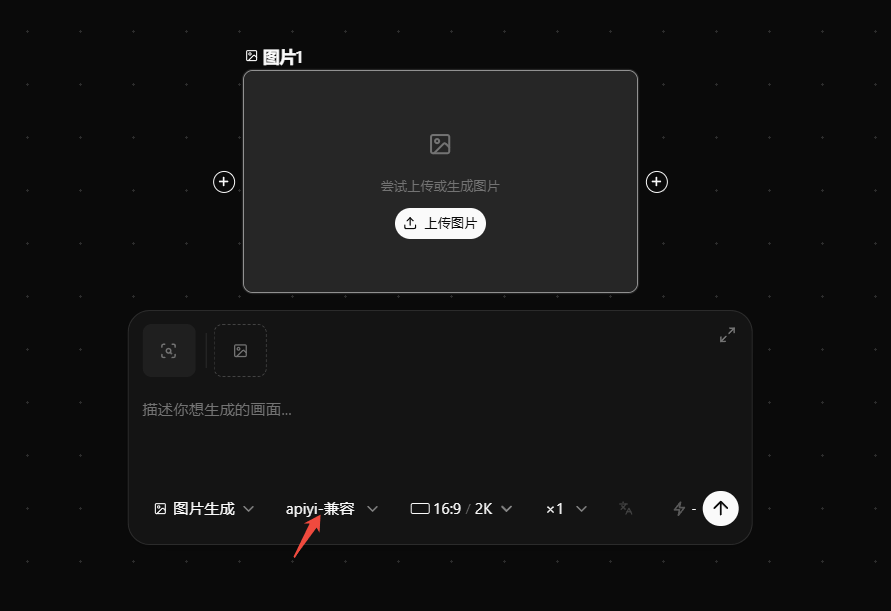 In the screenshot, the panel beneath the canvas shows: Image generation + `apiyi-compatible` (the arrow position) + `16:9 / 2K / ×1`. This is a visible result of a task that started in the Updream web client, ran on the desktop client, and returned to the web canvas.
## FAQ
Make sure the desktop client version is **≥ v0.2.0**. Earlier versions don't have plugin support and you need to upgrade Updream Desktop first.
1. Confirm the `.updplugin` archive contains `plugin.py` directly at the root, matching `manifest.entry`
2. Restart the desktop client
3. In the **Manage Plugins** page confirm the plugin status is not **Disabled**
1. Check that the **Endpoint ID** is spelled correctly and present in APIYI's current model list
2. Verify your account balance is sufficient (see [Why does my account fail even with remaining balance?](/en/faq/balance-insufficient))
3. Check the exact error code on the desktop client's **Local execution** page
The web client does not go through this plugin. Use the web client's **External Model Connector** skill with the OpenAI-compatible protocol configuration, or see [Updream integration with APIYI (web)](/en/scenarios/agent/updream).
Bump `manifest.json.version`, then repackage:
```bash theme={null}
zip -r updream-openai-compatible-v1.updplugin plugin.py manifest.json README.md
```
The ZIP archive must contain `plugin.py` directly at the root.
No. The plugin **ships with no credentials**. The key is stored in the Updream keychain and read at runtime via `cfg.get('api_key')`. Don't paste real keys into `plugin.py`, the README, issues, or chat.
## Related resources
The web client connects to APIYI through the **External Model Connector** skill — no plugin required
The open-source repository this document is based on (MIT license): `github.com/hellojint/updream-openai-compatible-plugin`
Browse the image models and pricing currently supported by APIYI
Best practices for creating and managing API keys
Create dedicated keys, view usage, and set balance caps
API integration and OpenAI-compatible protocol overview
In the screenshot, the panel beneath the canvas shows: Image generation + `apiyi-compatible` (the arrow position) + `16:9 / 2K / ×1`. This is a visible result of a task that started in the Updream web client, ran on the desktop client, and returned to the web canvas.
## FAQ
Make sure the desktop client version is **≥ v0.2.0**. Earlier versions don't have plugin support and you need to upgrade Updream Desktop first.
1. Confirm the `.updplugin` archive contains `plugin.py` directly at the root, matching `manifest.entry`
2. Restart the desktop client
3. In the **Manage Plugins** page confirm the plugin status is not **Disabled**
1. Check that the **Endpoint ID** is spelled correctly and present in APIYI's current model list
2. Verify your account balance is sufficient (see [Why does my account fail even with remaining balance?](/en/faq/balance-insufficient))
3. Check the exact error code on the desktop client's **Local execution** page
The web client does not go through this plugin. Use the web client's **External Model Connector** skill with the OpenAI-compatible protocol configuration, or see [Updream integration with APIYI (web)](/en/scenarios/agent/updream).
Bump `manifest.json.version`, then repackage:
```bash theme={null}
zip -r updream-openai-compatible-v1.updplugin plugin.py manifest.json README.md
```
The ZIP archive must contain `plugin.py` directly at the root.
No. The plugin **ships with no credentials**. The key is stored in the Updream keychain and read at runtime via `cfg.get('api_key')`. Don't paste real keys into `plugin.py`, the README, issues, or chat.
## Related resources
The web client connects to APIYI through the **External Model Connector** skill — no plugin required
The open-source repository this document is based on (MIT license): `github.com/hellojint/updream-openai-compatible-plugin`
Browse the image models and pricing currently supported by APIYI
Best practices for creating and managing API keys
Create dedicated keys, view usage, and set balance caps
API integration and OpenAI-compatible protocol overview