> ## Documentation Index
> Fetch the complete documentation index at: https://docs.apiyi.com/llms.txt
> Use this file to discover all available pages before exploring further.
# Nano Banana OSS グループ
> Nano Banana OSS (NB-OSS) ベータグループ: 画像出力は Base64 ではなく URL になり、転送オーバーヘッドを削減して体験を向上させます。URL を直接使用するシナリオに最適です。
## 背景(最初にお読みください)
**概要**: これはベータグループで、画像出力が Base64 ではなく **URL** であるため、Base64 の転送オーバーヘッドを削減し、顧客体験を向上させます。**URL を直接使用するシナリオに最適です。** 特別な要件がなく、Base64 エンコードされた画像出力を扱える場合でも、「Normal Default Group」または「NanoBanana Enterprise Group」の使用をおすすめします。
**対応モデル**(Nano Banana Pro と Gen 1):
* `gemini-3-pro-image-preview`
* `gemini-3.1-flash-image-preview`
* `gemini-2.5-flash-image`
## 始め方
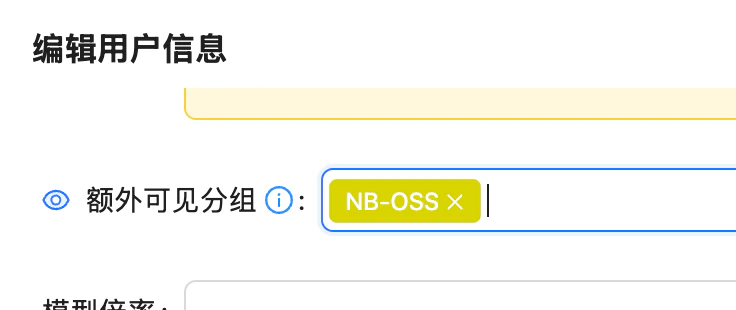
アカウントで NB-OSS の表示グループを有効にするよう管理者に連絡してください(「Edit User Info → Extra Visible Groups」に NB-OSS を追加します)。
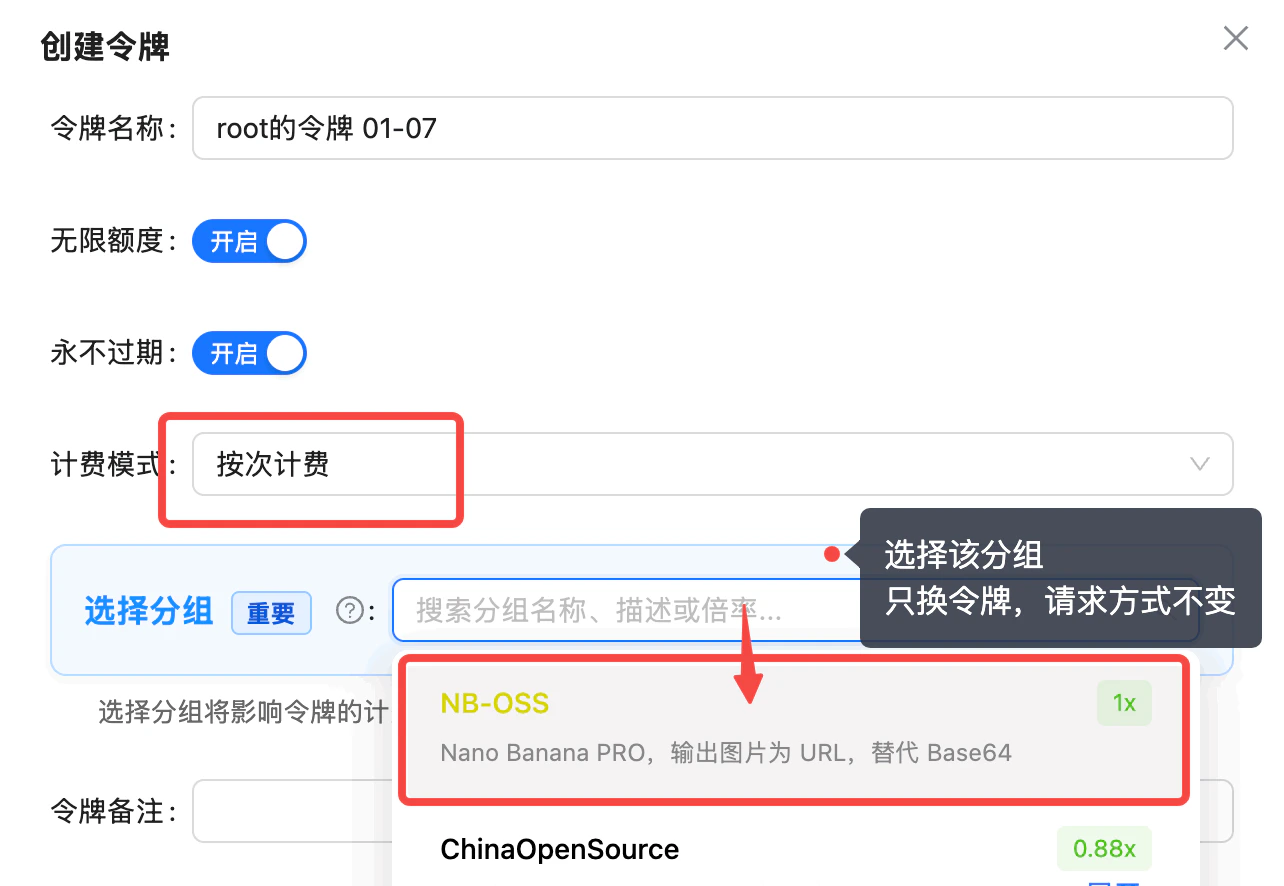
 token を作成するときは、課金モデルを「per-call billing」に設定し、**NB-OSS** グループを選択してください(Nano Banana PRO、画像出力は Base64 ではなく URL になります)。置き換えるのは token だけで、リクエスト形式はそのままです。
 token を差し替えてテストを実行してください。**コード側で URL 出力のパースに対応する必要があります**。Base64 を単純に置き換えるのではなく、両方をサポートするのが最適です。
## コード例
```bash theme={null}
curl --location 'https://api.apiyi.com/v1beta/models/gemini-3-pro-image-preview:generateContent' \
--header 'Authorization: Bearer sk-' \
--header 'Content-Type: application/json' \
--data '{
"contents": [
{
"parts": [
{
"fileData": {
"fileUri": "https://raw.githubusercontent.com/apiyi-api/ai-api-code-samples/refs/heads/main/Vision-API-OpenAI/otter.png",
"mimeType": "image/png"
}
},
{
"text": "add five dogs"
}
],
"role": "user"
}
],
"generationConfig": {"responseModalities": ["IMAGE"],
"imageConfig": {
"aspectRatio": "16:9",
"imageSize": "2K"
}},
"safetySettings": []
}' > output.json
```
### 出力例
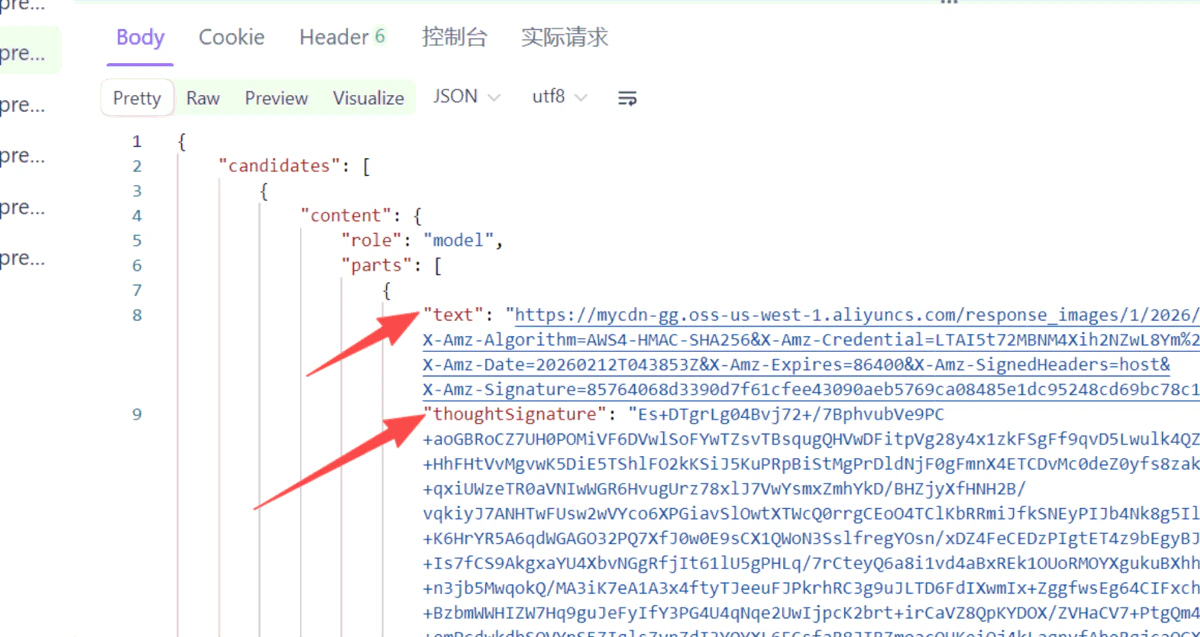
画像 URL は `text` フィールドにあり、下の `thoughtSignature` は推論プロセスの base64 です。
token を差し替えてテストを実行してください。**コード側で URL 出力のパースに対応する必要があります**。Base64 を単純に置き換えるのではなく、両方をサポートするのが最適です。
## コード例
```bash theme={null}
curl --location 'https://api.apiyi.com/v1beta/models/gemini-3-pro-image-preview:generateContent' \
--header 'Authorization: Bearer sk-' \
--header 'Content-Type: application/json' \
--data '{
"contents": [
{
"parts": [
{
"fileData": {
"fileUri": "https://raw.githubusercontent.com/apiyi-api/ai-api-code-samples/refs/heads/main/Vision-API-OpenAI/otter.png",
"mimeType": "image/png"
}
},
{
"text": "add five dogs"
}
],
"role": "user"
}
],
"generationConfig": {"responseModalities": ["IMAGE"],
"imageConfig": {
"aspectRatio": "16:9",
"imageSize": "2K"
}},
"safetySettings": []
}' > output.json
```
### 出力例
画像 URL は `text` フィールドにあり、下の `thoughtSignature` は推論プロセスの base64 です。
 ## OSS ストレージのリージョンとダウンロード速度
### 画像はどこに保存されていますか?
出力画像の URL は **Alibaba Cloud OSS のロサンゼルス(US West、`us-west-1`、北米リージョン)** にホストされています。URL は次のような形式です。
```
https://.oss-us-west-1.aliyuncs.com/xxxx.png
```
URL のサブドメイン部分(``、例: `mycdn-gg`)は**将来変更される可能性があります。コードやファイアウォールルールにフルドメインをハードコードしないでください**。ドメインを照合または allowlist する必要がある場合は、サフィックス `oss-us-west-1.aliyuncs.com`(Alibaba Cloud の公式 OSS ドメイン)を照合するか、より緩く `*.aliyuncs.com` を許可してください。
### ダウンロードが遅いですか?
保存ノードが北米にあるため、一部の地域(例: 中国本土)からの直接ダウンロードは遅くなる場合があります。よくある原因と対処法は次のとおりです。
* **海外トラフィックに対する社内ネットワークのスロットリング / allowlist ブロック**: ネットワーク管理者に、`*.oss-us-west-1.aliyuncs.com`(または `*.aliyuncs.com`)へのレート制限の解除と許可リスト登録を依頼してください。
* **すぐに再ホストする**: URL を受け取ったらすぐに画像をダウンロードし、エンドユーザーに配信する前に自分のストレージ / CDN に再アップロードしてください。OSS の URL を長期的にエンドユーザーへ公開しないでください。
* **サーバー経由でダウンロードする**: ローカルネットワークが遅い場合は、まず海外サーバー(またはネットワーク経路の良いサーバー)経由でダウンロードし、その後に中継してください。
DNS、ルーティング、越境帯域幅など、その他のネットワークトラブルシューティングのヒントについては、FAQ の [CDN の画像/動画ダウンロードが遅い場合はどうすればよいですか?](/ja/faq/cdn-download-slow) をご覧ください。
### URL が開けませんか?
重要なのは、出力 JSON 内のエスケープされたシーケンス `\u0026` を通常の `&` に戻し、`thoughtSignature` の後ろにある base64 コンテンツは無視することです。
## OSS ストレージのリージョンとダウンロード速度
### 画像はどこに保存されていますか?
出力画像の URL は **Alibaba Cloud OSS のロサンゼルス(US West、`us-west-1`、北米リージョン)** にホストされています。URL は次のような形式です。
```
https://.oss-us-west-1.aliyuncs.com/xxxx.png
```
URL のサブドメイン部分(``、例: `mycdn-gg`)は**将来変更される可能性があります。コードやファイアウォールルールにフルドメインをハードコードしないでください**。ドメインを照合または allowlist する必要がある場合は、サフィックス `oss-us-west-1.aliyuncs.com`(Alibaba Cloud の公式 OSS ドメイン)を照合するか、より緩く `*.aliyuncs.com` を許可してください。
### ダウンロードが遅いですか?
保存ノードが北米にあるため、一部の地域(例: 中国本土)からの直接ダウンロードは遅くなる場合があります。よくある原因と対処法は次のとおりです。
* **海外トラフィックに対する社内ネットワークのスロットリング / allowlist ブロック**: ネットワーク管理者に、`*.oss-us-west-1.aliyuncs.com`(または `*.aliyuncs.com`)へのレート制限の解除と許可リスト登録を依頼してください。
* **すぐに再ホストする**: URL を受け取ったらすぐに画像をダウンロードし、エンドユーザーに配信する前に自分のストレージ / CDN に再アップロードしてください。OSS の URL を長期的にエンドユーザーへ公開しないでください。
* **サーバー経由でダウンロードする**: ローカルネットワークが遅い場合は、まず海外サーバー(またはネットワーク経路の良いサーバー)経由でダウンロードし、その後に中継してください。
DNS、ルーティング、越境帯域幅など、その他のネットワークトラブルシューティングのヒントについては、FAQ の [CDN の画像/動画ダウンロードが遅い場合はどうすればよいですか?](/ja/faq/cdn-download-slow) をご覧ください。
### URL が開けませんか?
重要なのは、出力 JSON 内のエスケープされたシーケンス `\u0026` を通常の `&` に戻し、`thoughtSignature` の後ろにある base64 コンテンツは無視することです。
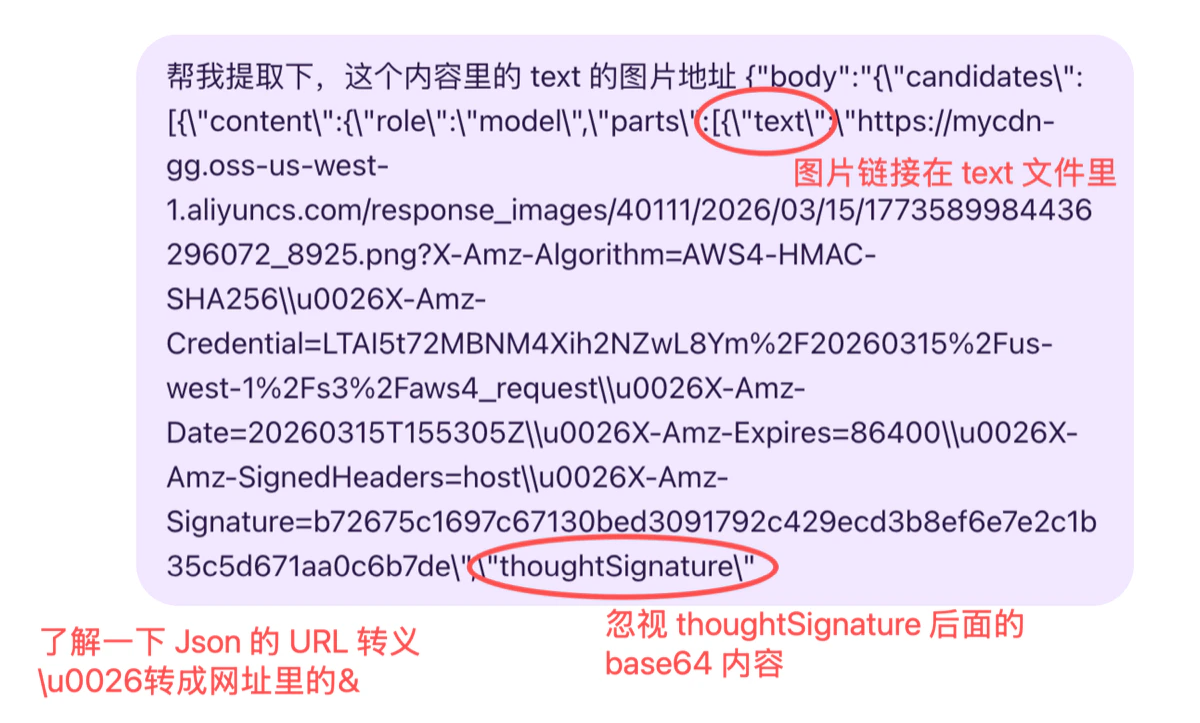 の後ろにある base64 コンテンツは無視してください。