

What is Updream?
Updream combines Agent conversations, a node-based infinite canvas, a Skill library, and multi-model generation to support the workflow from ideas and scripts to storyboards, assets, and video creation. You can start with a one-line idea, story outline, existing script, or reference material and use the Agent to refine the creative direction. After confirming the plan, you can continue with scripts, storyboards, characters, scenes, props, and other creative assets. Frequently used creative practices can also be saved as Skills and reused across projects. The official site describes these core capabilities:- Agent-assisted ideation: Refine creative direction and content plans through natural-language conversations.
- Script and storyboard generation: Turn ideas into scripts, storyboard tables, and shot-level assets.
- Infinite-canvas workflows: Organize text, images, video, and other creative assets with nodes.
- Skill library: Save prompt optimization, character design, and style-consistency practices as reusable Skills.
- Multi-model creation: Choose image, video, or other model capabilities for each task.
gpt-image-2; check the current APIYI model documentation for the exact model ID and parameters.
Why connect Updream to APIYI?
Connecting Updream to APIYI lets you:- Configure external models with one API key.
- Enter the Base URL, API key, and model ID directly in Updream.
- Switch between APIYI models based on the creative task.
- Reuse generated images as storyboard, character, scene, or other creative assets.
- Keep Updream’s Agent, Skill, and canvas workflow.
Before you start
Prepare the following:- Updream installed and signed in.
- A valid APIYI API key.
- Available balance in your APIYI account.
- The model ID you want to use, such as
gpt-image-2.
Step 1: Open the External Model Connector
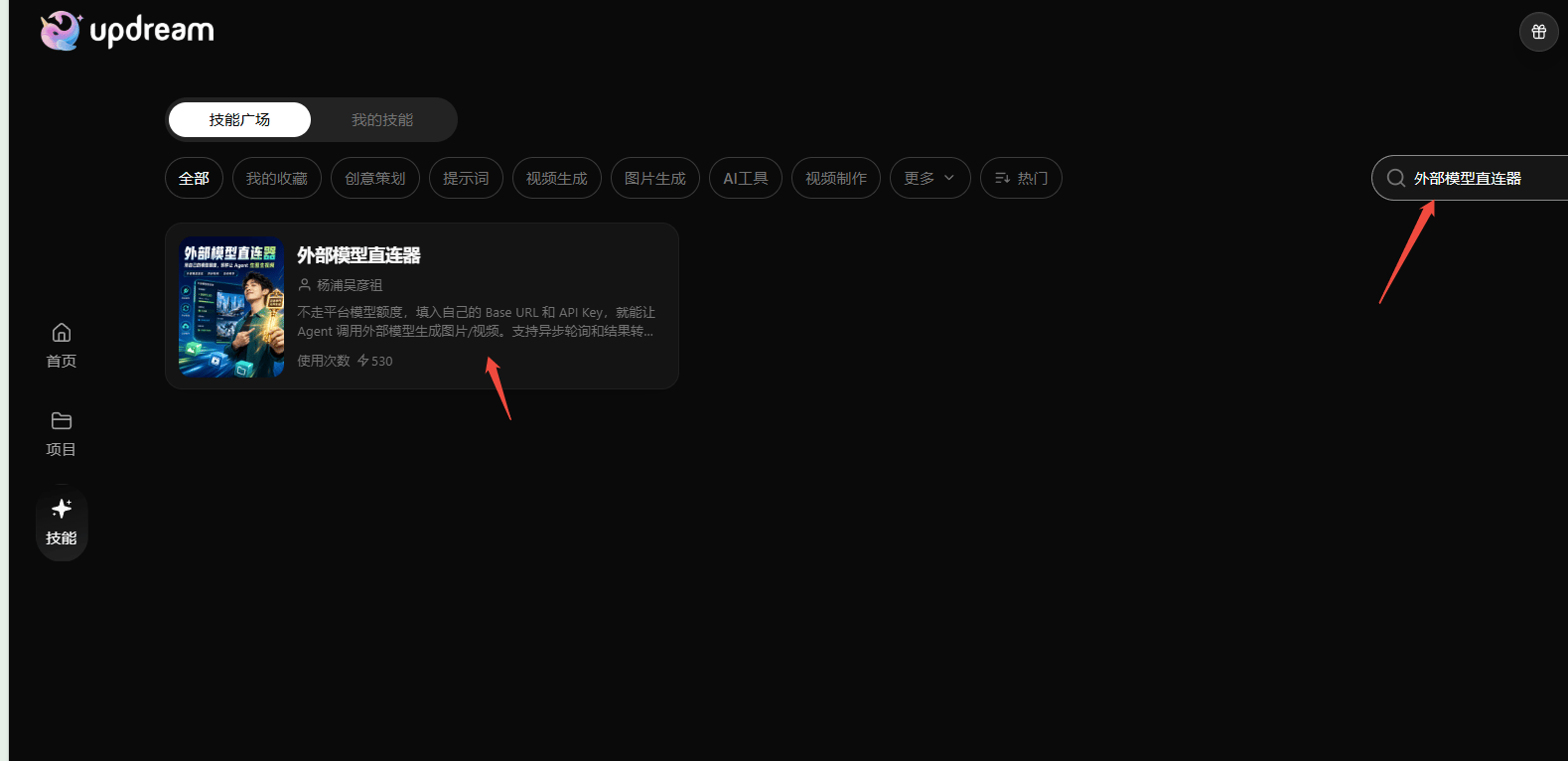
- Open Updream and select Skills in the left sidebar.
- Open Skill Marketplace.
- Search for External Model Connector.
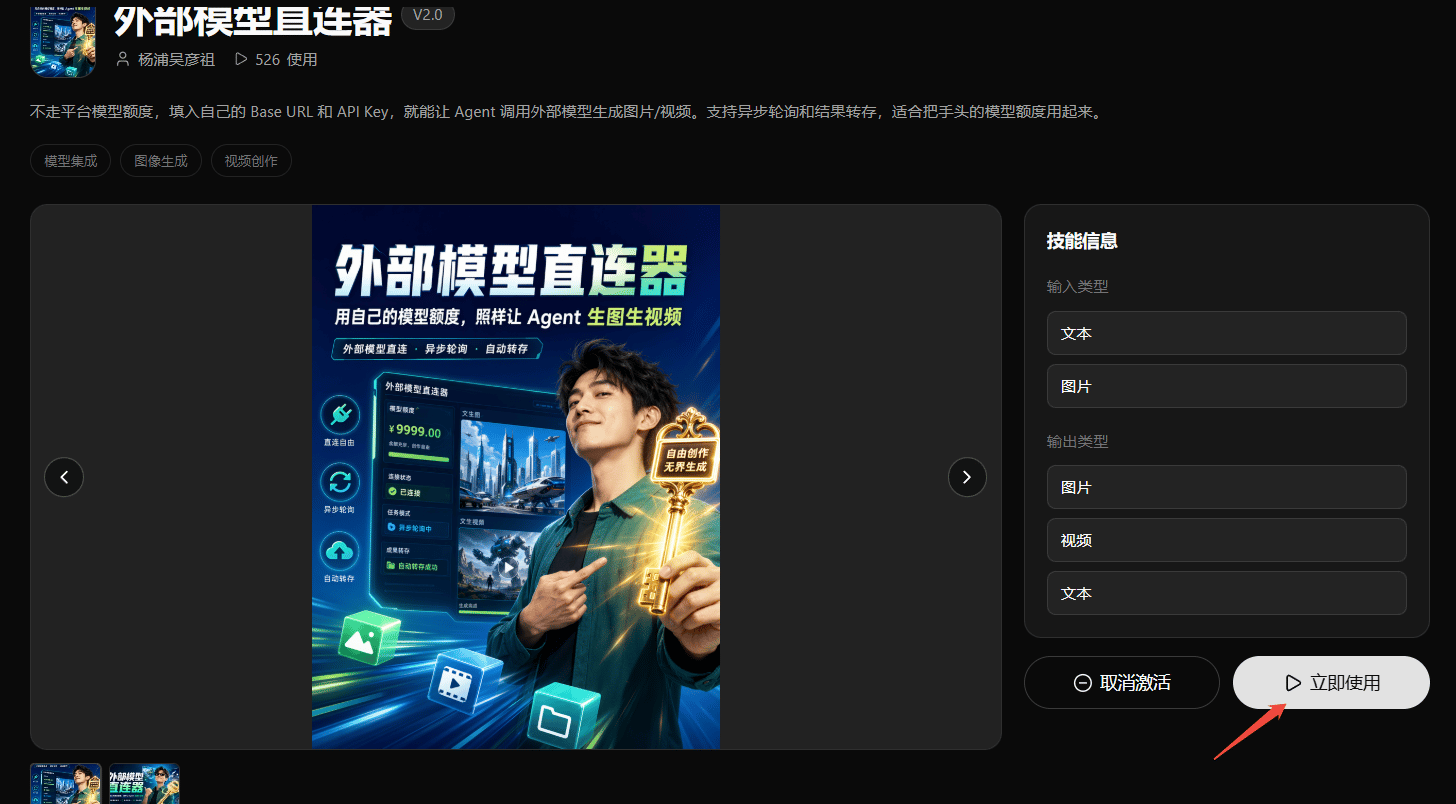
- Select the External Model Connector result.
- Click Use Now.
Step 2: Choose the connection protocol
In the Connection step, choose:OpenAI Compatible (Recommended)Enter the APIYI Base URL and API key in the custom response. The APIYI Base URL shown in the screenshot is:
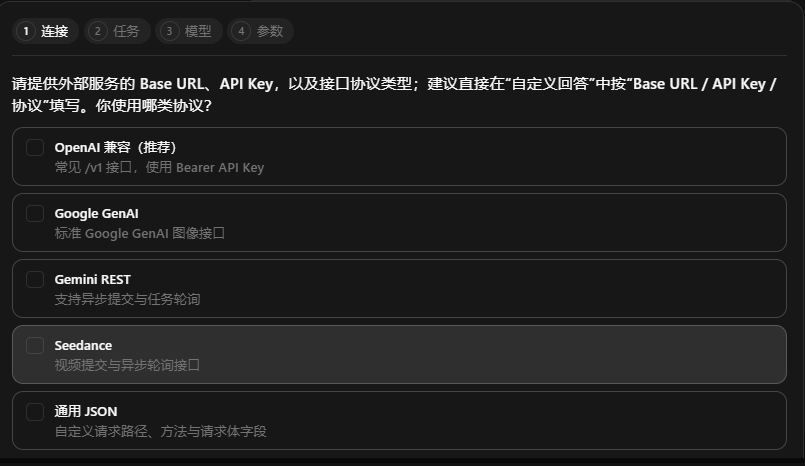
This guide uses the OpenAI-compatible configuration shown in the screenshot. Google GenAI, Gemini REST, Seedance, and Generic JSON are outside the scope of this verified configuration. Do not reuse this page’s parameters for those protocols without checking their requirements.
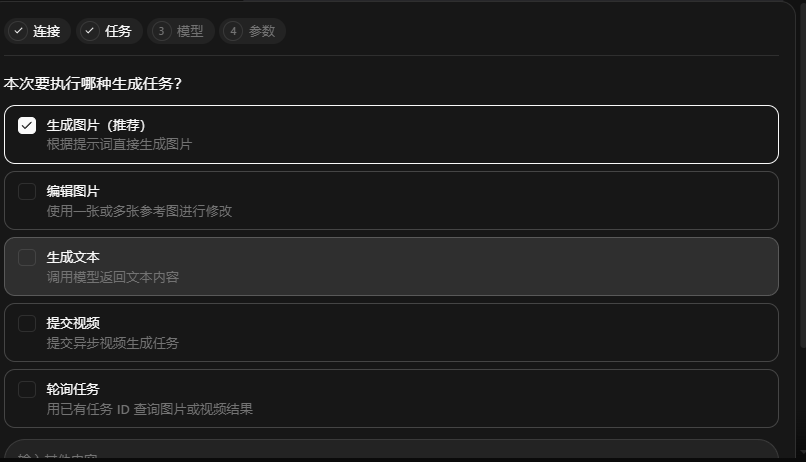
Step 3: Choose the task type
In the Task step, choose:Generate Image (Recommended)
Step 4: Choose how to provide the model
In the Model step, choose:Model Name as Interface ID
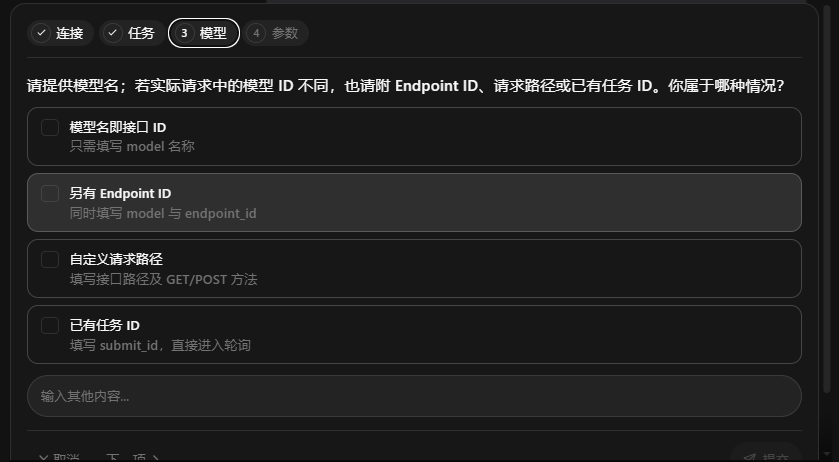
Step 5: Choose how to provide parameters
In the Parameters step, choose:I Provide Complete Parameters (Recommended)
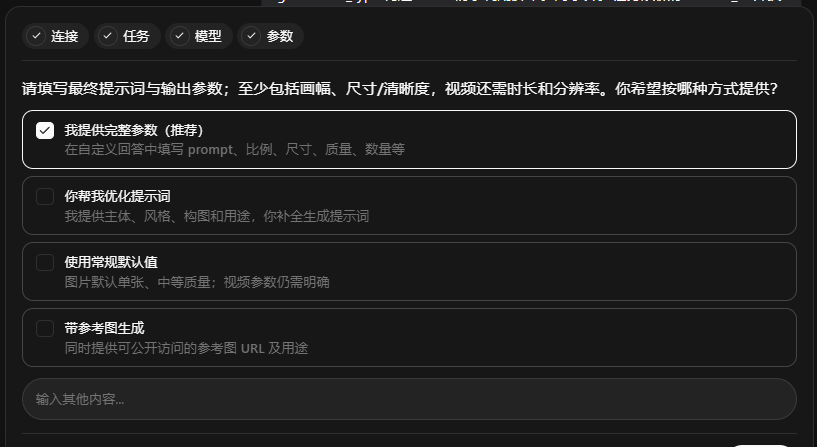
Step 6: Provide API credentials
In the Credentials step, choose:Fill It In Now (Recommended)
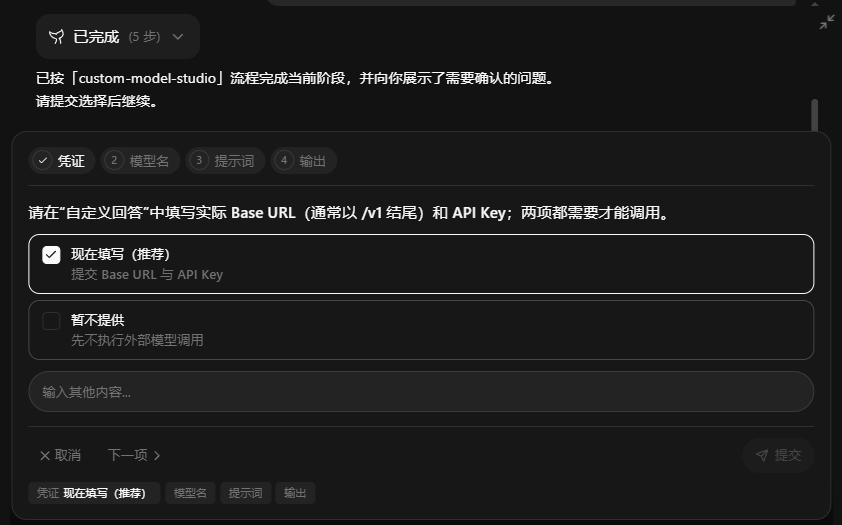
Step 7: Provide the model name
In the Model Name step, choose:Fill It In Now (Recommended)
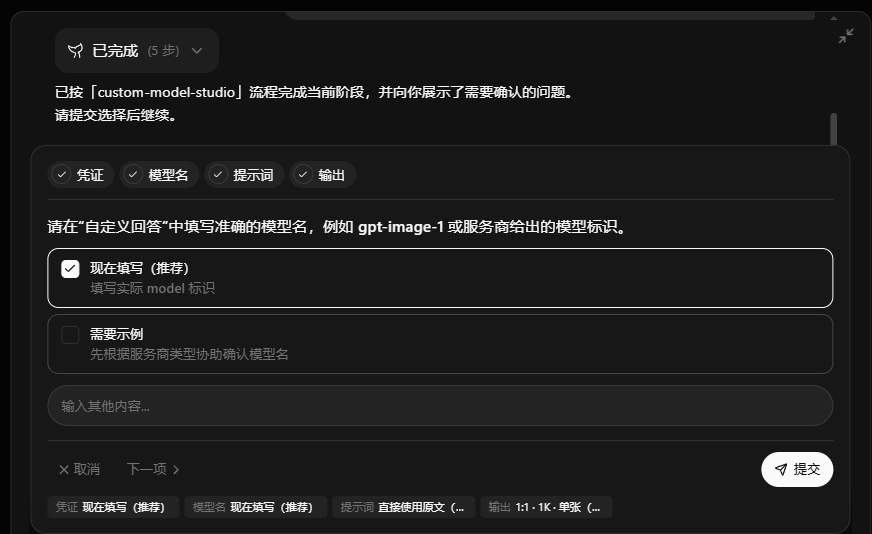
Step 8: Provide the image prompt
In the Prompt step, choose:Use the Original Text (Recommended)
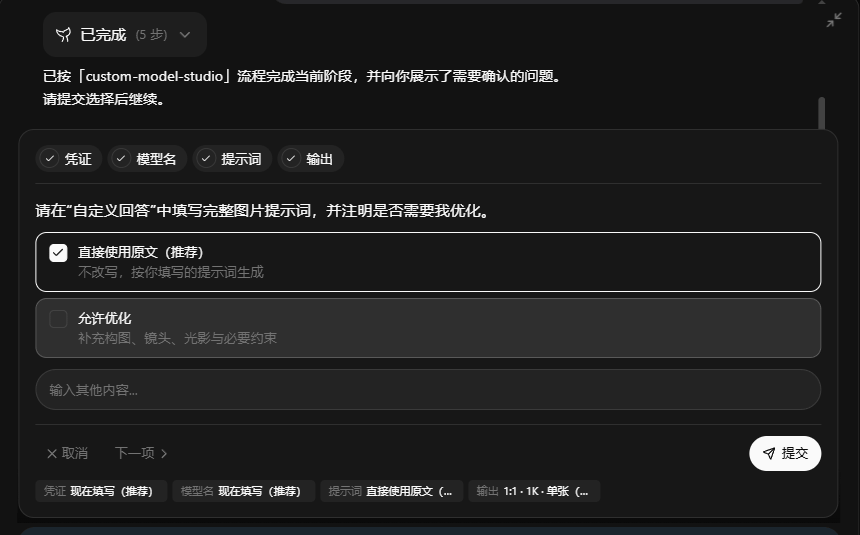
Step 9: Choose the output parameters
In the Output step, choose:1:1 · 1K · Single (Recommended)
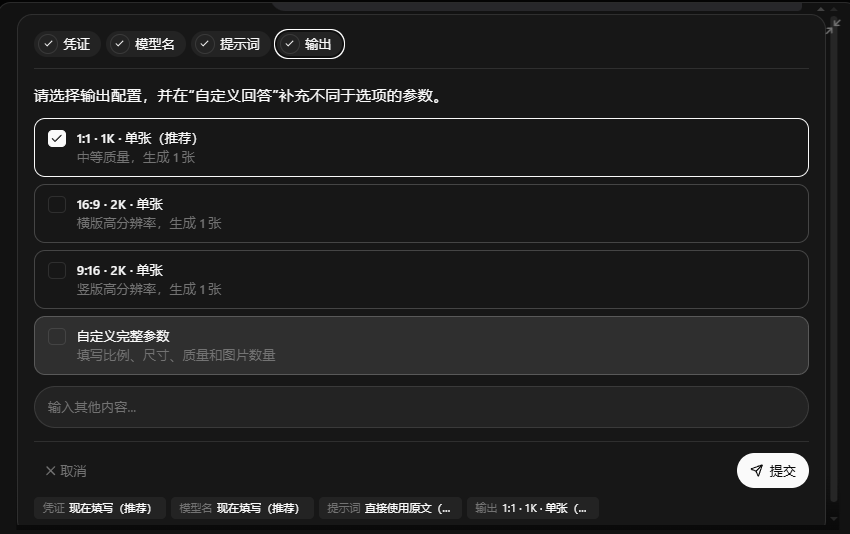
Updream also shows
16:9 · 2K · Single, 9:16 · 2K · Single, and Custom Complete Parameters. The available size, quality, and count depend on the selected model. Follow the model documentation and the options currently available in the interface.
Step 10: Submit the APIYI configuration
After completing the previous choices, Updream asks you to submit the configuration in a specified format. The screenshot shows this example format: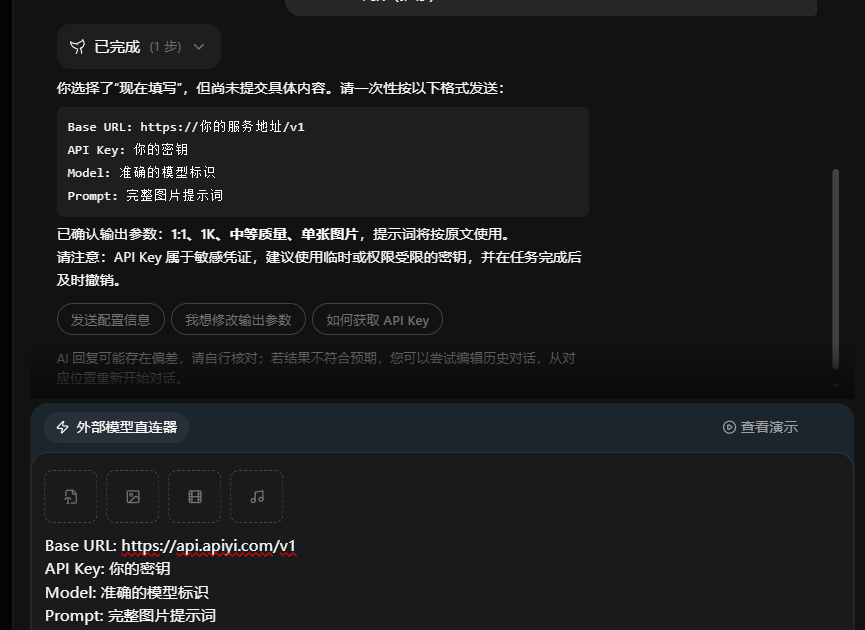
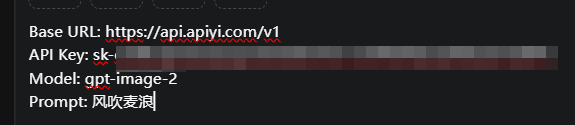
- The Base URL is
https://api.apiyi.com/v1. - The API key has been replaced with your own APIYI key.
- The model ID is correct.
- The prompt contains the complete image requirements.
- The output size, quality, and count are within the selected model’s capabilities.
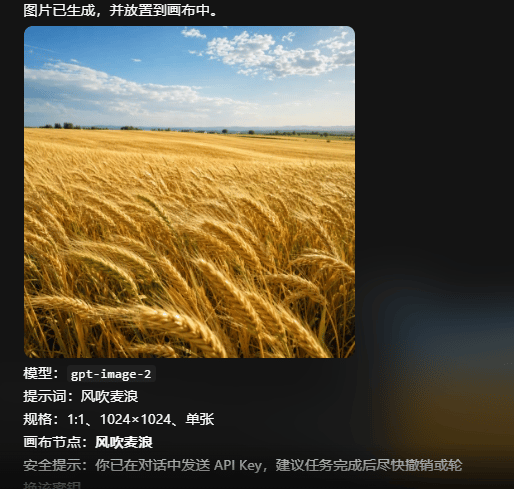
Step 11: View the generated result
After submission, Updream displays the generated result. The screenshot example shows:- Model:
gpt-image-2 - Prompt:
Wind blowing through a wheat field - Format: 1:1
- Resolution: 1024 × 1024
- Count: Single image
See the latest model recommendations
See the Latest Model Recommendations
See current model recommendations, capability comparisons, and usage guidance. The list is continuously updated.
Model IDs and interface parameters change over time. Check the APIYI model recommendations and the documentation for the selected model for current IDs, image sizes, quality options, and task limits.
FAQ
What Base URL should I use?
What Base URL should I use?
For the OpenAI-compatible flow verified in this guide, use
https://api.apiyi.com/v1. Other protocols use different addresses and parameters and should not be mixed with this configuration.What should I enter as the model name?
What should I enter as the model name?
Enter the exact model ID from the APIYI documentation, such as the
gpt-image-2 shown in the screenshots. A misspelled model ID can cause a model-not-found or request error.Can I keep the API key configured permanently?
Can I keep the API key configured permanently?
This is not recommended. Use a temporary or restricted key when possible, and revoke or remove unused credentials after the task is complete.
Can I use this exact configuration to generate videos?
Can I use this exact configuration to generate videos?
Do not assume that you can. The External Model Connector interface shows video submission and task polling, but video tasks require separate settings based on the actual model, protocol, and parameters. This guide only verifies image generation.
Why did the task return no result?
Why did the task return no result?
Check whether the API key is valid, the Base URL is
https://api.apiyi.com/v1, the model ID is correct, the model supports the selected image task, and your APIYI account has sufficient balance. If the issue continues, check both Updream’s task message and the error returned by APIYI.Why does the result not exactly match the prompt?
Why does the result not exactly match the prompt?
Image models interpret and generate from prompts. Try removing unrelated details, making the subject and composition explicit, placing critical requirements earlier in the prompt, or turning off Allow Optimization and submitting the original prompt.
Desktop client
Need to run tasks locally on the desktop client? See Updream Desktop Integration with APIYI.Related resources
Updream Official Website
www.updream.cnAPIYI Model Recommendations
See current models, capabilities, and usage guidance.
APIYI API Key Management
Get and manage API keys.
APIYI API Documentation
Learn about API integration and API calls.