

Core capability: side-by-side model comparison
ChatHub’s biggest differentiator from other clients is multi-model parallel Q&A:- Send the same question to 2–6 models in one tab
- View their answers in either side-by-side or table layout
- Any combination works: GPT-5.5 + Claude Opus 4.7 + Gemini 3 Pro + DeepSeek V4 together
- Comparison view supports Markdown rendering, code highlighting, and image previews
Install
Visithttps://chathub.gg/zh-CN/download to install ChatHub.
Quick setup (OpenAI-compatible mode)
This is the most universal setup and supports all 400+ models on APIYI.Step 1: Get an API key
Refer to API key creation and management to get your APIYI key.Step 2: Open ChatHub settings
- Click the ChatHub icon in the top-right corner of your browser
- In the popup, click the Settings (gear) icon in the top-right
- Go to the Custom Providers tab
Step 3: Add the APIYI provider
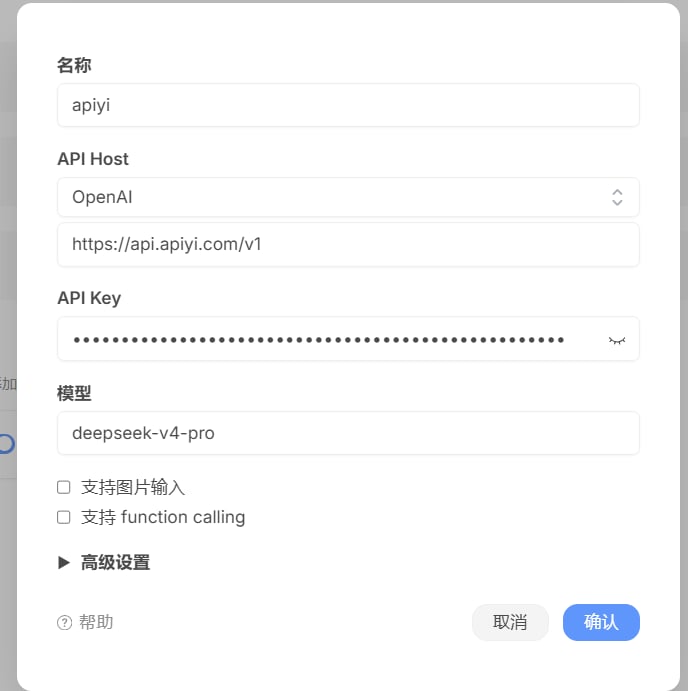
- Name:
apiyi(anything that helps you tell this provider apart in the list) - API Host: pick
OpenAIfrom the dropdown, and puthttps://api.apiyi.com/v1in the URL field below it - API Key: paste your APIYI key
- Model: a model you use often, e.g.
deepseek-v4-pro
- Image input: enable if the model supports vision (e.g.
gpt-5-chat-latest,gemini-3-pro-preview,claude-sonnet-4-5) - Function calling: enable if the model supports tool/function calls
- Advanced settings: collapsed by default — expand to customize request headers, timeouts, etc.
Configuration notes
- The API Host URL field must include the
/v1suffix - “Model” is the default; you can switch models anytime during a chat
- No browser restart needed — settings take effect immediately
- To add another provider, repeat this step
Step 4: Pick a model
After saving, return to the ChatHub main interface. The models you just added will appear in the dropdown — switch freely.Three usage modes
Advanced: the strongest compare setup
ChatHub’s killer feature is “run multiple vendors at once”. Through APIYI you can mix any vendor’s models in a single compare session.Recommended compare combinations
Supported models
Through APIYI, ChatHub supports 400+ mainstream AI models, including OpenAI, Google Gemini, Claude, DeepSeek, domestic models, and more.View current recommended models
Latest model recommendations, performance comparisons, and scenario-based usage tips. Covers text creation, programming, fast response, image generation, video generation, and more.
Why no model list on this page?Models iterate very quickly. To make sure you always get accurate recommendations, we maintain the latest list on the Model recommendations page along with benchmarks and usage tips.
Core features
Keyboard shortcuts
Web assistant
Select any text on a web page and ChatHub pops a toolbar that can:- Translate the selected text
- Summarize the selected paragraph
- Rewrite / polish
- Explain code
Conversation management
- Multiple independent conversations with their own contexts
- Local storage of conversation history (no cloud dependency)
- Markdown rendering and code highlighting
- One-click export to Markdown / PDF
Prompt library
Built-in prompt template marketplace; you can also save your own reusable prompts and use variables.Advanced settings
Parameter tuning
Streaming output
Streaming is on by default in ChatHub for a smoother experience.Proxy settings
If you need to access through a proxy:- Go to Settings > Advanced
- Configure the HTTP/HTTPS proxy
- Set proxy authentication if needed
Troubleshooting
Connection failed
- Verify the API Base URL:
https://api.apiyi.com/v1 - Confirm the API key is valid
- Check your network connection
Models not showing
- Wait for the model list to auto-refresh
- Click the “Refresh models” button manually
- Check API key permissions
Compare mode shows only one response
- Make sure you ticked multiple models on the right side of the input box
- Confirm every model comes from a configured provider
Slow response
- Try a faster model
- Check network latency
- Shorten the context
Best practices
Performance optimization
-
Pick models wisely
- Match model size to task complexity
- See Model recommendations for the latest selection tips
-
Compare strategy
- Comparing two similar models (two GPTs) tells you very little
- Pick models with different strengths: one for coding, one for writing, one for reasoning, one for translation
- Don’t compare more than 4 models at once — token usage scales linearly
-
Resource management
- Monitor API usage
- Set spending alerts
- Update the extension regularly
Security tips
- Never share API keys
- Rotate keys periodically
- Protect your browser with a strong password
- Handle sensitive information carefully
Team collaboration
Although ChatHub is primarily for individuals, you can still support teams through:- Shared prompt templates
- Exported conversation records
- Standardized API configuration
Comparison
vs other clients
Why choose ChatHub
- Selection tool: comparing multiple models at once is irreplaceable
- Multi-vendor mix: combine OpenAI / Claude / Gemini / domestic models freely
- Web-native: as a browser extension it’s callable on any page
- Privacy first: conversations stored locally; the extension doesn’t collect your data
- Active development: continuously maintained
Need more help? Visit the ChatHub GitHub repository:
github.com/chathub-dev/chathub or the APIYI website: api.apiyi.com.