

Access Call Logs
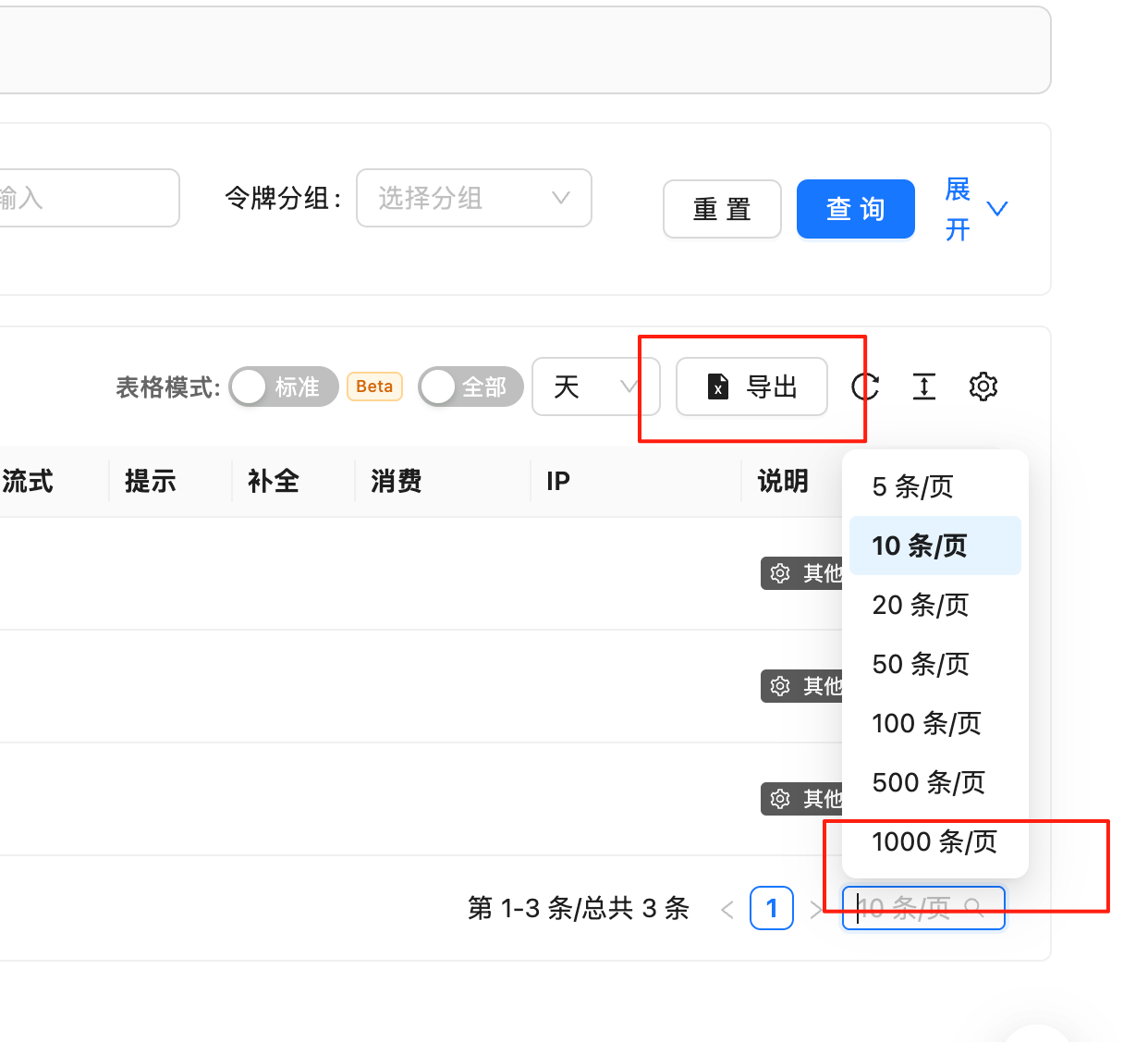
Go to the “Logs” page in top navigation: https://api.apiyi.com/log In the logs section, you can view:- Success record of each call
- Error logs of API calls
- Detailed billing explanations
Log Record Content
Success Call Records
Each successful API request records the following information:- Request Time: Call timestamp accurate to the second
- Model Used: AI model used for this call
- Token Count: Input and output Token quantity statistics
- Billing Amount: Specific cost of this call
- Call Status: Request execution status
Error Logs
Failed API calls record:- Error Type: Specific error classification
- Error Message: Detailed error description
- Occurrence Time: Error occurrence timestamp
- Related Parameters: Request parameter information that caused the error
Privacy and Data Policy
Data Privacy ProtectionFor privacy protection and data storage cost considerations, our logging system:
- Does not record detailed input and output content
- Only retains basic Token count information
- Stores only necessary log data required for billing
- Ensures user data privacy security
Log Viewing Tips
Filtering Features
- Filter by time range: View call records for a specific time period
- Filter by model: View usage of specific AI models
- Filter by status: Distinguish between successful and failed call records
Billing Analysis
- Single call cost: Specific cost of each API call
- Token usage efficiency: Input-output Token ratio analysis
- Model cost comparison: Usage cost statistics for different models